Companion Apps
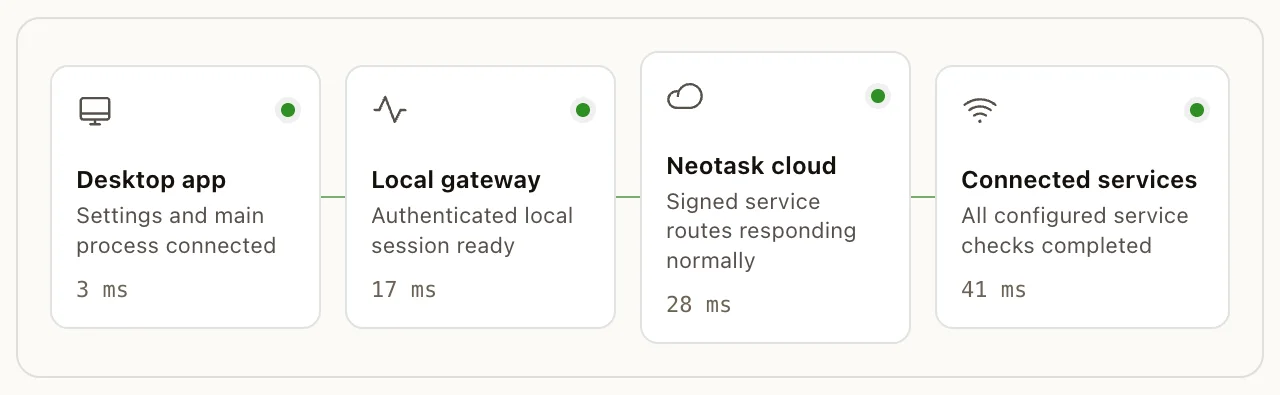
Confirm The Desktop Connection First
Before pairing another device, open Settings → Gateway on the desktop app and confirm that the current Gateway is connected and healthy.
What Are Companion Apps?
Companion apps are native applications for iOS, Android, and macOS that connect to your Gateway as nodes. Nodes expose device capabilities, camera, canvas, screen recording, location, voice, and system execution, to your agents.
Think of it this way: the Gateway is the brain, and companion apps are the hands and eyes on your devices.
How Nodes Work
- Connect, The companion app connects to your Gateway over WebSocket
- Pair, New devices go through a pairing approval process
- Register capabilities, The app tells the Gateway what it can do (camera, canvas, location, etc.)
- Agents invoke, During conversations, agents can request the node to take a photo, record screen, render a canvas, and more
Nodes are not gateways, they don't run their own AI. They're peripheral devices that extend what your agents can do.
macOS Companion App
The macOS app lives in your menu bar and serves as both a companion node and a gateway manager.
Capabilities
- Canvas, Render interactive web content in a native window
- Camera, Take photos and video clips (front/back)
- Screen Recording, Full-screen or per-app recording
- System Execution, Run shell commands on the Mac (gated by exec approvals)
- Notifications, Send native macOS notifications with priority options
- Location, GPS when available
Additional Features
- Gateway Management, Start, stop, and monitor the Gateway
- Permission Ownership, Manages macOS TCC permissions (Notifications, Accessibility, Screen Recording, Microphone, Speech Recognition, AppleScript)
- Deep Links,
neotask://URL scheme for launching agents with parameters - CLI Install, Installs the
neotaskcommand-line tool
iOS App
The iOS app connects as a node to your Gateway, bringing mobile capabilities to your agents.
Capabilities
- Canvas, SwiftUI-based interactive content rendering
- Camera, Photos and video clips (front/back cameras)
- Audio Recording, Microphone capture
- Location, GPS with accuracy selection
- Notifications, Native iOS push notifications
Features
- Discovery, Finds your Gateway via Bonjour (LAN), Tailscale (VPN), or manual entry
- Pairing, Secure device pairing with approval from the Gateway
- Voice Wake, Wake word activation for hands-free interaction
- Talk Mode, Continuous voice conversation
- Share Extension, Share content from other apps directly to your agent
- A2UI, Agent-driven UI rendering on the device canvas
Limitations
- Foreground-first design (iOS suspends WebSocket connections in background)
- Strict background command restrictions
- Currently in internal preview
Android App
The Android app connects as a node with capabilities similar to iOS.
Capabilities
- Canvas, Jetpack Compose-based UI rendering
- Camera, Photos and video (front/back, permission-gated)
- Screen Recording, System screen capture (Android 10+)
- Location, GPS with accuracy modes
- SMS Sending, On devices with telephony support
- Chat & History, View conversation history on device
Features
- Foreground Service, Persistent notification keeps the connection alive
- Shared Sessions, Same session across all connected nodes
- Modern Android, Requires Android 12+ (API 31)
Headless Node Host
Run a node without any UI, ideal for build servers, remote machines, or headless Linux boxes.
Capabilities
- System Execution, Run commands on the node host
- Command Allowlist, Configure which commands the node can execute
- Persistent Service, Install as launchd/systemd service
Use Cases
- CI/CD build agents, Let your AI agent trigger builds on a remote server
- Home lab automation, Run commands on a Raspberry Pi or home server
- Multi-machine orchestration, Coordinate tasks across multiple machines
Device Pairing
Pairing Flow
- Companion app presents its device identity (fingerprint + public key)
- Gateway issues a pairing approval request
- You approve the device through the desktop app or dashboard
- Gateway issues a device token for future connections
Trust Model
- Local devices (loopback) are auto-approved for convenience
- Non-local devices require explicit approval
- Device tokens are stored locally and reused on reconnect
Exec Approvals
For nodes that can run system commands (macOS, headless hosts), exec approvals control what's allowed:
- Allowlist mode, Only pre-approved commands can execute
- Ask mode, Unknown commands prompt you for approval
- Full mode, No restrictions (use with caution)
Configure per-node allowlists to precisely control what each device can do.