Gateway
Check The Gateway From The Desktop App
- Open Settings.
- Select Gateway.
- Check the connection path and runtime status.
- Open Gateway preferences before changing the host, port, or launch behavior.
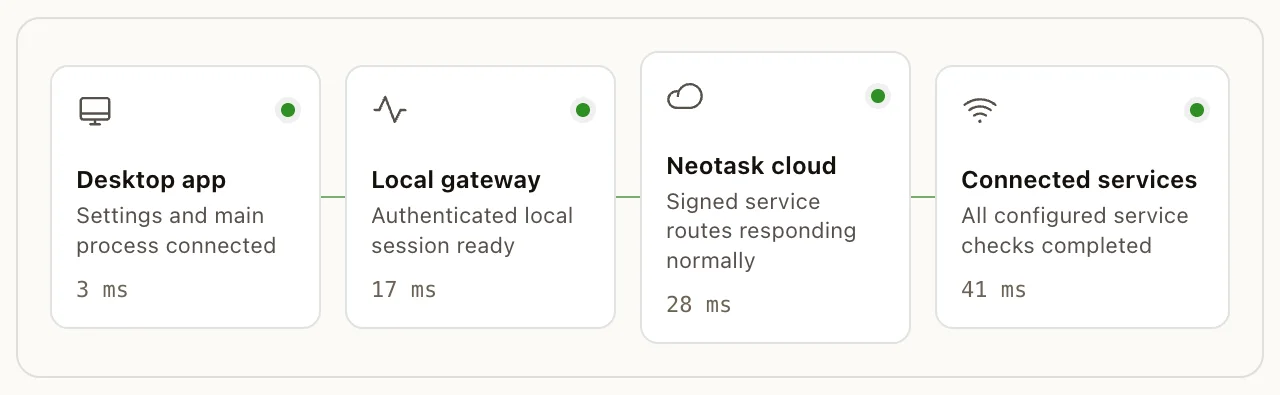
What Is the Gateway?
The Gateway is the heart of Neotask, a single long-running service that manages all agent sessions, messaging channels, tool execution, and device connections. Everything flows through the Gateway.
It's a WebSocket server that listens for connections from clients (desktop app, mobile apps, web dashboard) and manages the entire AI assistant lifecycle.
Architecture
Components
- WebSocket Server, Accepts client connections (default port 18789)
- HTTP Server, Serves the Control UI, canvas host, and health endpoints
- Channel Adapters, Maintain connections to messaging platforms (WhatsApp, Telegram, Discord, etc.)
- Session Manager, Persists and manages agent conversation state
- Cron Scheduler, Runs scheduled jobs and heartbeat wakeups
- Plugin Runtime, Loads and manages plugin lifecycle
- Browser Service, Controls Chromium instances for web automation
Binding Modes
| Mode | Description |
|---|---|
| Loopback | Default. Only accessible from localhost (127.0.0.1) |
| LAN | Accessible on your local network. Auto-discoverable via Bonjour/mDNS |
| Tailnet | Accessible through Tailscale VPN with MagicDNS |
| Custom | Bind to a specific address |
Authentication
| Method | Description |
|---|---|
| Token | WebSocket bearer token (UUID or custom string) |
| Password | Password-based auth (bcrypt hashed) |
| Trusted Proxy | For reverse proxies with pre-auth headers |
| Local Trust | Loopback connections auto-approved |
Configuration
Gateway preferences contain the local runtime and launch controls. Confirm the active connection path before changing them.
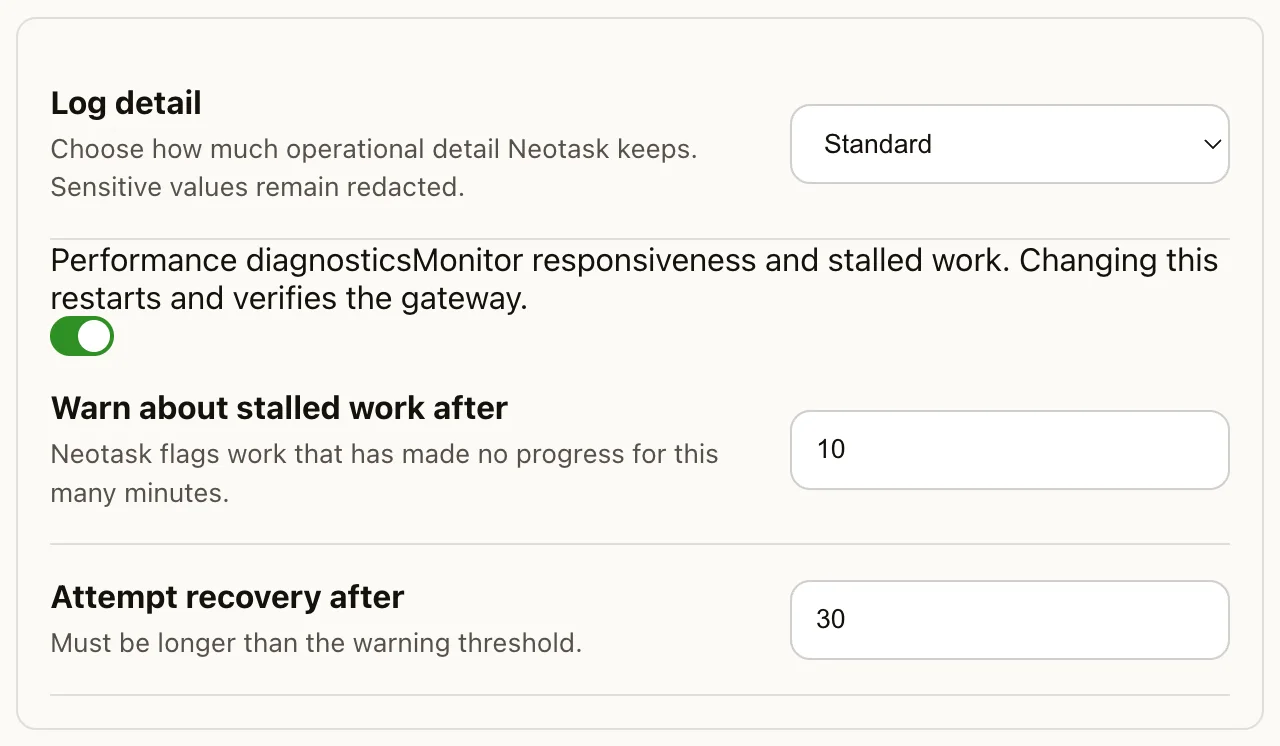
The Gateway is configured via neotask.json (JSON5 format). Key sections:
| Section | Controls |
|---|---|
agents |
Agent list, defaults, workspaces |
gateway |
Port, bind mode, auth, reload behavior |
channels |
Per-channel config and credentials |
tools |
Tool permissions, profiles, security |
plugins |
Plugin loading, enabling, per-plugin config |
models |
Provider auth, fallbacks, provider settings |
skills |
Skill directories, per-skill configuration |
browser |
Browser profiles, ports, headless mode |
cron |
Scheduler configuration |
session |
Reset rules, compaction thresholds |
messages |
TTS settings, media policies |
memory |
Memory indexing configuration |
security |
Sandboxing, elevated mode, approvals |
Hot Reload
Configuration changes can be applied without restarting:
| Mode | Behavior |
|---|---|
| Hybrid (default) | Hot-apply safe changes, restart for others |
| Hot | Only apply hot-safe changes, ignore others |
| Restart | Restart on any reload-required change |
| Off | No automatic reload |
Restart Recovery
After an interruption, an app or Gateway update, a host restart, a crash, or a power loss, the Gateway can resume the work that was in flight: interrupted scheduled runs, interactive agent threads, and coding sessions rebound to their own repository, branch, and worktree. Three environment variables control it.
| Variable | Values | Default | Controls |
|---|---|---|---|
NEOTASK_RESUME_AFTER_RESTART |
1 or 0 |
Set per launch by the desktop app | Master switch for restart recovery in the managed service |
NEOTASK_THREAD_CONTINUATION |
0, false, no, off to disable |
On | Continuing interactive agent threads on the same session after a restart |
NEOTASK_CODING_WORKTREE_BINDING |
0, false, no, off to disable |
On | Binding each coding session to its repository, branch, and worktree, plus worktree repair and safe cleanup |
Notes for operators:
NEOTASK_RESUME_AFTER_RESTARTis written into the managed service environment by the Neotask desktop app from the account-wide and per-company Continue work after restarts setting.NEOTASK_THREAD_CONTINUATIONandNEOTASK_CODING_WORKTREE_BINDINGare opt-out switches. Leave them unset to keep the shipped behavior; set one to0,false,no, oroffto disable that half of recovery while leaving the other in place.- Scheduled run resumption is bounded. Completed work is never re-executed, and blog and email side effects are idempotent across a retry.
- Pending approvals are never resumed by any of these switches. They stay pending.
Remote Access
Tailscale (Recommended)
Tailscale provides secure, zero-config remote access:
- Bind the Gateway to your Tailnet
- Access from any device on the same Tailscale network
- Automatic DNS via MagicDNS
- Tailscale Serve can expose the dashboard with HTTPS
SSH Tunnel
Forward the Gateway port through SSH:
- Simple, secure, no configuration changes needed
- Works with any SSH-capable machine
- Supports the full WebSocket protocol and Control UI
Security Rules
- Loopback + SSH/Tailscale is the safest combination
- Non-loopback binding requires auth token configuration
- TLS fingerprint pinning available for extra security
- Browser control is disabled for remote connections by default
Health Monitoring
Health Endpoint
The /health HTTP endpoint returns:
- Gateway status
- RPC liveness
- Per-channel health (connected, auth status, account count)
- Browser readiness
- Active agents and connected nodes
- Uptime
Probes
- RPC liveness, WebSocket connect + echo test
- Channel health, Auth check + API ping per channel
- Browser readiness, Port check, process check
- Node connectivity, Last heartbeat timestamp
Discovery
Bonjour/mDNS
When bound to LAN, the Gateway advertises itself via multicast DNS:
- Service type:
_neotask-gw._tcp - Includes port, transport, TLS status, and Tailscale DNS info
- Companion apps discover the Gateway automatically
Wide-Area Discovery
Discover gateways across your network with configurable timeouts. Supports both local Bonjour and Tailscale DNS discovery.
Multiple Gateways
You can run multiple Gateway instances on the same machine using profiles:
- Each profile has separate config, workspace, sessions, and state
- Different ports for each Gateway
- Useful for isolation (personal vs work) or testing
Diagnostics
Doctor
The built-in diagnostic tool checks:
- Configuration validity
- File permissions
- Channel connectivity
- Model auth status
- Node.js version compatibility
- Common misconfigurations
It can automatically fix many issues when given permission.
Logging
Gateway logs are written to daily JSONL files:
- Per-completion token usage tracking
- Channel event logs
- Error logging with structured context
- Configurable log levels