Auto, Company Dashboard
Once a company is created, almost all day-to-day work happens in that company’s dashboard.
This guide explains the current dashboard layout and what each tab is for.
The Two Main Views
Auto has two main company views:
- the company dashboard list, where you see all companies
- the company detail view, where you manage one company in depth
The company list helps you compare companies quickly. The company detail view is where you actually operate one company.
Company Cards In The Dashboard List
Each company card shows a summary of the company at a glance, including:
- the company name
- current status
- task count
- file count
- approvals waiting
- latest activity
Depending on the company state, the label can show things such as:
- Setup
- Plan Pending
- Finalizing
- Plan Setup
- Ready
- Running
- Paused
- Error
Open a card to move into the full company dashboard.
The Company Detail Layout
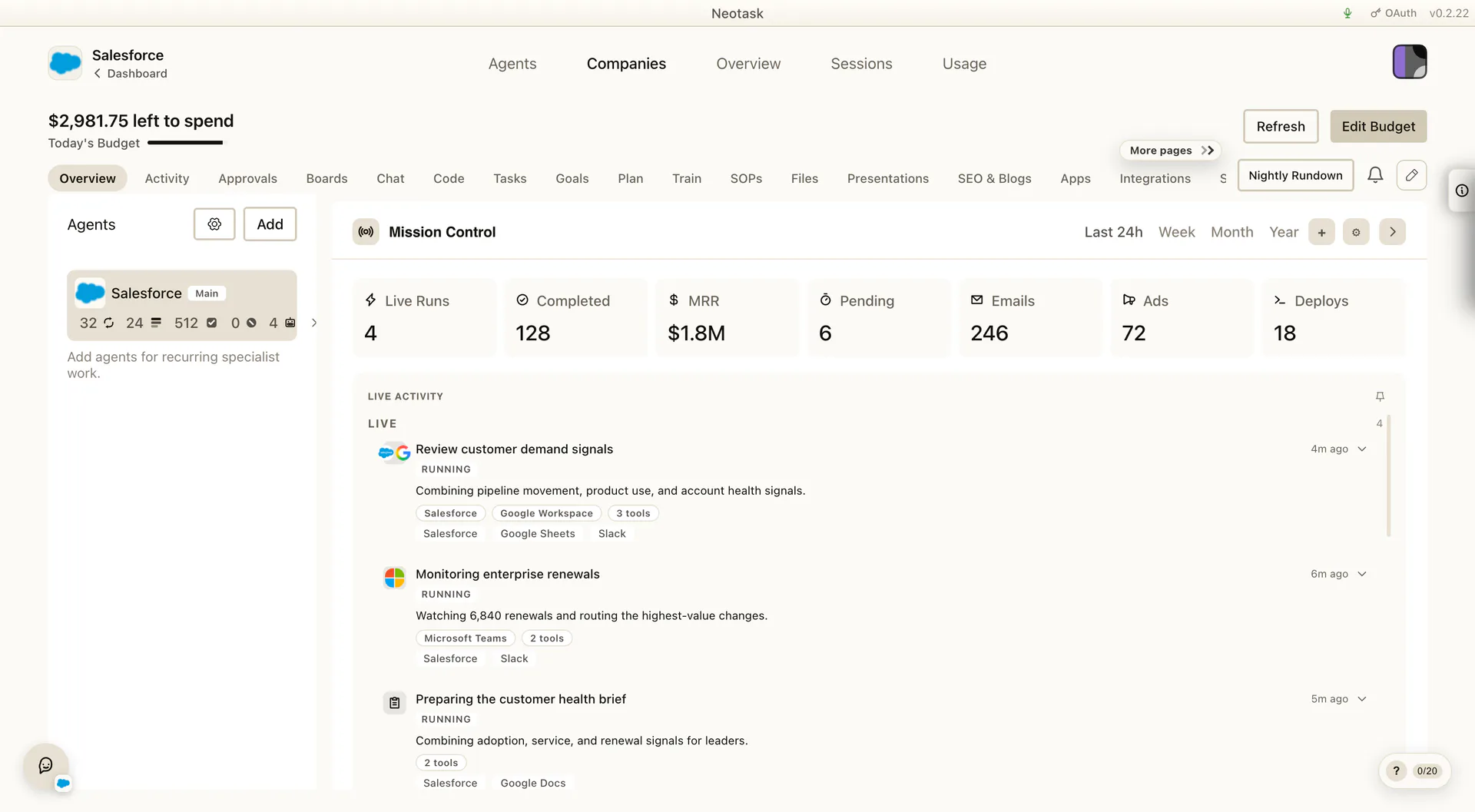
The open company view is a three-part operating surface:
Left Side: Controls
The controls rail is where you manage the company runtime.
This area includes:
- start, pause, resume, stop, and trigger-now controls
- current autonomy tier
- heartbeat settings
- daily budget controls
- sub-agent auto-approve
- last heartbeat and quick runtime stats
If the plan still needs setup, this area also shows the notice that the plan setup must be finished before autonomy can start.
Center: Tabs
The center area is the main company workspace. This is where the tab bar lives.
Right Side: Quick Context
The right side shows quick stats and the mini calendar. On the Overview tab, this area also works together with the overview widgets.
At the top of the company tab area, you can also open Nightly Rundown.
The surrounding company shell also includes shared surfaces such as the notification bell, the floating company chat widget, widget customization overlays, activity detail overlays, and tutorial overlays.
The Current Company Tabs
The current company dashboard includes these tabs:
Overview
Use Overview for the company’s high-level operating picture.
This tab includes:
- a time-window toggle
- overview stat cards
- customizable widgets
- widget pinning
- add-widget and customize-layout controls
- activity detail drill-ins from widgets
- quick navigation into deeper tabs
Overview is the best first stop when you want to understand what is going on without reading the full activity feed.
Activity
Use Activity for recent operational events.
This tab is built for:
- live company activity
- recent company activity
- clearer event readability
- faster troubleshooting before you open a deeper surface
Chat
Use Chat when you want to talk directly inside the company workspace.
This is the company’s manual orchestration chat surface and it is separate from the general Agents chat area.
SOPs
Use SOPs for the company’s uploaded playbooks and guidance documents.
This is where you manage operating instructions that help the company behave the right way.
Approvals
Use Approvals for both:
- the current approval queue
- the company’s approval settings
This is where you review pending approval items, requires-action items, and the policy that determines how much can run automatically.
Plan
Use Plan for the company’s current operating plan.
This tab is the main place to:
- review the approved plan
- inspect the schedule view
- refine tasks and requirements
- keep completing setup after onboarding
Train
Use Train to rehearse one task until it becomes reliable enough to trust live.
This tab is built for:
- opening one real task at a time in a training workspace
- answering preflight questions before the first run
- responding to meaningful checkpoints during the run
- coaching the task in the training input
- reviewing the generated bundle files and diffs
- promoting the current working revision with Bundle It
- running Train Again to verify the task stays in the improved shape
Tasks
Use Tasks when you want task-by-task management instead of the broader plan view.
This tab is built for:
- opening one task at a time
- reviewing runtime status
- editing assigned apps, integrations, channels, and employees
- adjusting task-level settings
Files
Use Files for the company’s generated files and uploaded files.
This tab includes:
- search
- sorting and filtering
- daily view
- filesystem view
- preview, download, and file actions
- managed website preview and live links
- website status and last-error visibility
- custom-domain management
- website source editing and save/redeploy actions
If the company is using a generated website, this tab also becomes the main place to review managed website files and related website state.
SEO & Blogs
Use SEO & Blogs for content work inside the company.
This tab includes:
- Headlines
- Articles
- Usage
- SEO settings
It is the company’s main content planning and publishing-prep surface.
Boards
Use Boards for the company’s custom dashboard and insight-board surfaces.
This is where the company can move from the standard overview into more tailored board views when that company needs a more specific operating layout.
Boards are best when the company needs:
- a custom live page for one decision or workflow
- a multi-widget artifact instead of one generic overview widget set
- a live page built from connected apps, company files, and internal company context
See Boards & Live Artifacts for the full guide.
Apps
Use Apps for company-scoped app access.
This tab is where you manage:
- company app recommendations
- company app connections
- company app groups
- task assignment flows tied to those app groups
Employees
Use Employees for real people tied to the company workspace.
This is where you manage:
- employee records
- contact details
- routing notes
- employee-channel relationships
Profile
Use Profile for the company’s identity and core business information.
This tab is where you:
- edit profile details
- manage company stage
- manage build/manage mode
- upload or remove the logo
- re-run website analysis when needed
Integrations
Use Integrations for company-scoped Google Workspace access and related built-in services.
This tab is separate from Apps.
Use it when the company needs:
- Gmail
- Google Calendar
- Google Docs
- Google Sheets
- Google Drive
This is also where the user can decide whether to reuse an already connected Google account for the company or add a different one.
Channels
Use Channels for message and delivery routing.
This tab is where you:
- add channels
- edit channel bindings
- review phone-call routes
- manage delivery targets tied to the company
Skills
Use Skills for the company’s skills surface.
This tab uses the same core skill-management experience used elsewhere in the app, but in the context of the open company.
Memory
Use Memory for longer-lived company context.
This tab includes:
- boot memory
- memory categories
- semantic memory status
- auto-generated memory files
- generated memory file preview/open flows
Usage
Use Usage for company-specific usage and cost review.
This tab includes:
- time-window switching
- summary cards
- charted usage history
- counter breakdowns
Settings
Use Settings for company-level configuration panels that apply across the whole workspace.
This tab includes:
- heartbeat settings
- approval settings
- adaptive learning
- notification preferences
- public live settings
It is the right place to update company-wide behavior without editing the plan itself.
Nightly Rundown
The Nightly Rundown button lives above the tab content, not inside a normal tab.
Use it for a company summary that helps you:
- review what happened
- see open issues
- jump into the right tab next
It is especially useful when the user wants one compact review of the company instead of opening several tabs separately.
Important Shared Surfaces Outside The Tabs
Some company features are not cleanly “one tab only.”
The current company dashboard also includes:
- the left controls rail
- the right-side quick stats and mini calendar
- Nightly Rundown
- the notification bell
- the floating company chat widget
- overview widget customization overlays
- activity detail modals
That means users sometimes describe a company feature by where it appears on the screen rather than by a tab name.
A Good Operating Pattern
For most companies, the cleanest routine is:
- check Overview
- open Activity if something looks off
- clear Approvals
- refine Plan or Tasks
- use Apps, Integrations, Channels, and Employees to finish missing operating dependencies
- use Files, SEO & Blogs, Memory, and Usage for the company’s longer-running operating trail