Support Workspaces, Teams, And Automation
Match The Issue To The Surface
Use Teams for multi-agent work, Channels for message delivery, and Automations for scheduled or event-driven runs.
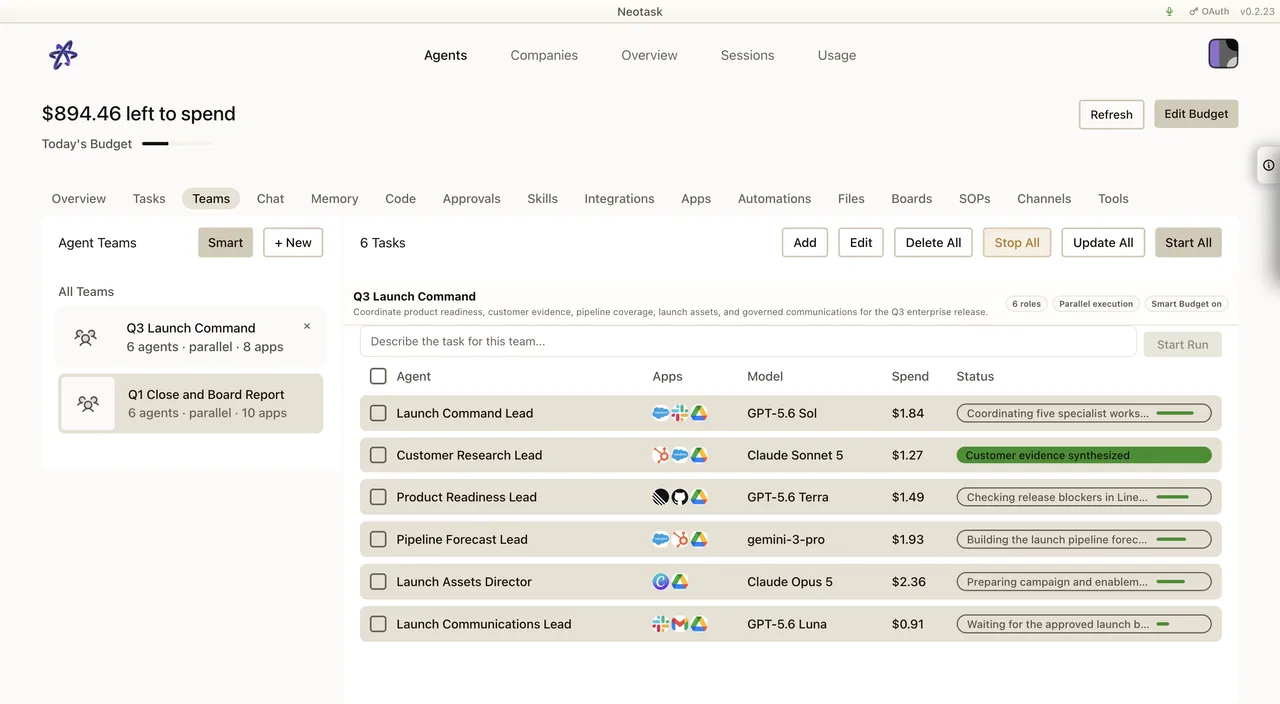
This page covers workspace configuration, teams, channels, automation, approvals, and enterprise-admin support.
Use This Lane For
- team membership and workspace questions
- channels and delivery routing
- company and automation questions
- approvals and follow-up behavior
- enterprise-admin support
Workspace And Team Checks
If the caller says something is “set up but not reaching the right people,” check:
- whether they are in the correct tenant
- whether the correct team or company is selected
- whether the expected channel or route is actually configured
- whether the caller expects employee routing or general team routing
Support should also ask whether the issue is:
- wrong target
- no delivery
- delayed delivery
- approval stuck
- automation not firing at all
Step-by-Step Workspace Runbook
- Ask which surface is failing. Normal workspace, agent team, channel delivery, or company automation.
- Ask which workspace or company the caller expected to use.
- Confirm whether the caller is looking at the same workspace, company, or team where the route was configured.
- Re-run the exact failing action only after the expected context is clear.
If the caller is in the wrong workspace or company, reconnecting or rerunning the task does not fix the real problem.
Channel Support
When channel behavior is wrong, separate:
- transport connection problems
- routing/allowlist problems
- mention, thread, or destination-targeting problems
Start with:
- which channel is affected
- whether it is connected
- whether the wrong room, thread, or recipient is being targeted
Then narrow it further:
- Is the connection broken, or is the message going to the wrong destination?
- Is the issue limited to one workspace, one team, or one company workflow?
- Did the workflow ever work, or is this first-time setup?
Step-by-Step Channel Triage
- Confirm the affected channel and account row.
- Confirm whether the failure is no delivery, wrong destination, or delayed delivery.
- Confirm the saved target. Team, room, thread, recipient, or route-specific destination.
- Confirm whether the caller expected tenant routing, company routing, or employee routing.
- Re-test the exact route after the target and scope are confirmed.
Use the public docs for deeper channel-specific guidance:
Automation And Company Support
The Automations screen shows the saved schedule, enabled state, and recent runs. Use those fields to separate configuration problems from failures during execution.
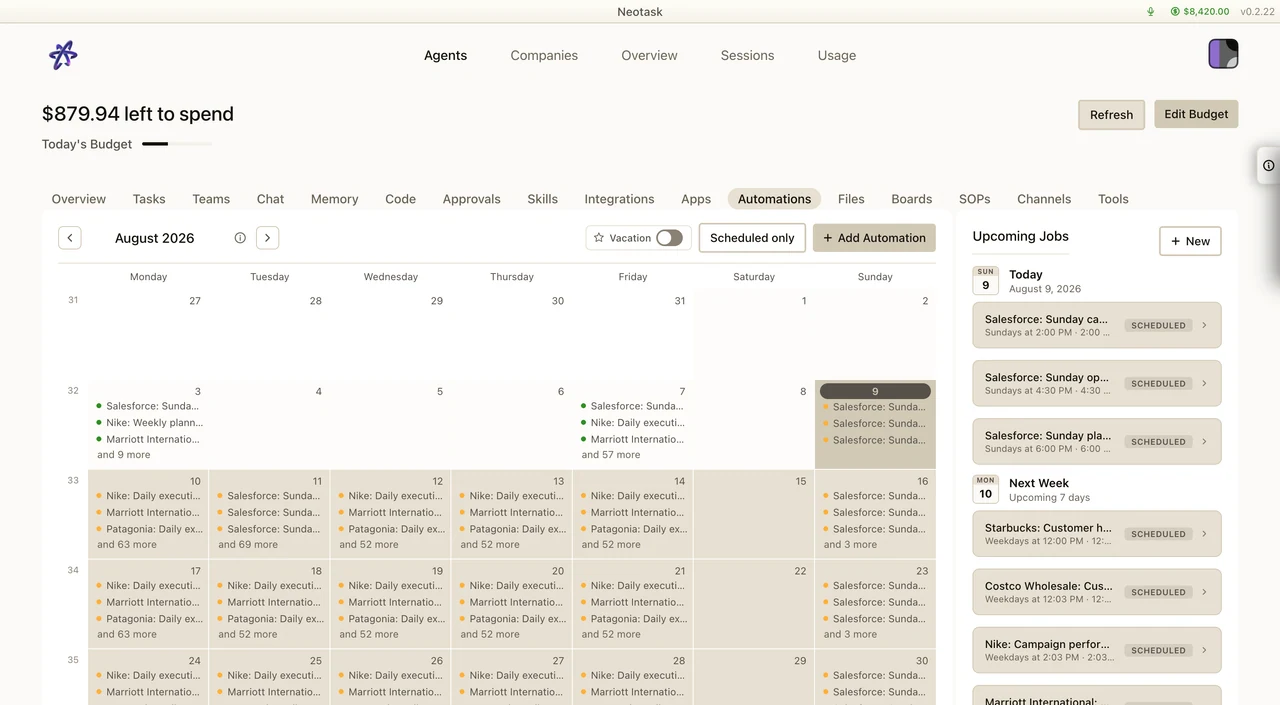
Use this lane for:
- tasks not running
- approvals not reaching the right person
- follow-up or escalation routing issues
- company-level setup confusion
Free-plan callers can connect apps and use chat, boards, and the coding subpage, but they cannot create or run their own automations, cron jobs, reminders, scheduled jobs, company tasks, or custom agents. The only Free automation exception is the system-managed daily Learn from Daily Activities memory learning job. If a Free caller expects a company task or automation to run, route the issue as an upgrade/plan-gate explanation before troubleshooting runtime behavior.
Support should confirm:
- whether the issue is on a normal tenant workflow or an auto-company workflow
- whether the caller expects a scheduled task, approval, escalation, or delivery
- whether the issue is setup-related or runtime-related
Helpful symptom buckets:
- scheduled job never started
- approval reached the wrong person
- escalation did not fire
- automation ran but lacked the right app auth
- company workflow behaved differently than a normal tenant workflow
Step-by-Step Automation Runbook
- Confirm whether the failure is scheduling, approval routing, escalation, or final delivery.
- Confirm whether the failing path is a normal workspace automation or a company automation.
- Confirm whether the blocker is auth, routing, or runtime behavior.
- Re-run the exact failing automation only after the affected path is identified.
- If the issue depends on undocumented company-specific behavior, escalate instead of guessing.
Step-by-Step Approvals And Escalations
- Ask who was supposed to receive the approval or escalation.
- Ask where it actually went, or whether it never arrived.
- Confirm whether the route should use a channel, an employee route, or a voice escalation.
- Confirm the exact company or team context.
- Re-test only after the route target is confirmed.
Exact Click Path For Company Approval Policy
When the caller is asking how to change approval behavior inside one company:
- Click Auto.
- Open the company.
- Click Approvals.
- Scroll to Approval Settings.
- Use the mode cards for company-wide behavior.
- Use Per-App Rules for one app or integration.
- Click Save Approval Settings after making changes.
Exact Click Path For One-App Approval Rules
- Open the company.
- Click Approvals.
- In Approval Settings, switch to Semi-Supervised.
- In Per-App Rules, search for the app name.
- Expand the app row.
- Set the provider override or the per-action dropdowns.
- Click Save Approval Settings.
Enterprise And Admin Support
This lane is appropriate when the caller needs help with:
- multiple teams or companies
- employee-backed workflows
- support escalation and handoff
- broader admin visibility questions
If the current public docs do not fully cover a company-admin feature, treat that as a known documentation boundary and escalate without inventing unsupported instructions.
Support should summarize the exact boundary before escalating:
- which workspace or company is affected
- which route, approval, or automation behavior is wrong
- whether the issue is reproducible
- whether the blocker is configuration, auth, or runtime behavior