Support Billing, Login, And Account Access
This page covers the support lane for account access, billing, and member-access questions.
Login And Account Access
Use this lane when the caller is blocked from signing in or cannot reach the right workspace.
Basic Login Recovery
- Confirm the caller is using the correct email or sign-in method.
- Confirm whether they are trying to access an existing member account or complete a first sign-in.
- If the caller has multiple workspaces, confirm which one they expect to enter.
- If the caller can sign in but cannot access the correct workspace, treat that as an account-context issue rather than a password issue.
If Sign-In Works But Product Access Does Not
Check:
- whether the caller is on the correct account
- whether the tenant membership is active
- whether the caller expects company access that belongs to a different tenant
If the caller is recognized as a member but the workspace context still looks wrong, support should treat that as an account-context mismatch, not a generic login reset.
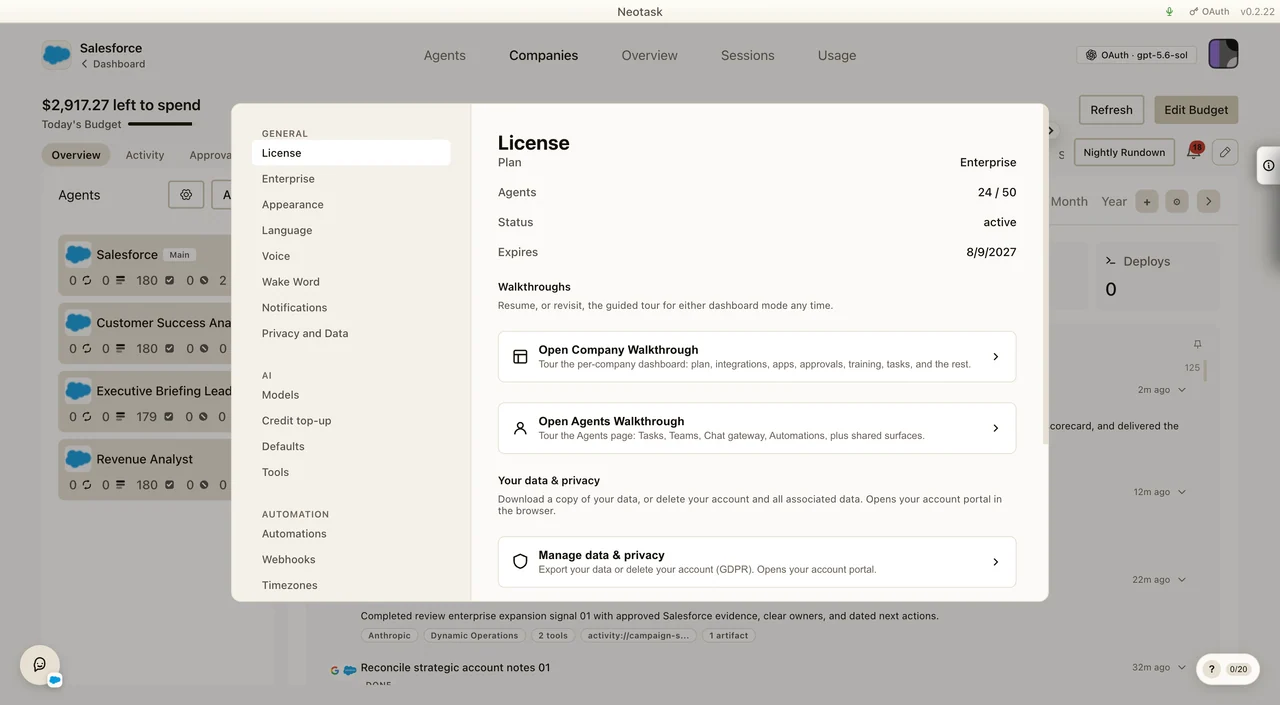
For plan or entitlement questions, ask the customer to open Settings → General → License and read the plan, agent count, status, and expiration date.
Billing Support
Use this lane for:
- payment failures
- subscription questions
- credits and usage questions
- scheduled task-fee questions
- blocked automations caused by task-fee balance or billing-readiness state
- BYOK questions
- renewal or access drift after payment
Exact Billing Navigation
For callers who need to know exactly where billing lives in the app:
- Click the avatar in the upper-right corner.
- Click Settings.
- In the left settings menu, open the AI section.
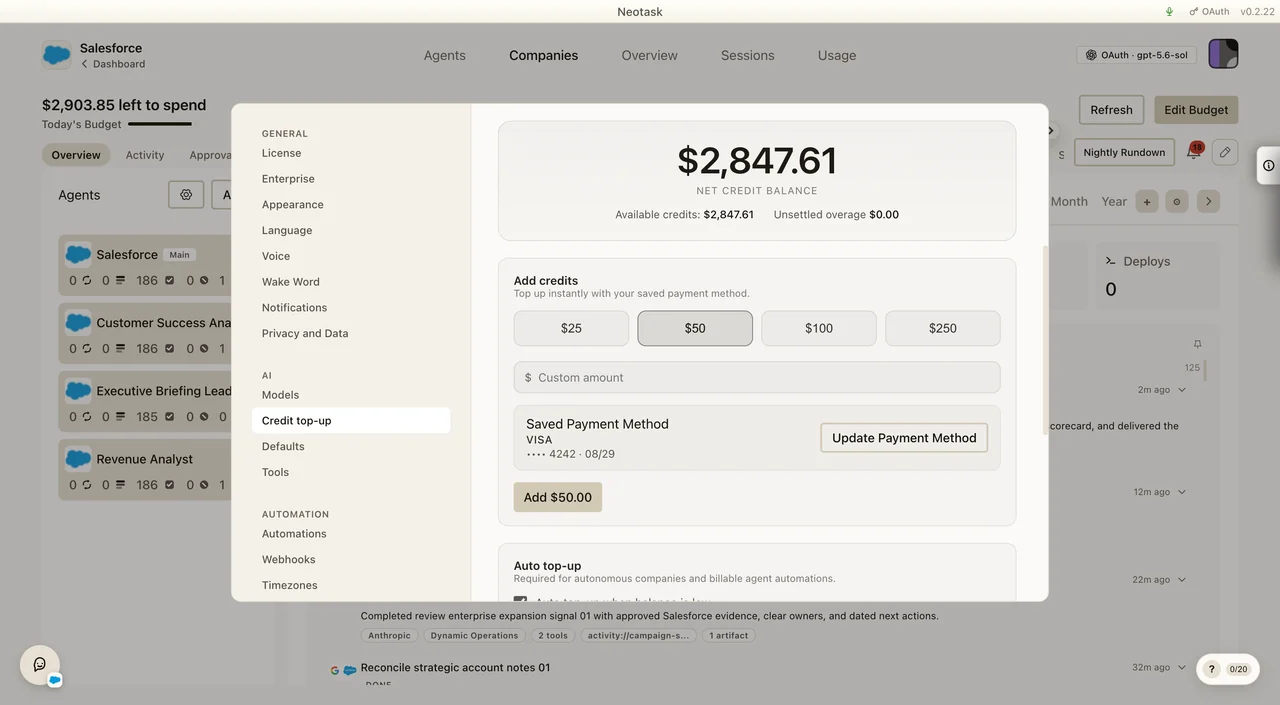
- Click Credit top-up.
The current balance and purchase controls appear at the top of this screen.
Update Payment Method
- Open Settings.
- Go to AI → Credit top-up.
- In Saved Payment Method, click Update Payment Method.
Add Credits Or Enable Auto Top-Up
- Open Settings.
- Go to AI → Credit top-up.
- Choose an amount and confirm the purchase for a one-time top-up.
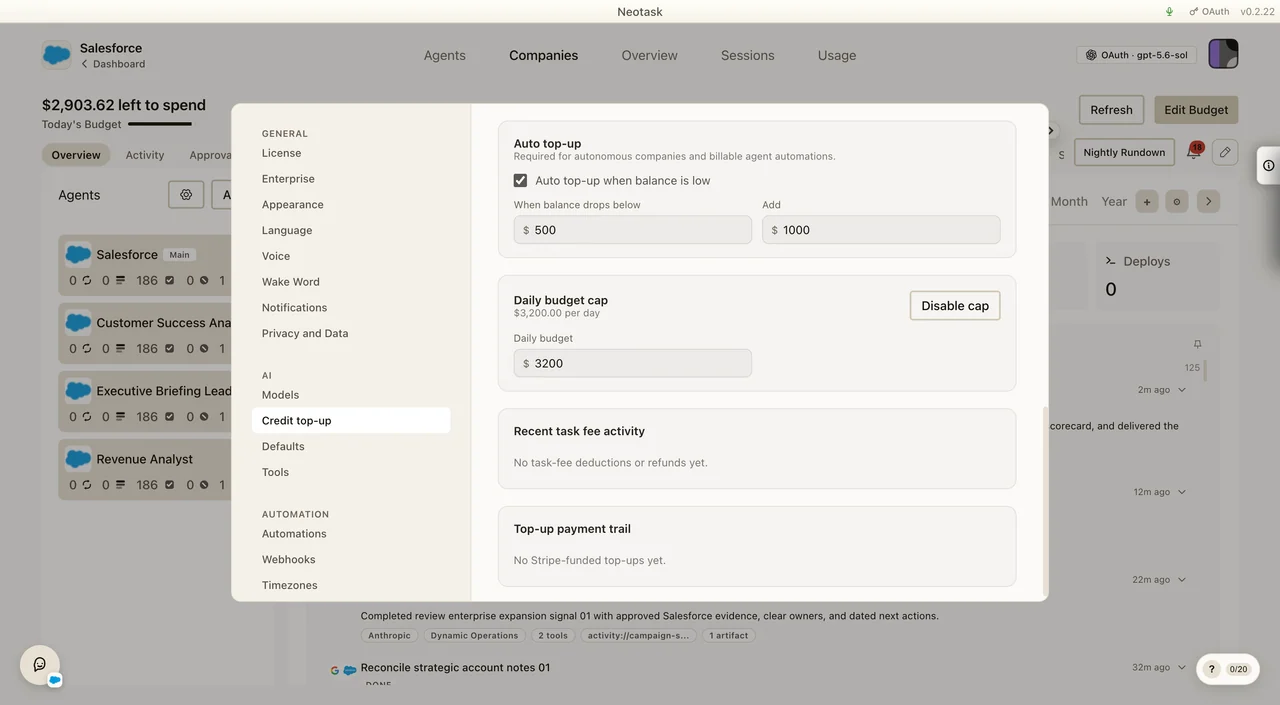
- Use Auto top-up when balance is low for automatic replenishment.
- For autonomous companies or billable automations, confirm the Daily budget cap is also set.
Payment Failure Checklist
- Confirm whether the failure is on signup or an existing subscription.
- Confirm whether the card was declined or the payment page failed before submission.
- If payment succeeded but access did not update, wait briefly for billing propagation before escalating.
- Keep guest checkout issues separate from active-member billing disputes.
Usage And Credits Checklist
- Confirm whether the caller is using system keys or BYOK.
- Confirm whether the complaint is about plan access or variable usage.
- If the caller believes a provider was connected but billing still looks wrong, separate the billing issue from the OAuth issue.
- If the caller says automation stopped, check whether the issue is:
- scheduled task-fee balance exhausted
- no-task-overage launch blocking
- auto top-up disabled
- daily budget missing or exhausted
- If the caller disputes a task-fee debit, direct them to the task-fee statement and payment-allocation PDFs in billing history.
Support should also separate:
- plan access problems
- metered usage or credits questions
- scheduled task-fee questions
- BYOK configuration questions
- invoice or renewal questions
Free Plan Checklist
If the caller is on Free, confirm:
- whether they are still in the first
10intro messages/events or the later5messages/events per user-local day - whether hosted credits or BYOK provider balance are available for the attempted message
- whether they are trying to use an allowed surface: chat, boards, coding, or app connections
- whether they are trying to use a locked surface: company operation, company tasks, user-created automations, scheduled jobs, custom agents, or overage
If a Free caller says a company was created during onboarding but will not run, explain that onboarding/preview can exist on Free, but actual company operation requires at least an Individual subscription.
Guest Sign-Up Support
Guest support may help with:
- trouble paying during signup
- confusion about which plan to choose
- how to become a supported member user
- where to log in after creating an account
Guest support must not disclose member-specific billing details without recognized account context.
When To Escalate
Escalate when:
- payment appears successful but account state is still wrong after reasonable delay
- a recognized member reports access drift that does not match the visible billing state
- the caller needs a tenant-specific account review
Before escalating, gather:
- whether the caller is guest or recognized member support
- whether the issue is pre-activation checkout or an existing subscription
- the workspace email and phone number on file
- what changed first: payment state, workspace access, or provider access