Auto, Operations, Controls & Settings
Review The Current Plan Before Changing Controls
- Open the company and select Plan.
- Review scheduled and dynamic work.
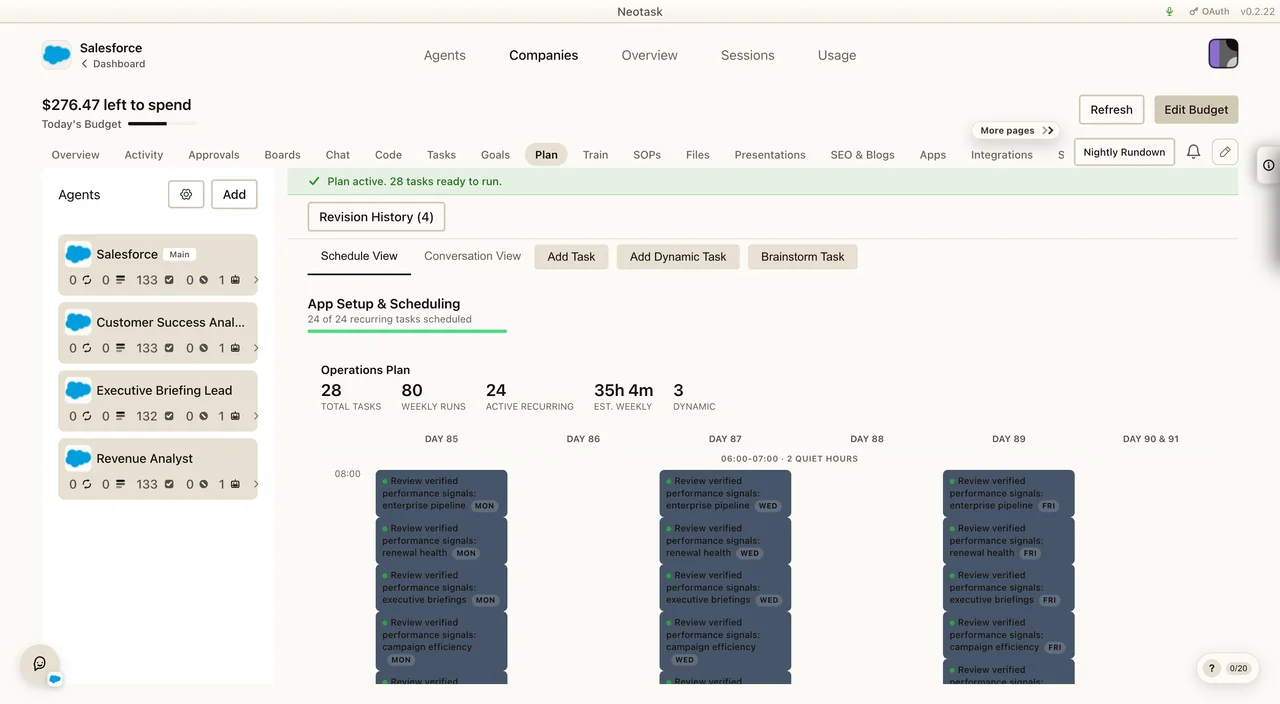
- Select Tasks to inspect the recurring company work created by the plan.
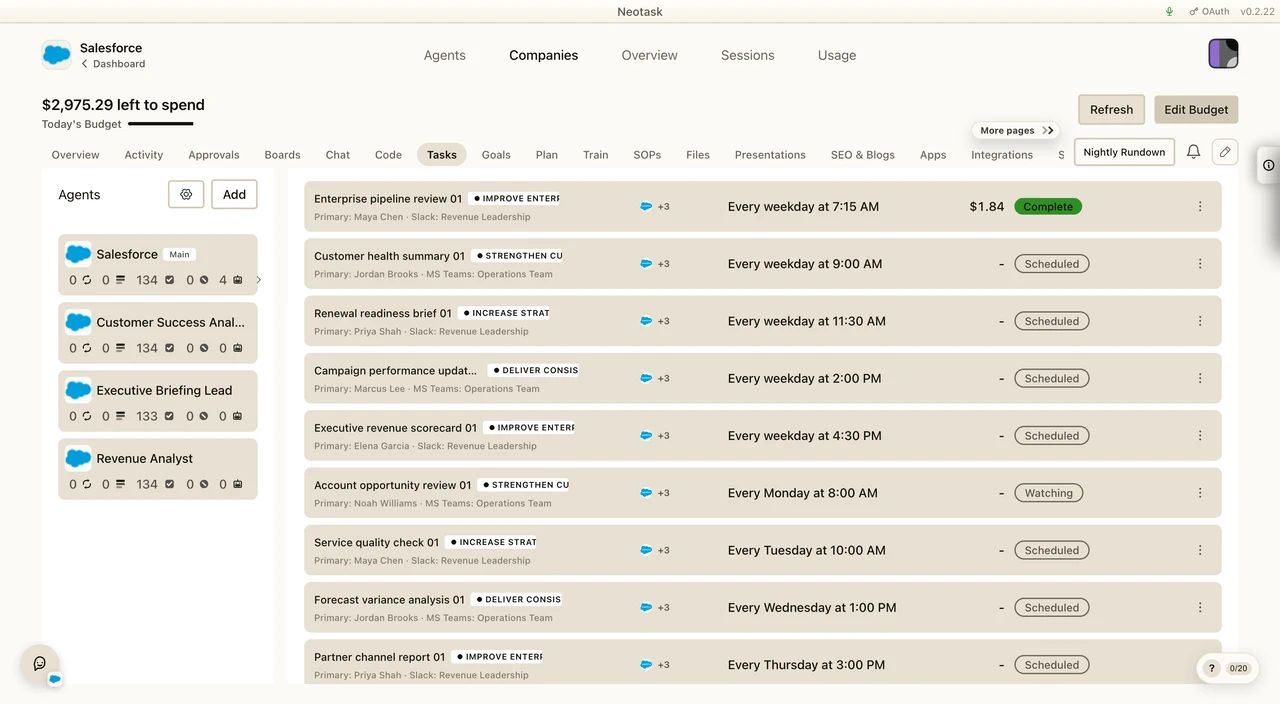
- Use the controls rail to change budget, heartbeat, autonomy, or quiet hours.
- Open Approvals to confirm which actions still pause for review.
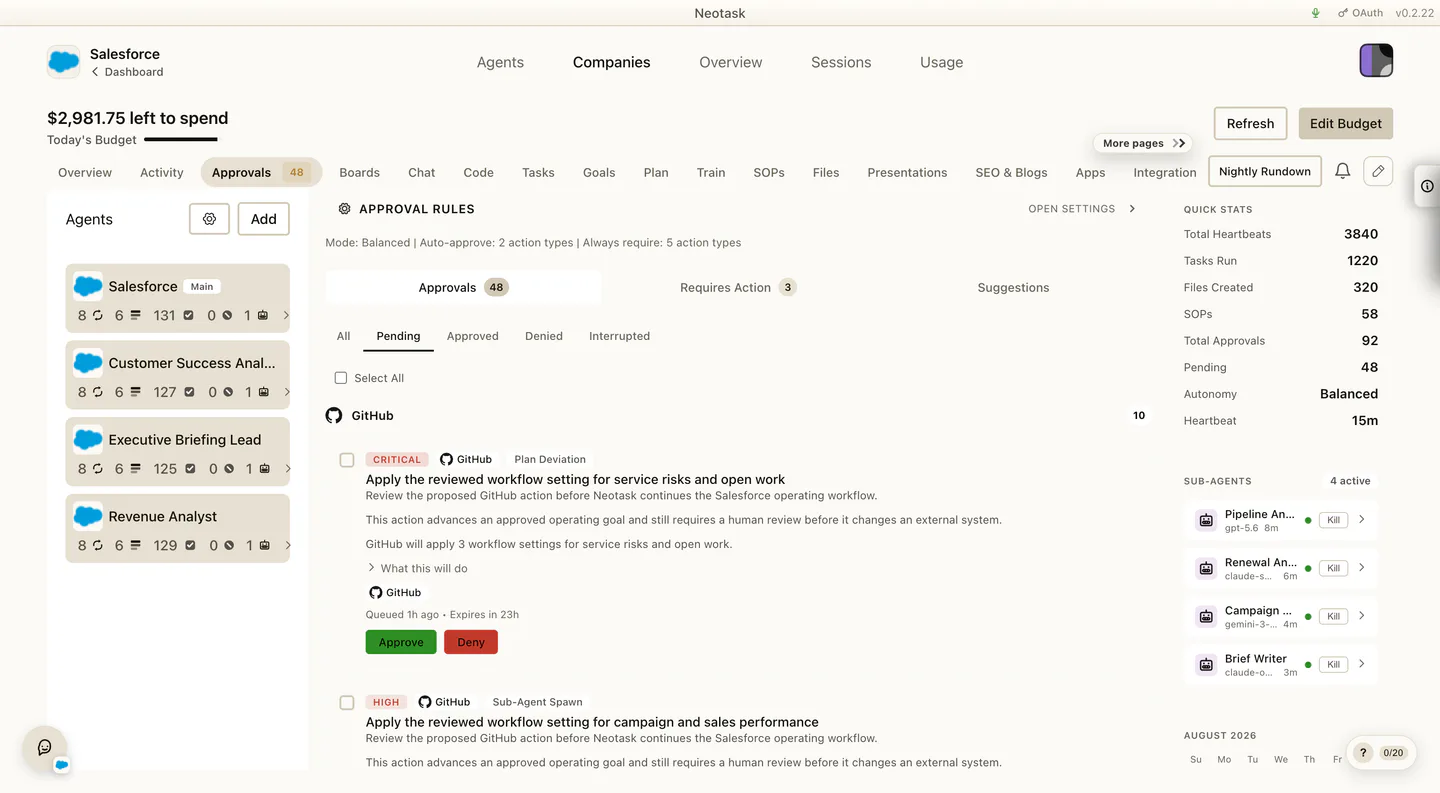
This guide covers the company operating surfaces that sit around the main tab bar and the company settings panels that control runtime behavior.
These areas matter because they determine whether a company can start, how often it acts, how much it can do automatically, who gets notified, and what becomes visible outside the company workspace.
The Left Controls Rail
Every open company has a left-side controls rail.
This is the main runtime control area for:
- start
- pause
- resume
- stop
- trigger now
It also shows the current company status and key operating signals such as:
- the current autonomy tier
- heartbeat timing
- last heartbeat
- plan-setup readiness
- budget posture
If a company is not ready to run yet, this rail is often where the blocking state is most obvious.
Autonomy Tiers
The current controls rail uses three runtime tier labels:
- Supervised
- Balanced
- Autopilot
These are quick operating shortcuts for how freely the company should run.
If a company feels too locked down or too loose, this is one of the first places to check.
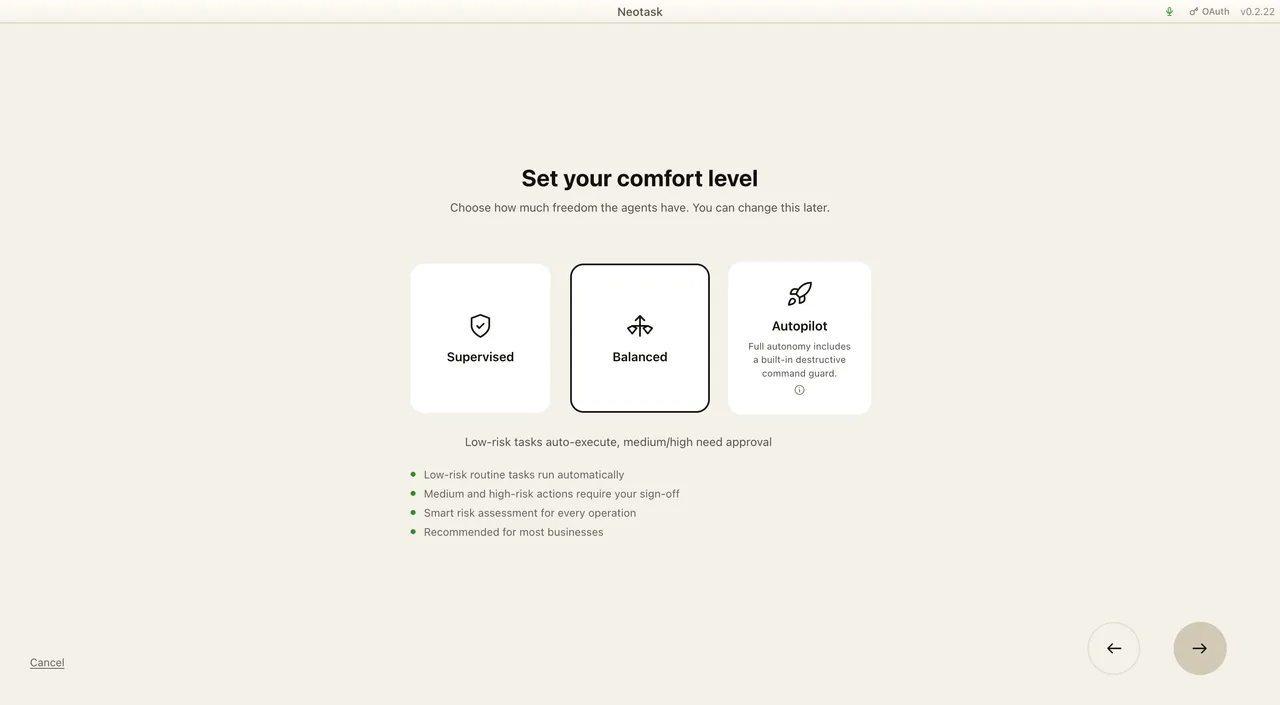
For stricter approval tuning, use the dedicated Approvals tab or the approval settings panels in Settings.
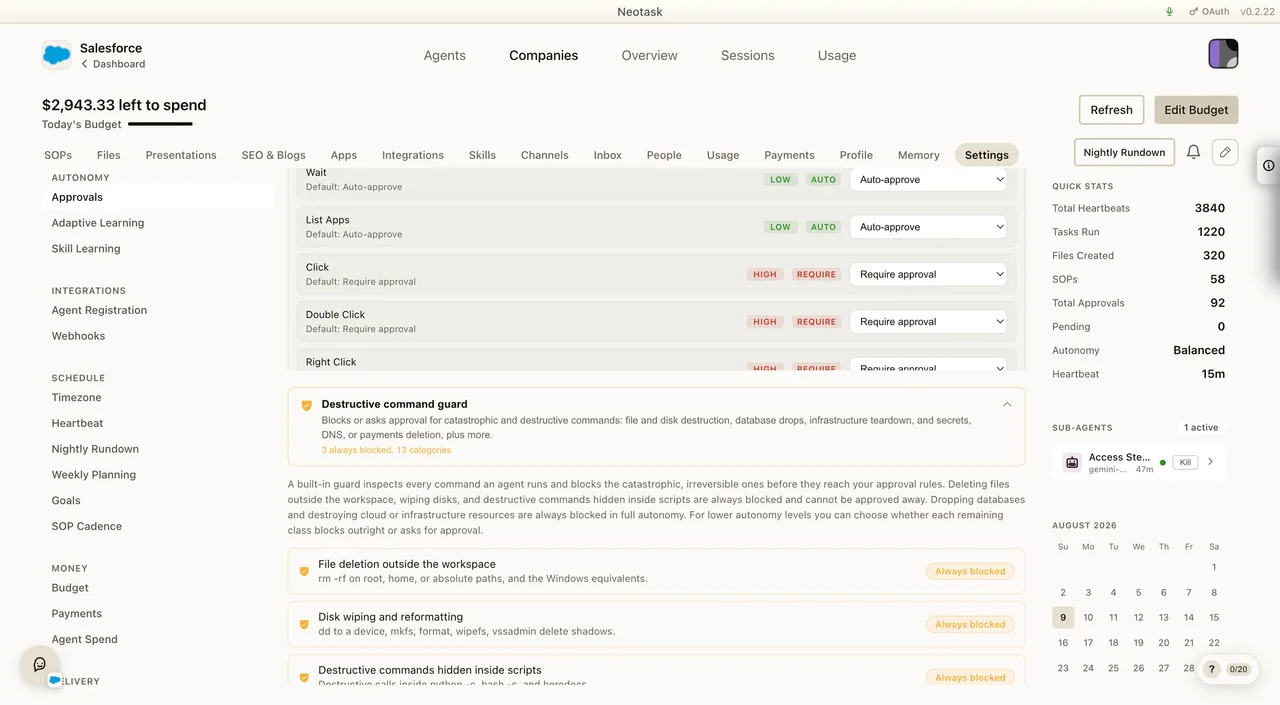
Approval Guardrails
Open Approvals to review the company policy and any app-level exceptions. These rules determine which actions pause before an external system changes.
Heartbeat Controls
The heartbeat controls decide how often the company checks for work and keeps its recurring automation moving.
Heartbeat behavior appears in two places:
- the left controls rail for quick changes
- the Settings tab for the fuller settings experience
If a user says:
- “the company is not doing anything”
- “it is not checking often enough”
- “I need to change how often it runs”
the heartbeat settings are the right place to look.
Continue Work After Restarts
The company Settings tab includes a Continue work after restarts toggle.
This decides whether interrupted work for this company starts again by itself after an app update, an operating-system restart, a crash, or a power loss. Interrupted scheduled runs resume, interactive threads continue where they stopped, and coding sessions reopen in their own branch working copy.
The account-wide setting in Settings -> Automations is the default for every company, and it is on. The company toggle overrides it for this company only.
Two behaviors are worth knowing:
- Changing the account-wide toggle re-syncs every company to the new value and clears company overrides.
- A company differs again only after you change the toggle inside that company's settings.
Work that is waiting for approval is never resumed automatically. It keeps waiting for a decision.
For the full behavior, see Continue Work After Restarts.
Budget Controls
The controls rail also includes company budget enforcement.
This area lets users understand:
- today’s spend
- the daily limit
- whether the daily limit is enforced
- whether the company should auto-pause when the limit is hit
This is especially important when a company appears healthy from an activity point of view but is not continuing to run as expected.
Sub-Agent Auto-Approve
The controls rail also includes the sub-agent auto-approve toggle.
This is a company-level shortcut that affects whether delegated helper runs can move with less manual friction.
If a company is heavily using orchestrated or delegated work, this setting can materially change how much operator involvement is required.
Overview Widgets And Quick Context
The company dashboard is not only a tab strip. It also includes shell-level summary surfaces around the tabs.
Those include:
- quick stats beside the main tab content
- the mini calendar
- overview widgets
- overview widget pinning
- overview widget add/customize flows
- activity detail overlays opened from overview widgets
The Overview tab is still the main place for these, but the surrounding shell and right-side context are part of the daily operating experience too.
Nightly Rundown
The company view also includes a Nightly Rundown action outside the normal tab list.
Nightly Rundown is for the end-of-day or start-of-day company summary experience. It helps users review:
- today’s company summary
- gateway review summary
- tomorrow’s confirmed schedule
- suggested unscheduled work
- pending approvals
- unresolved requires-action items
This is useful when the user wants a compact operational review instead of opening several tabs separately.
Notification Surfaces
Company notifications are not limited to the activity feed.
The current company experience also includes:
- the notification bell
- in-app notification history
- company notification preferences
- nightly rundown delivery preferences
Inside the company Settings tab, users can configure company-level notification behavior such as:
- in-app notifications
- desktop push notifications
- email notifications
- Slack delivery
- Discord delivery
- nightly rundown timing
If someone says “I’m not being notified,” the answer is usually in the company notification settings, not in the global app settings.
Public Live Visibility
The company Settings tab also includes Public Live controls.
These settings let users decide whether the company appears on the public live board and how aggressively public activity is redacted.
That includes controls such as:
- whether the company appears publicly at all
- the public display name
- the redaction mode
- whether aggregate overview metrics include the company
- whether the company name is shown publicly
- whether revenue metrics are allowed into the public aggregate view
Public Live is about external visibility. It is not the same thing as internal activity history.
Adaptive Learning Settings
The current company Settings tab also includes adaptive learning controls.
This area is for users who want to tune how the company learns from prior approvals, workflows, memory patterns, and orchestrator hints.
From a user point of view, the important ideas are:
- whether adaptive learning is on
- whether the company should only observe, suggest, or require review
- whether learned changes should show up in activity, memory, or nightly review
This is more advanced than the basic approval mode, but it is still part of normal company operations.
Floating And Shared Company Surfaces
Some company experiences are shared across multiple tabs instead of belonging to one tab alone.
That includes:
- the floating company chat widget
- the notification bell
- tutorial overlays
- widget customization overlays
- activity detail modals
If a user says “something popped up over the company dashboard,” it may belong to this shared layer rather than one tab.
Quick Decision Rules
- If the user needs to start, pause, resume, or trigger the company: use the left controls rail.
- If the user needs heartbeat timing or runtime frequency: use the controls rail or the heartbeat panel in Settings.
- If the user needs to review the company at a glance: use Overview and the right-side quick context.
- If the user wants the daily summary: use Nightly Rundown.
- If the user wants notification behavior: use Settings -> notification preferences.
- If the user wants public visibility controls: use Settings -> public live.
- If the user wants advanced learning behavior: use Settings -> adaptive learning.
- If the user asks why interrupted work did or did not start again: use Settings -> continue work after restarts.