Neotask Desktop Application
Check The Desktop Connection
- Open Settings.
- Select Gateway.
- Confirm the connection path and health status.
- Open Preferences before changing the local runtime or launch behavior.
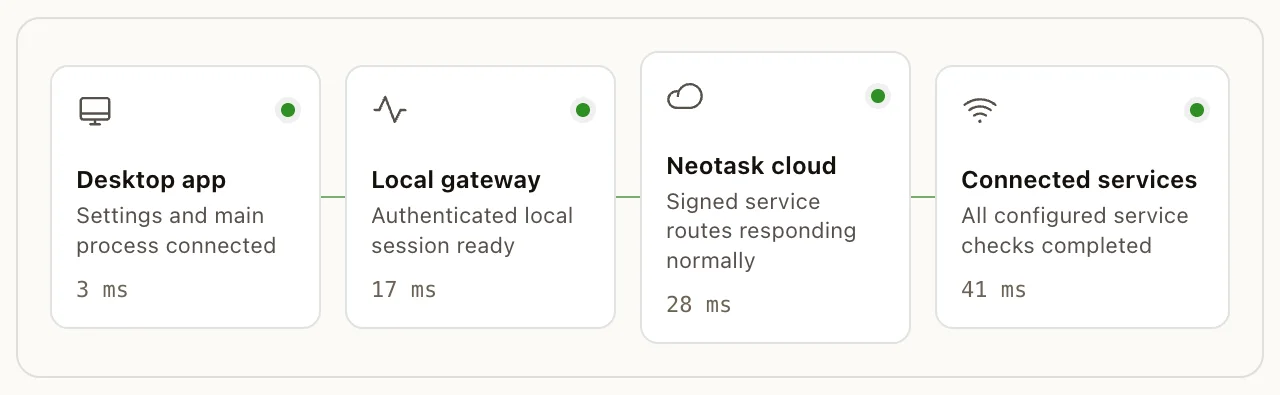
Neotask desktop application is your central hub for managing AI agents, voice control, and automated workflows. It runs natively on macOS, Windows, and Linux, with a built-in local gateway that keeps your data on your machine.
Installation
macOS
- Download the
.dmginstaller from your Neotask account dashboard. - Open the DMG file and drag Neotask into your Applications folder.
- Launch Neotask from Applications or Spotlight.
Neotask supports both Intel and Apple Silicon (M1/M2/M3/M4) Macs with a universal binary. No Rosetta translation required on Apple Silicon.
Windows
- Download the
.exeinstaller from your Neotask account dashboard. - Run the installer (built with NSIS).
- Choose your installation directory or accept the default (
C:\Program Files\Neotask). - Follow the on-screen prompts to complete installation.
- Launch Neotask from the Start Menu or desktop shortcut.
Linux
- Download the
.AppImagefile from your Neotask account dashboard. - Make the file executable:
chmod +x Neotask-*.AppImage - Run the AppImage:
./Neotask-*.AppImage
No installation or root privileges required. The AppImage is self-contained and runs on most modern Linux distributions.
License Activation
When you first launch Neotask, you will be prompted to enter your license key.
License Key Format
License keys follow this format:
NT-XXXXXXXX-XXXXXXXX-XXXXXXXX-XXXXXXXXwhere each X is an alphanumeric character. You receive your license key via email after purchase.
Device Binding
Each license key is bound to one device. Activating your license on a new device will deactivate it on the previous one. If you need to transfer your license, deactivate it from the current device first through Settings > License.
Offline Grace Period
Neotask requires periodic online validation. If your machine goes offline, the application continues to work for up to 72 hours before requiring a connection to revalidate.
Auto-Revalidation
Your license is automatically revalidated every 6 hours in the background. This process is silent and requires no user interaction as long as you have an active internet connection.
License States
| State | Description |
|---|---|
| Valid | License is active and in good standing. Full access to all features. |
| Expired | License term has ended. Renew your subscription to restore access. |
| Revoked | License has been revoked by the issuer. Contact support for details. |
| Blocked Version | Your application version is no longer supported. Update to the latest version to continue. |
Interface Overview
Dashboard Home
The home screen provides an at-a-glance summary of your Neotask workspace:
- Metrics: Token usage, session count, active agent count, and budget consumption for the current billing period.
- Agent Overview: A list of your agents with their current status (running, idle, or stopped).
- Recent Sessions: Quick access to your most recent agent sessions and conversations.
Navigation
The main navigation menu includes the following sections:
| Section | Description |
|---|---|
| Home | Dashboard with metrics, agent overview, and recent activity. |
| Agents | Create, configure, and manage your AI agents. |
| Sessions | View session history, transcripts, and logs. |
| Teams | Manage team members, roles, and shared agent access. |
| Usage | Detailed usage analytics, token consumption, and cost breakdowns. |
System Tray
Neotask runs in the system tray (menu bar on macOS) when minimized. The tray icon includes a gateway status indicator:
- Green: Gateway is running and healthy.
- Yellow: Gateway is starting up or recovering.
- Red: Gateway is stopped or has encountered an error.
Right-click the tray icon for quick actions: open the dashboard, start/stop the gateway, or quit the application.
Theme
Neotask uses a dark theme interface designed for extended use with reduced eye strain.
Gateway
The gateway is a bundled local runtime that powers agent execution, tool calls, and voice processing. It runs entirely on your machine; no cloud servers are involved in gateway operations.
How It Works
- The gateway binds exclusively to loopback (
127.0.0.1), meaning it is only accessible from your local machine. There is no external network exposure. - All agent execution, tool orchestration, and local processing happen through the gateway.
Controls
You can manage the gateway from the dashboard or the system tray:
| Action | Description |
|---|---|
| Start | Launch the gateway process. |
| Stop | Gracefully shut down the gateway. |
| Restart | Stop and immediately restart the gateway. |
Auto-Recovery Watchdog
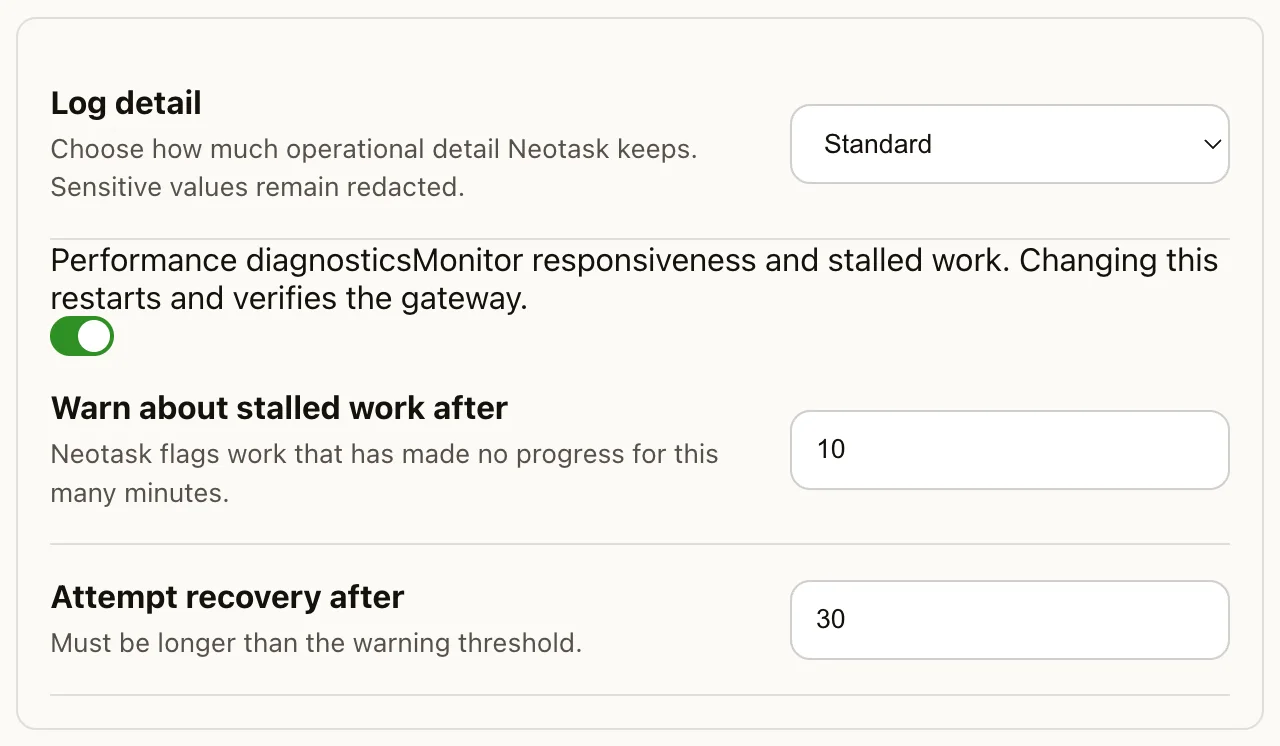
Neotask includes a watchdog process that monitors gateway health. If the gateway crashes or becomes unresponsive, the watchdog automatically restarts it. No user intervention is required.
Beyond process crashes, Neotask also detects a stalled or black-holed connection, a gateway that is still running but has stopped responding, through a continuous connection-liveness check. When this happens, the app surfaces a clear "reconnecting" state and re-establishes the connection on its own instead of waiting indefinitely. Requests that were in flight return a prompt "gateway unavailable, retrying" rather than hanging. In-progress AI responses and pending approvals are never interrupted by this recovery.
Health Monitoring
The gateway continuously reports its health status. You can view the current state in the system tray icon or on the dashboard home screen. Health checks include process status, memory usage, and responsiveness.
Settings & Preferences
All user-configurable settings are accessible from Settings in the navigation menu.
Use the Gateway preferences screen when you need to change how the local runtime starts or connects. Check the displayed connection path before changing a port or launch setting.
| Setting | Description | Default |
|---|---|---|
| Language | Interface and voice language. 21 languages supported. | English |
| Voice | Select a text-to-speech voice from the ElevenLabs voice library. | System default |
| Wake Word | Custom phrase that activates voice listening (e.g., "Hey Neotask"). | "Hey Neotask" |
| Wake Mode | How voice activation is triggered: Always-listening (wake word), Keyboard shortcut, or Off. | Off |
| Activation Sound | Play an audio cue when voice activation is triggered. | On |
| Safe Mode | Require explicit approval before executing sensitive actions (file deletion, deployments, sending messages). | On |
| Daily Budget | Maximum daily spend in USD across all agent activity. | No limit |
| Auto-Shutoff | Automatically stop all agents when the daily budget is exceeded. | Off |
| Preferred Code Editor | Code editor to open when file editing is requested (e.g., VS Code, Cursor, Sublime Text). | VS Code |
| Default AI Model | The AI model used for agent reasoning and conversation. | GPT-4o |
Automations
The Automations screen in Settings holds two account-wide controls for what Neotask does around a restart.
| Setting | Description | Default |
|---|---|---|
| Continue work after restarts | Resume interrupted scheduled runs, agent threads, and coding sessions after an update, an operating-system restart, a crash, or a power loss. | On |
| Launch Neotask at login | Start Neotask when you sign in to your computer. Supported on macOS, Windows, and Linux. | Off |
Both settings are saved to your account and synced to every device you sign in on. Continue work after restarts applies to every company, and a single company can override it in that company's own Settings.
For what resumes, what never resumes, and the Windows shutdown message, see Continue Work After Restarts.
Keyboard Shortcuts
Voice Activation
| Platform | Shortcut | Description |
|---|---|---|
| macOS | Cmd + Shift + Space |
Activate voice input |
| Windows / Linux | Ctrl + Shift + Space |
Activate voice input |
The voice activation shortcut is fully customizable in Settings > Wake Mode > Keyboard Shortcut.
Standard Shortcuts
| Platform | Shortcut | Description |
|---|---|---|
| macOS | Cmd + Q |
Quit Neotask |
| macOS | Cmd + W |
Close current window |
| macOS | Cmd + , |
Open Settings |
| Windows / Linux | Alt + F4 |
Quit Neotask |
| Windows / Linux | Ctrl + W |
Close current window |
Auto-Updates
Neotask checks for updates automatically to ensure you always have the latest features and security patches.
How Updates Work
- Check on launch: Each time you open Neotask, it checks for available updates in the background.
- Background download: If an update is available, it downloads automatically without interrupting your work.
- Install prompt: Once the download completes, you are prompted to install the update and restart the application.
- Remind me later: If you are not ready to update, select "Remind me later." You will be prompted again periodically, up to a maximum of 7 days, after which the update becomes required.
Updates are incremental when possible to minimize download size and restart time.