Neotask Support Call Agent
Voice Session Screen
The voice session keeps the current briefing, tool results, and governed next actions visible while you speak with the agent.
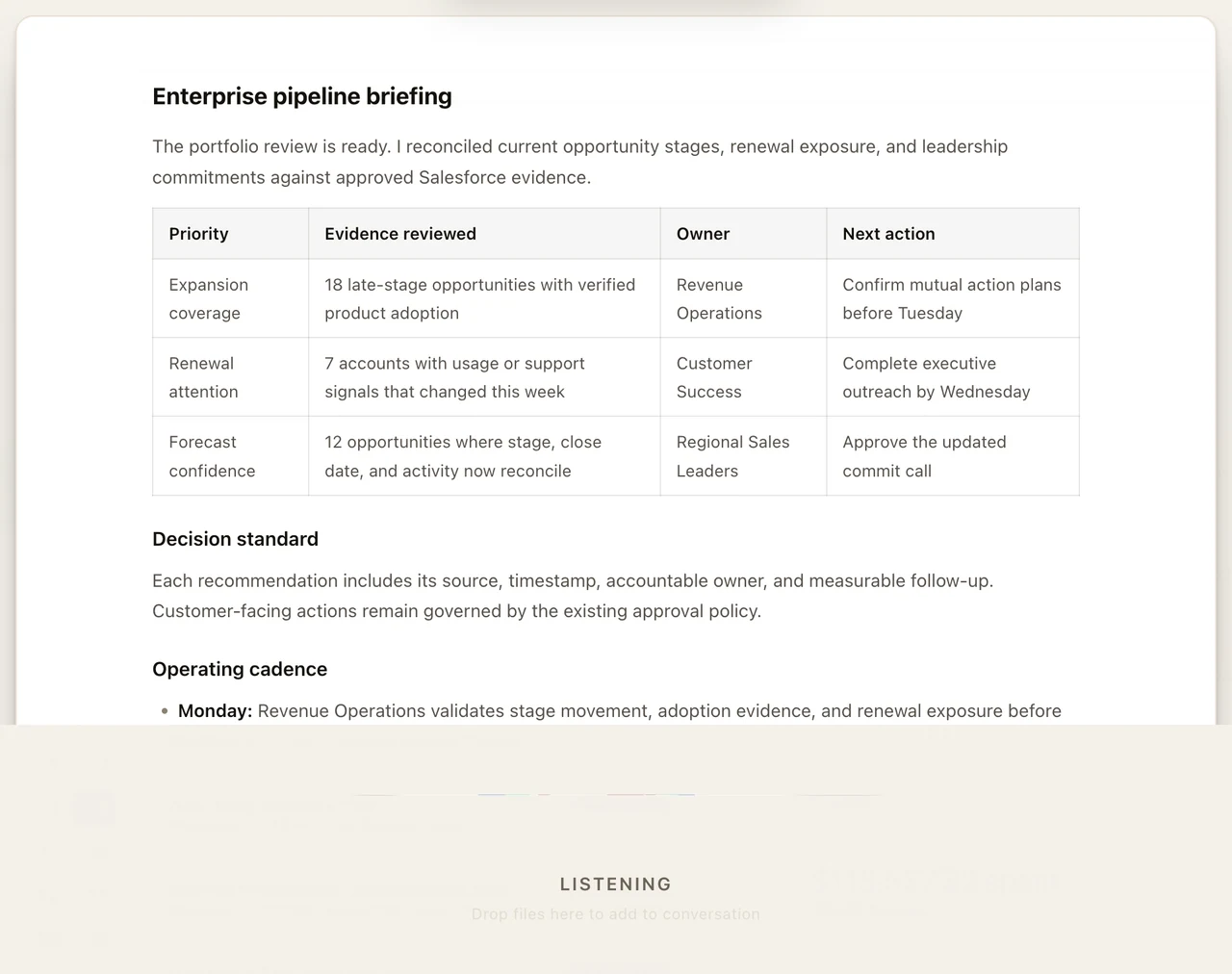
This is the main page for what the Neotask support call agent can do.
If a user wants to know whether the support line is actually worth using, this should be the only page they need to read.
Call The Support Line
Dial the public support line here:
+1 (331) 296-2762
One-Page Summary
Neotask support call agent is designed to feel like a real support specialist, not a generic phone tree.
Its job is to:
- get you unblocked quickly
- explain what is actually happening in your account or workspace
- inspect live support context instead of forcing you to guess
- route you into the right support lane without making you repeat yourself over and over
- preserve context when escalation is needed
At a high level, it can:
- answer public support and setup questions
- help authenticated account holders at a much deeper level
- inspect live billing, usage, account, session, workflow, and diagnostics context
- inspect relevant support notes, workspace notes, memories, and bounded excerpts when needed
- inspect recent logs, runtime errors, failed jobs, approvals, schedules, and session context to troubleshoot live issues
- explain what failed, what is blocked, and what the likely cause is
- send follow-up links or SMS messages
- create or update support cases
- escalate to a human with preserved context when the issue is too sensitive or too deep
It is not just a FAQ bot.
For account-level help, the support line uses strict authentication before it works from live account, billing, workspace, or company data. General questions can be answered immediately, but private account support only opens after the call is tied to the right account context.
Why Use It
The support call agent is worth using when you want:
- fast live troubleshooting instead of waiting on email
- help understanding what failed and why
- help checking billing, usage, credits, or subscription status
- help with app setup, gateway problems, channels, routing, or automations
- help with app connections, OAuth, API keys, and provider-specific setup
- help finding the right next step when the platform is behaving differently than you expected
When your call is recognized as a member support call, the support agent can work from live account context instead of only public documentation.
That means it can often tell you:
- what your plan and billing state actually are
- whether recent automations failed
- whether recent runtime or gateway errors were recorded
- whether approvals, schedules, or routing issues are blocking work
- whether support notes or prior context already explain the issue
- whether the issue looks like auth, runtime, routing, approval, schedule, or company-scoping trouble
Why It Feels Like Real Support
The value of the support line is not just that it can answer docs questions.
The real value is that it can actively investigate what happened.
That means it can often:
- inspect what happened in your recent sessions
- check whether a job ran, failed, stalled, or was blocked
- inspect recent gateway or app runtime errors
- check whether an automation was blocked by auth, approvals, routing, or scheduling
- look at recent company or workspace support context
- pull in relevant notes, memory, transcript excerpts, or file previews when the issue depends on them
- tell you the likely cause instead of making you manually guess
That is what makes it feel closer to a real product specialist than a basic support bot.
Support Access Levels
The support line can help at different depths depending on whether the call is just a general support question or tied to a recognized account and company.
General support
This level focuses on:
- public setup guidance
- public troubleshooting guidance
- signup friction
- pre-activation checkout questions
- public app-connection docs
- where to find the right docs or next step
Account-linked support
This is where the support agent can use real account-linked context.
At this level it can inspect:
- tenant account state
- subscription and credit state
- recent sessions and jobs
- recent automation failures
- recent gateway and app runtime errors
- relevant support case history
- relevant workspace or company memory context
Company or sector support
Some support questions are account-wide. Others are really about one company or sector.
When the issue is company-specific, the support agent can scope into that company and inspect:
- company profile and health hints
- company schedules
- company approvals
- company automation failures
- company memory files and setup notes
- company-specific app runtime errors
If there are multiple companies or sectors available, support can scope into the right one instead of guessing.
What It Can Help With
Setup and onboarding
- desktop app setup
- first launch problems
- gateway startup and local runtime issues
- microphone, voice, and call setup
- onboarding confusion and “what do I do next” questions
Billing and account help
- active plan and subscription state
- credits and top-up balance questions
- recent usage and cost direction
- billing-access confusion
- invoice, checkout, and account-state follow-up
App connections and authentication
- MCP app connection status
- OAuth reconnect and provider setup guidance
- API key and manual credential guidance
- callback URL and field-entry confusion
- “it says connected but still fails” troubleshooting
Autonomous companies, channels, and automation
- channel routing problems
- delivery failures
- approval blocks
- scheduled automations not firing
- employee and company routing confusion
- company-specific troubleshooting when the call is properly scoped
- autonomous company dashboard navigation
- task-edit guidance inside one company
- SEO and company document troubleshooting
- company video-generation follow-up when the issue is tied to SEO pages or generated assets
Technical support
- recent automation failures
- recent gateway runtime errors
- recent app runtime errors that were reported to the platform
- recent session activity
- recent job activity
- recent support-relevant context for the affected workspace or company
- live troubleshooting based on what the platform actually recorded
What Authenticated Support Means
Authenticated support means the call is no longer limited to general guidance.
Instead, the support agent can work from the account and workspace context tied to the support session, including the specific tenant and, when needed, the specific company or sector you are calling about.
That is what turns the support line from a generic phone assistant into a real account-aware support specialist.
Once support is in authenticated member context, it can help with:
- your actual plan and subscription state
- your real balance, credits, and top-up state
- your recent usage and cost direction
- your employee-seat and company or sector allowance state
- your recent sessions and recent job activity
- your recent approvals or requires-action state
- your recent automation failures
- your recent gateway runtime issues
- your recent desktop-app runtime issues that were reported to the platform
- relevant support notes, memories, and prior context
- relevant transcript excerpts or bounded file previews when the issue clearly depends on them
- the likely reason a recent workflow, session, or automation failed
This is the level where support can often explain what happened without making you manually reconstruct everything.
What Makes It Better Than A Basic Support Bot
Neotask support call agent is not just reading a static FAQ.
When the call is in the right support scope, it can combine:
- curated support documentation
- live account summaries
- recent activity summaries
- recent technical diagnostics
- recent session, job, and workflow evidence
- bounded transcript or note excerpts when they are relevant
- company and workspace support context when the issue depends on it
That lets it answer questions like:
- “What failed recently?”
- “Can you check whether my automation died because auth expired?”
- “Do you see any app errors from today?”
- “Can you tell me whether I’m actually on Business or Enterprise?”
- “Can you see whether there are approvals waiting?”
- “Can you look at what happened in my recent session?”
- “Can you check the recent logs and tell me why this workflow stopped?”
- “Can you tell me whether this was blocked by routing, auth, or runtime?”
- “How do I tell if the SEO page video was created for this company?”
What It Can See During Support
These are the main kinds of account and workspace context the support system can use when relevant:
- live account overview
- live billing summary
- recent sessions
- recent jobs
- recent workflow activity
- recent schedules
- recent approvals
- recent automation failures
- recent gateway errors
- recent app runtime errors
- recent log excerpts tied to failures
- recent support cases
- relevant support notes
- relevant workspace or company memory excerpts
- bounded transcript excerpts
- bounded file or artifact previews
- curated support docs and exact provider setup guidance
Actions It Can Take Today
These are the live support-side actions it can already take.
Create a support case
The agent can create a structured support case when:
- the issue needs follow-up
- the issue needs escalation
- the call is ending before full resolution
- a durable record should exist
Update a support case
The agent can update an existing support case with:
- status
- priority
- route or department
- notes
- summary
- outcome
Send a support doc link
The agent can send a doc link by SMS when:
- a specific runbook or support doc is the right next step
- the user wants a written reference after the call
Send a general follow-up SMS
The agent can send an SMS follow-up message when:
- the user needs next steps
- the user needs a written reminder
- a lightweight follow-up helps without escalation
Send human handoff options
The agent can send the user:
- the support Intercom path
- the support scheduling path when configured
This is the right move when the issue needs human follow-up.
When It May Slow Down
Some support lookups are fast because they come from preloaded call context.
Other lookups take longer because the agent is checking live systems, recent diagnostics, or deeper account context.
When that happens, the support agent should tell you it is checking instead of going silent. For example:
- “Checking that for you now.”
- “Let me pull the recent activity first.”
- “I’m looking at the recent support context now.”
That is normal for deeper troubleshooting.
Example Things To Ask
Fast account questions
- “What plan am I on right now?”
- “How much top-up balance do I have left?”
- “Can you check my recent usage?”
- “Is my subscription active?”
- “How many seats are on this account?”
- “Do I have any extra company or sector slots?”
Troubleshooting questions
- “Can you check whether anything failed recently?”
- “Look at my recent automation failures.”
- “Can you see any runtime errors from the app?”
- “Check whether my gateway has been erroring.”
- “Can you tell me why messages are not delivering?”
App connection questions
- “My Google connection says connected but my automation still fails.”
- “Can you help me reconnect Salesforce?”
- “What auth method does this app actually need?”
- “Can you tell me what setup fields I’m missing?”
Workspace and company questions
- “Can you check whether there are approvals waiting?”
- “Can you look at my recent jobs?”
- “Can you tell me what company this route is targeting?”
- “Can you help me figure out why this company workflow is not running?”
- “How do I open the SEO settings for this company?”
- “How do I tell whether this company page video was created?”
Deeper support questions
- “Can you look at the recent support notes for this issue?”
- “Can you check the recent session context before I explain everything again?”
- “Can you preview the relevant file or artifact if that is what is breaking?”
- “Look at my recent billing and tell me if anything is blocking me.”
- “Check my app runtime errors from today.”
- “Preview the relevant file output because it is malformed.”
Best Way To Use It
You will get the best results if you tell the support agent:
- what failed
- whether it is happening now or happened recently
- which app, company, workflow, or channel is affected
- whether the issue is billing, setup, app auth, routing, or automation
- whether you want an explanation, diagnosis, or follow-up action
Good examples:
- “Check my recent automation failures and tell me the top likely cause.”
- “Look at my billing and tell me whether anything is blocking my account.”
- “Help me reconnect HubSpot and tell me exactly what fields I need.”
- “Look at my recent session and tell me why the workflow stopped.”
The more specific you are about what to inspect, the better it performs.
Optional Deep Dives
You should not need these pages just to understand what the support agent can do. This page is the main overview.
Use these only if you want more detail on one slice: