Neotask MCP And OAuth
Start From The Provider Screen
- Open Apps and select the provider.
- Read the authentication modes shown for that provider.
- Complete OAuth or add the required credential.
- Return to the app detail and confirm the connected state.
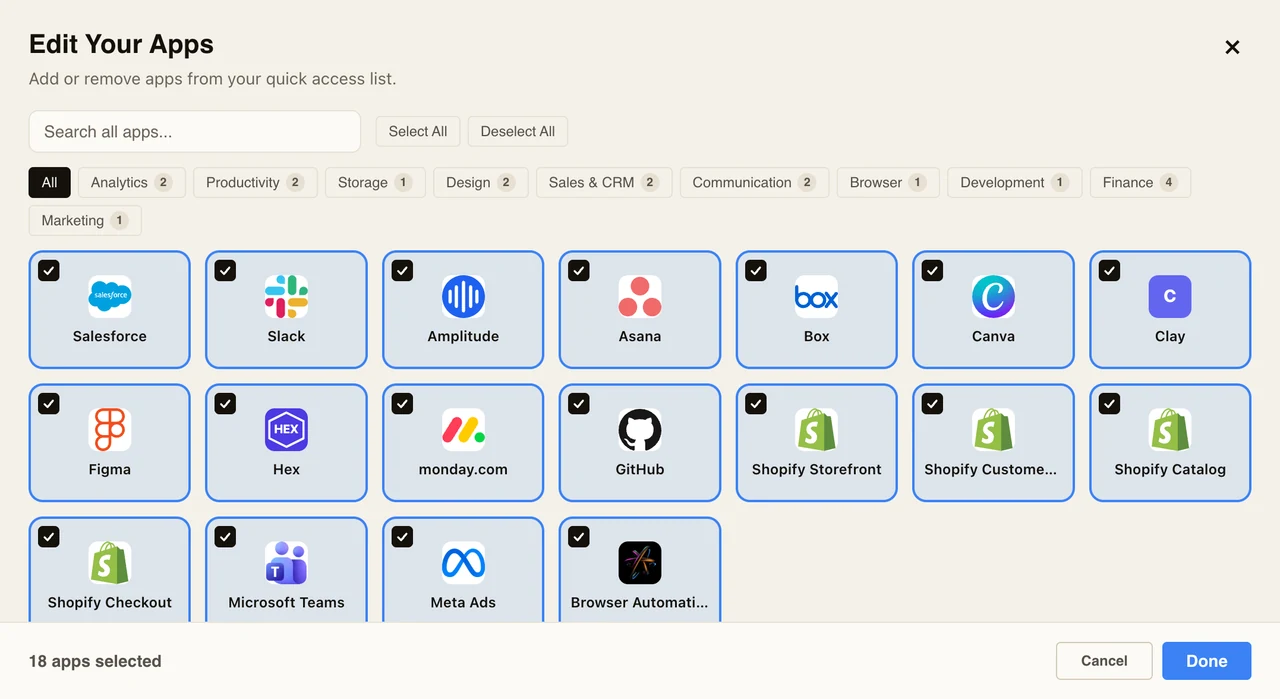
This guide is for connecting apps, understanding MCP auth state, and fixing OAuth setup.
It is also the lane that should inspect live auth state, recent failures, and runtime evidence when an app looks connected but still is not working.
MCP Auth Types
Neotask supports multiple app auth patterns:
- no-auth apps
- API key apps
- manual OAuth apps
- managed OAuth with dynamic client registration
Support must answer from the current auth truth, not from stale marketing copy.
OAuth Setup Principles
When a caller asks how to connect an app with OAuth:
- Identify the exact app.
- Confirm whether it uses manual OAuth or managed OAuth.
- Provide the exact required variables and callback expectations.
- Explain the reconnect path if the app is in
pending,error, or expired state.
MCP Status Meanings
Return to the app catalog after authorization. The connected group confirms that the saved authentication record is available to the workspace.
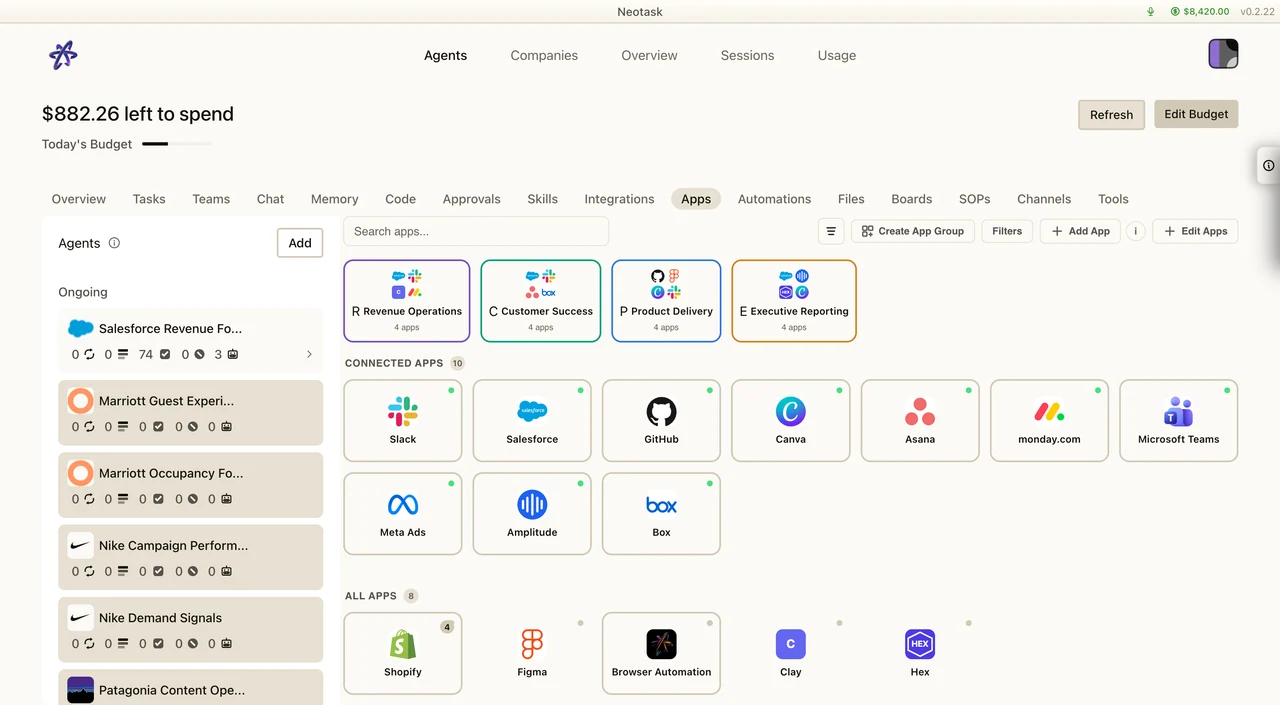
connected: auth is valid and the app is ready to use.pending: setup was started but not completed.error: auth failed or the runtime rejected the saved auth.expired: the token or session is no longer usable and must be refreshed or reconnected.none: the app has not been connected yet.
Step-By-Step OAuth Guidance
Support should always give step-by-step guidance, not just a definition:
- Open the app detail panel for the integration.
- Start the connect flow.
- Complete the browser-based authorization if the app uses OAuth.
- If the app uses manual credentials, fill the required fields exactly as documented.
- Return to the app detail view and confirm the status changed to a usable state.
MCP Troubleshooting Matrix
If the app is:
pendingThe user started setup but did not finish it. Continue the exact setup flow.errorThe saved auth is bad, incomplete, or was rejected at runtime. Reconnect or replace the credentials.expiredThe token needs refresh or reconnect. Do not treat this as a product setup success.connectedbut tools still fail Treat it as runtime truth drift, provider rejection, or stale configuration rather than assuming the UI badge is fully accurate.
What This Support Lane Can Investigate
This support lane can go beyond setup help. It can also investigate:
- whether the current auth state matches the live runtime behavior
- whether a provider connection expired, stalled, or failed at runtime
- whether the recent failure looks like missing scope, bad credentials, stale auth, or provider-side rejection
- whether recent session or workflow evidence shows the app was the actual blocker