Neotask Teams Channels And Automation
Match The Issue To The Surface
Use Teams for multi-agent work, Channels for message delivery, and Automations for scheduled or event-driven runs.
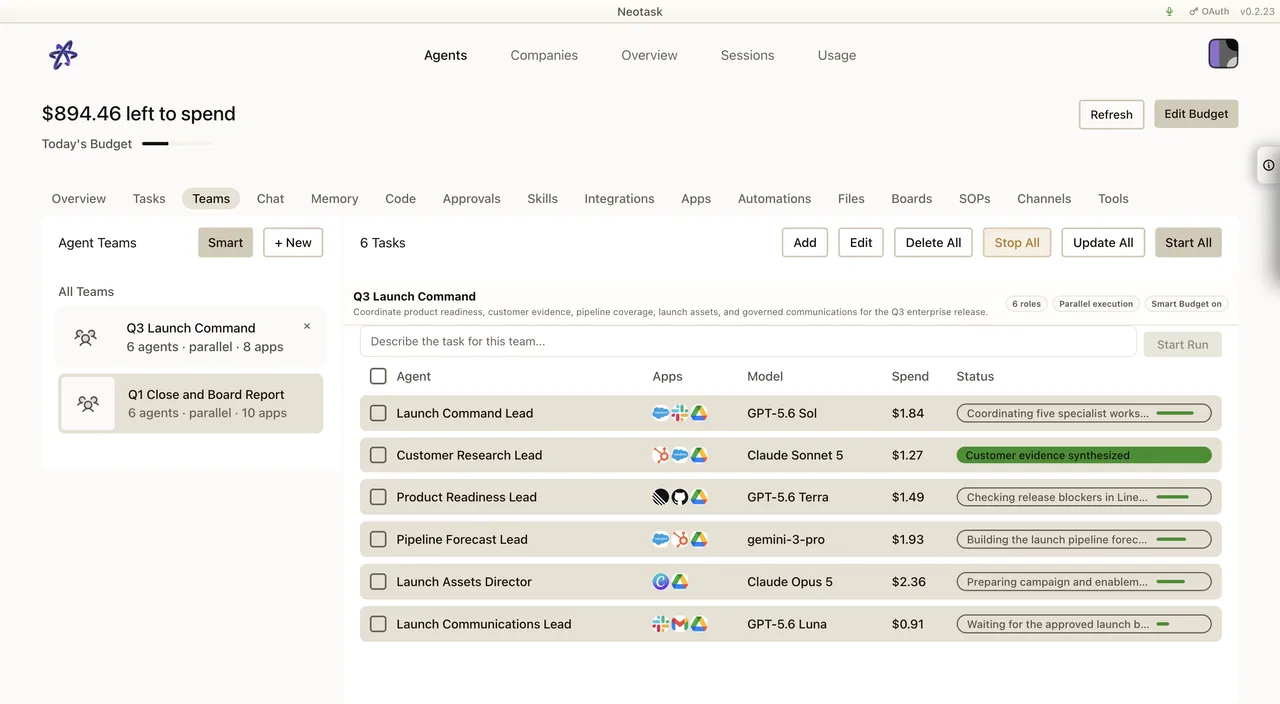
This page is not the whole autonomous company surface by itself.
For the full autonomous company dashboard support map, use:
- Neotask Autonomous Companies Support
- Neotask Company Dashboard Tab Map
- Neotask Company Modals And Settings Map
This guide covers team routing, channels, automations, and company support questions.
Teams Support
Support can help members with:
- understanding team or company structure
- routing issues involving task delivery lanes
- employee and company channel questions
- automation behavior at a high level
Channels Support
Run the channel test before investigating delivery routing. A passed connection confirms that support should inspect the saved target or approval state next.
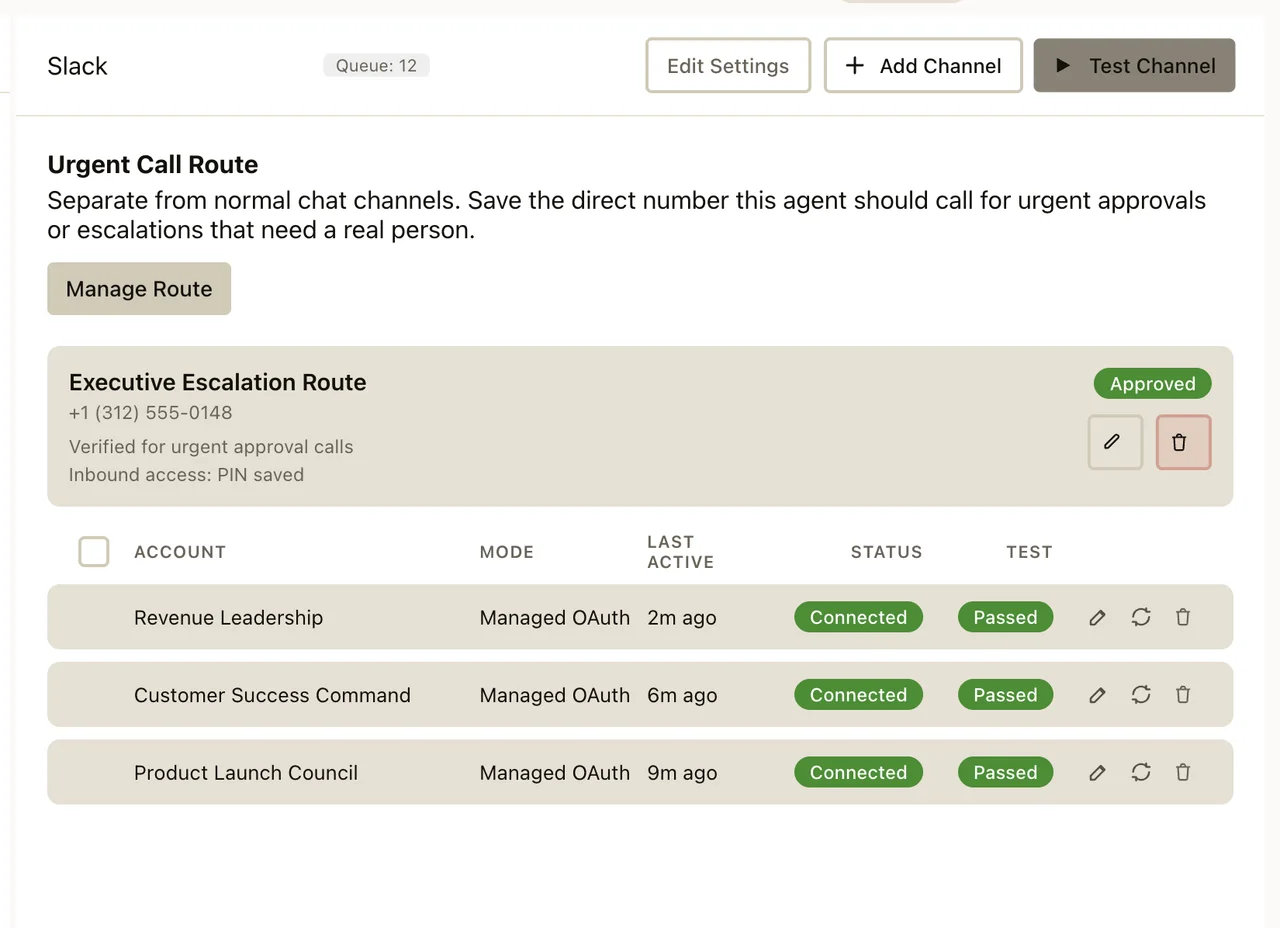
For channel issues, verify:
- the channel is still connected
- the saved binding or account record is still enabled
- the target channel or thread information is still valid
If the caller expects a message to go somewhere specific, support should verify the actual saved route rather than assuming a generic destination.
Automation Support
The Automations screen shows the schedule, enabled state, and recent runs needed to separate a setup problem from a runtime failure.
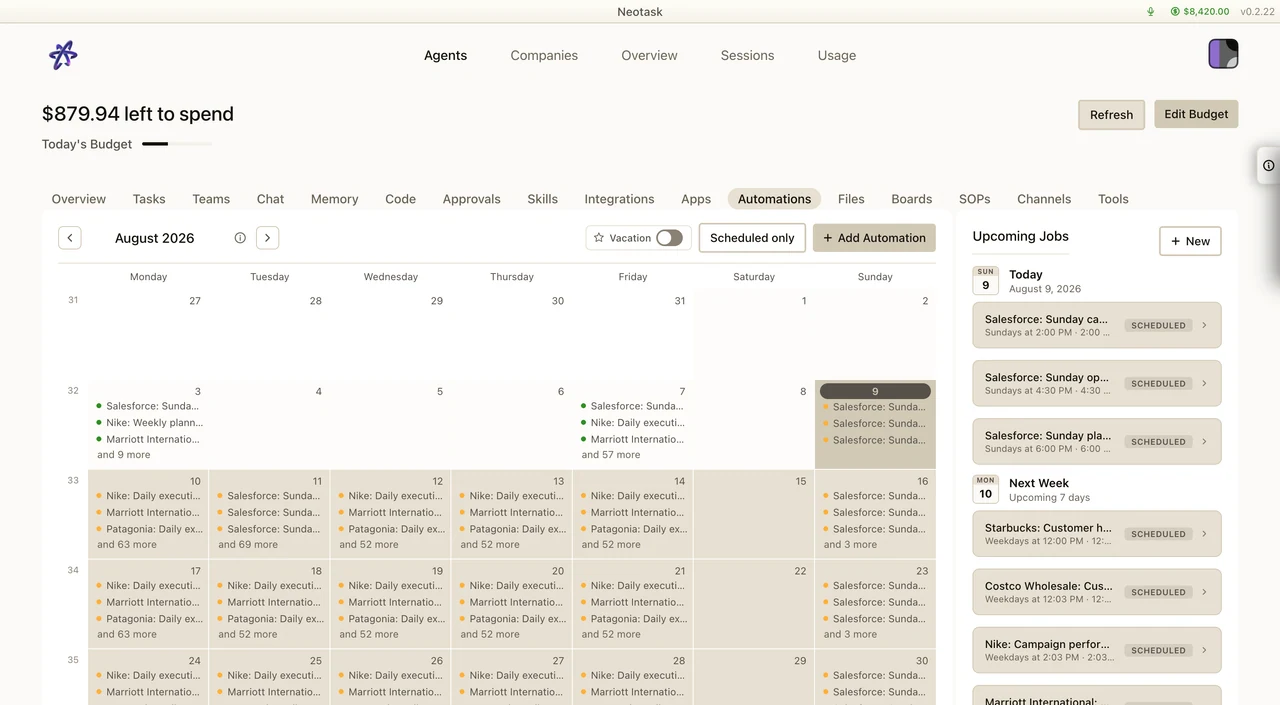
For automation problems, support should distinguish between:
- setup and scheduling mistakes
- auth failures
- runtime failures
- approval or routing blocks
If a task is blocked because auth is no longer valid, the fix is reconnecting auth, not repeatedly rerunning the task.
A fourth cause is a restart. An app update, an operating-system restart, a crash, or a power loss can cut a run short. Whether it starts again is decided by Continue work after restarts:
- Account-wide default, which is on: Settings -> Automations -> Continue work after restarts.
- One company only: Auto -> open the company -> Settings -> Continue work after restarts.
The activity feed shows Interrupted by restart and, when the run resumes, Resumed after restart. Interrupted runs resume a bounded number of times, finished work is never repeated, and blog posts and emails are protected against duplicates on a retry. Approvals and runs that failed for a non-restart reason are never resumed automatically.
If the caller expects company planning, new task creation, or the nightly or weekly review to continue after a restart, the app has to be open. Point them at Launch Neotask at login on the same Automations screen, which is off by default.
Full behavior: Continue Work After Restarts.
Exact Click Path For Company Approval Settings
When the caller needs to change approval behavior for one company:
- Click Auto in the main navigation.
- Open the company card or company name to enter the company detail page.
- In the company tab bar, click Approvals.
- Scroll to Approval Settings.
From there:
- use the mode cards to change the whole company
- use Per-App Rules to change one app or integration
- use the expanded app row to change one specific action
Exact Click Path For One-App Approval Overrides
- Open Auto.
- Open the company card or company name.
- In the company tab bar, click Approvals.
- In Approval Settings, select Semi-Supervised.
- Scroll to Per-App Rules.
- Search for the app.
- Expand its row.
- Choose:
- Default
- Auto-approve all
- Require all
- Custom rules
- For action-by-action control, change the action dropdowns inside the expanded row.
- Click Save Approval Settings.
Company And Employee Support
Company-backed support is member-only. If the caller is not recognized as a saved employee or member phone number, support starts with general guidance and then moves into the right account path once the company context is confirmed.
When The Caller Cannot Find The Right Company Tab
If the caller says they are already inside a company but cannot find the settings area they need:
- Confirm they are on the company detail page, not the general Auto dashboard.
- Tell them to use the company tab bar.
- Common company tabs support may need to reference are:
- Approvals
- Apps
- Integrations
- Channels
- Skills
- Usage
- Settings
Escalation Cases
Some company and automation issues still need a deeper follow-up. In those cases, support can summarize what it found, create a case, and preserve the company context for the next step.