Neotask Company Modals And Settings Map
Common Company Settings Screens
Use this page when the caller is in the right company tab but still cannot find the specific panel, modal, or settings surface they need.
Approval Settings Panel
Path:
- Auto
- open the company
- Approvals
- scroll to Approval Settings
Use this for:
- changing the company approval mode
- searching one app in Per-App Rules
- setting one app to default, auto-approve all, require all, or custom rules
- changing specific action overrides inside one app
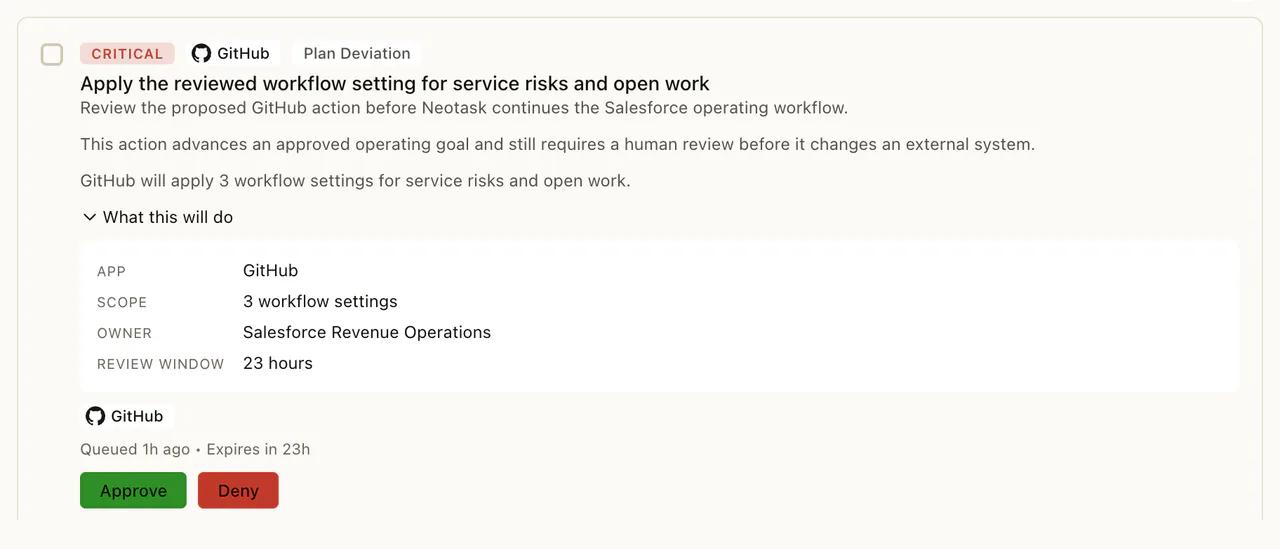
Open a waiting item when you need to confirm the requested action before changing its rule.
Task Edit Modal
Path:
- Auto
- open the company
- Tasks or Plan
- open the target task
- choose Edit Task
Use this for:
- task name and description changes
- assigned apps
- assigned skills
- assigned integrations
- assigned employees
- assigned channels
- task-level approval behavior
- task-level heartbeat behavior
If the caller says “I need to change one task, not the whole company,” this is usually the right answer.
SEO Settings
Path:
- Auto
- open the company
- SEO & Blogs
- open SEO Settings
Use this for:
- content rules
- publishing controls
- headline or article behavior
- SEO-specific company settings
File Cloud Settings
Primary path:
- Auto
- open the company
- Files
- open the cloud-copy or file-storage settings control
Use this when the caller is asking about:
- company file storage behavior
- cloud-copy behavior
- file-storage preferences
Managed Website Controls
Primary path:
- Auto
- open the company
- Files
- use the managed website area inside that tab
Use this for:
- website preview/live links
- website status
- domain state
- website file review
- website source editing
- website save/redeploy controls
- website error visibility
Add Channel Modal
Path:
- Auto
- open the company
- Channels
- choose the add-channel action
Use this when the caller needs to add a new company channel.
Channel Settings Modal
Path:
- Auto
- open the company
- Channels
- open the existing channel
- choose edit or settings
Use this for:
- binding edits
- delivery target changes
- route cleanup
- channel troubleshooting inside one company
Company Integrations Connection Flow
Path:
- Auto
- open the company
- Integrations
- select the Google services
- use Authorize & Connect, Connect as, or Add new
Use this when the caller needs the company Google Workspace flow, not the general app flow.
Important support note:
The current company flow can let the user either reuse an existing connected Google account or add a different one for that company.
Company Apps Detail Panel
The Apps catalog shows the services available to company agents and which services are already connected.
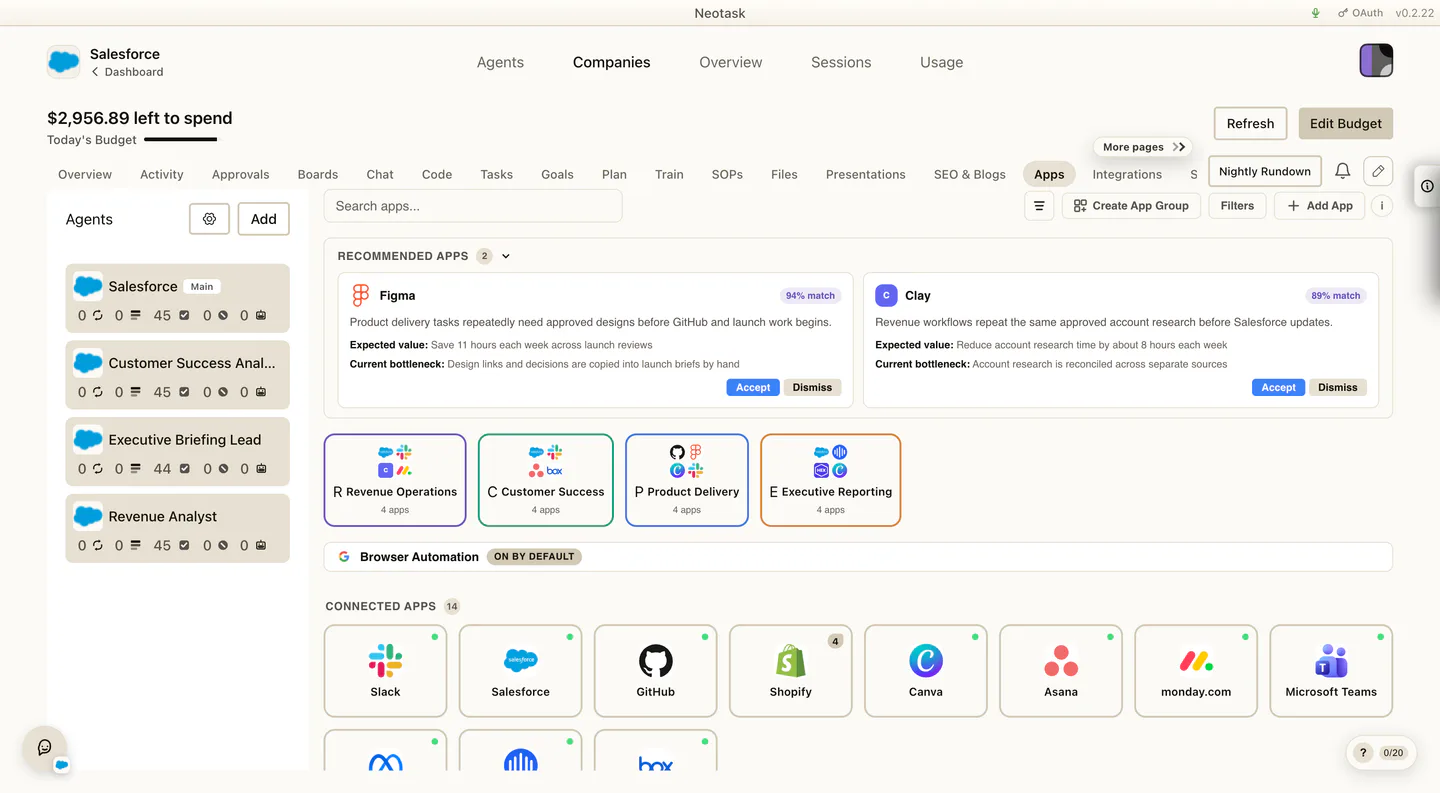
Path:
- Auto
- open the company
- Apps
- open the target app card
Use this for:
- company app connection flow
- app detail review
- app-group related work
Heartbeat Settings
The Plan view below is useful for locating the company controls rail before opening the full heartbeat settings panel.
There are two places support may talk about heartbeat behavior:
- the left-side Controls rail
- the Settings tab heartbeat panel
If the caller wants the company-wide heartbeat configuration, the safest routing answer is:
- Auto
- open the company
- Settings
- use the heartbeat panel
Continue Work After Restarts
There are two places this toggle exists, and support must name the right one.
Account-wide default, which is on:
- Settings
- open Automations
- Continue work after restarts
One company only:
- Auto
- open the company
- Settings
- Continue work after restarts
Use this when the caller says:
- interrupted work did not start again after an update or a restart
- work started again and they did not want it to
- one company should behave differently from the rest
Two behaviors decide most of these calls:
- Changing the account-wide toggle re-syncs every company to the new value and clears company overrides.
- A company differs again only after the toggle is changed inside that company's settings.
The same Automations screen holds Launch Neotask at login, which is off by default. Scheduled tasks keep running with the app closed, but company planning, new task creation, and the nightly and weekly reviews need the app open.
Full behavior: Continue Work After Restarts.
Adaptive Learning
Path:
- Auto
- open the company
- Settings
- open Adaptive Learning
Use this for:
- learning behavior
- learning controls
- review-before-apply style settings
Notification Preferences
Path:
- Auto
- open the company
- Settings
- use Notification Preferences
Use this for company-level notification behavior and nightly rundown preferences.
That can include:
- in-app notifications
- desktop push notifications
- email notifications
- Slack notifications
- Discord notifications
- nightly rundown timing
Public Live Settings
Path:
- Auto
- open the company
- Settings
- open Public Live Settings
Use this for visibility and redaction controls tied to the company.
That can include:
- whether the company appears publicly at all
- redaction mode
- public display name
- aggregate visibility
- company-name visibility
- revenue visibility
Nightly Rundown
This is not a normal tab.
Path:
- Auto
- open the company
- use the Nightly Rundown action above the tab content
Use this when the caller wants the company’s nightly summary or says they are looking for the nightly review button.
Overview Widget Controls
Path:
- Auto
- open the company
- Overview
- use the add-widget or customize controls
Use this when the caller needs:
- widget pinning
- widget visibility changes
- widget layout customization
- widget detail overlays