Neotask Company Google Integrations
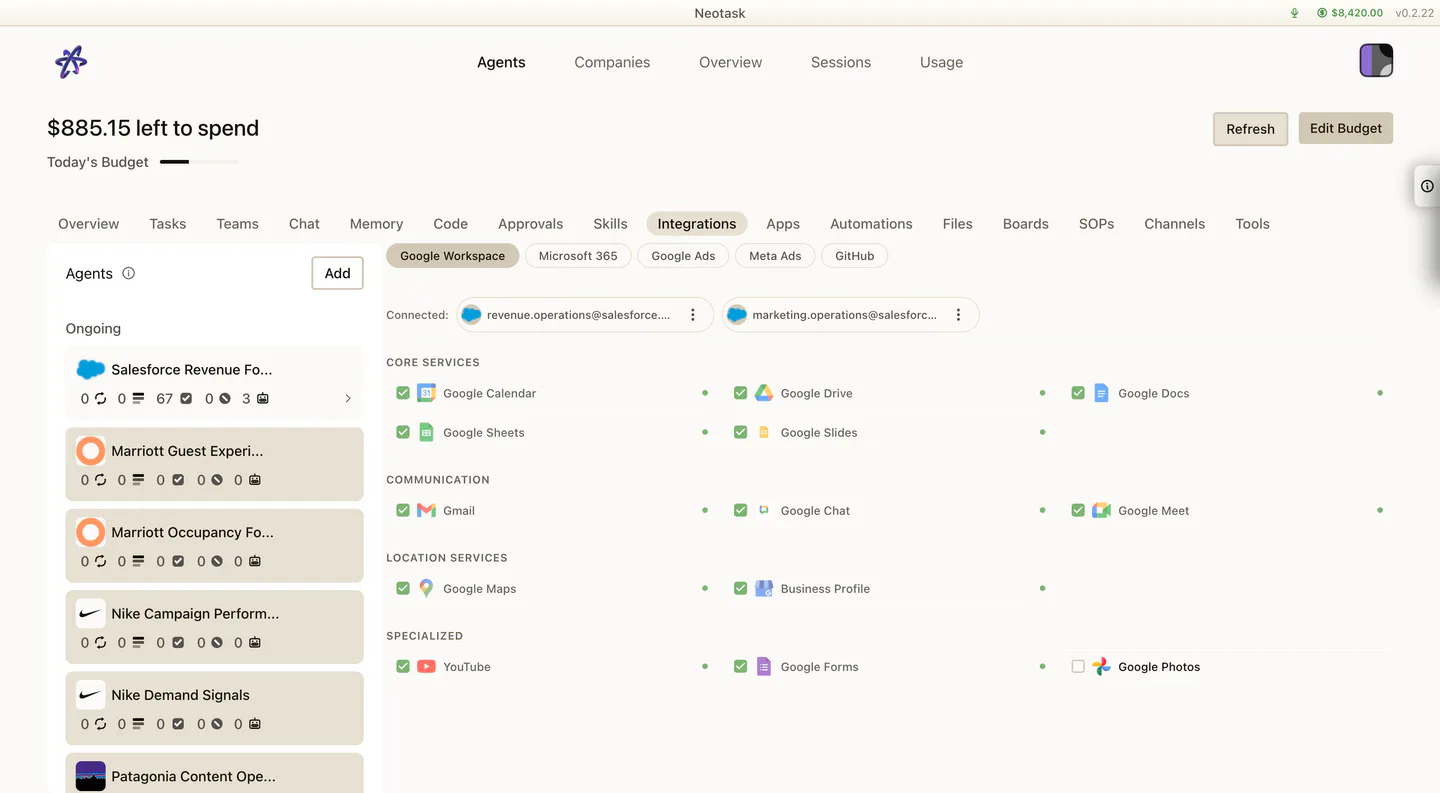
Confirm The Connected Google Services
- Open the company.
- Select Integrations.
- Open the connected Google account.
- Confirm that the required services are enabled.
Use this page when the caller says:
- “How do I connect Google for this company?”
- “Why can’t this company see Gmail, Docs, Sheets, Drive, or Calendar?”
- “I connected Google somewhere else, but this company still does not work.”
The Important Rule
For company-specific Google Workspace access, support should use the company Integrations surface.
Do not send the caller to the general company Apps surface when the issue is specifically Gmail, Docs, Sheets, Drive, or Calendar for one company.
The Current Company Path
- Click Auto
- open the company
- click Integrations
- select the Google services the company needs
- use one of these actions:
- Authorize & Connect
- Connect as
- Add new
This is the correct company-scoped Google Workspace path.
The user may see a choice between:
- reusing an already connected account
- adding a different account
Onboarding Note
Google Workspace can also be connected during company onboarding in the Integrations step.
So if the caller says:
- “I’m still in onboarding”
- “I saw the Google step in setup”
that is still the same company Google lane. After onboarding, the same company can be managed again from the company Integrations tab.
When To Use Integrations Instead Of Apps
Use Integrations when the caller is talking about:
- Gmail
- Google Calendar
- Google Docs
- Google Sheets
- Google Drive
Use Apps when the caller is talking about a company app provider that belongs in the app catalog instead.
If The Caller Already Has A Google Account Connected
Support should keep them in the company Integrations tab and help them choose whether to:
- reuse an existing connected account with Connect as
- add a different account with Add new
If The Caller Says It Works Somewhere Else But Not Here
Support should confirm the scope.
If the problem is company-specific:
- stay inside the company
- use Integrations
- reconnect or switch the company Google account there
- re-test the exact company workflow