Support MCP Scope And Runtime
Separate App State From Gateway State
First confirm that the app is connected. Then check Settings → Infrastructure → Connection and Settings → Infrastructure → Health when tools cannot start locally or the runtime is unavailable. Use Settings → Advanced → Troubleshoot when the checks identify a problem that needs repair.
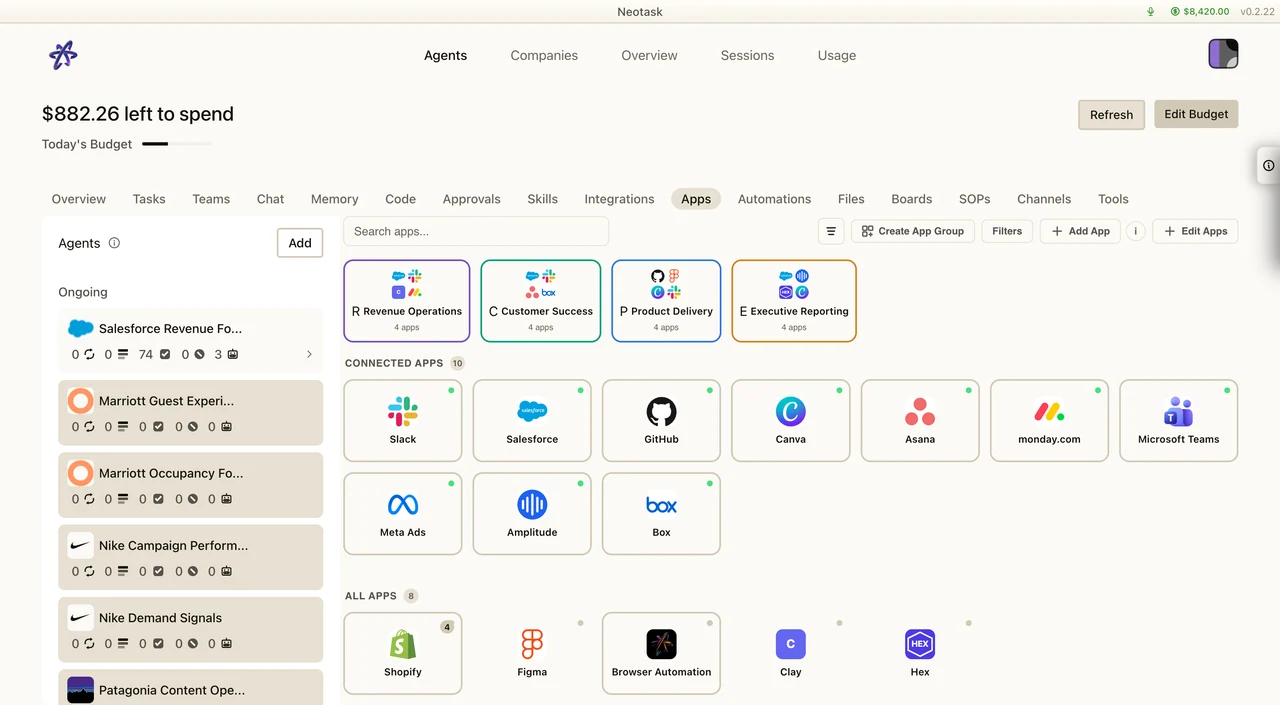
If the app state is healthy, inspect the route from the desktop app through the Gateway and connected services.
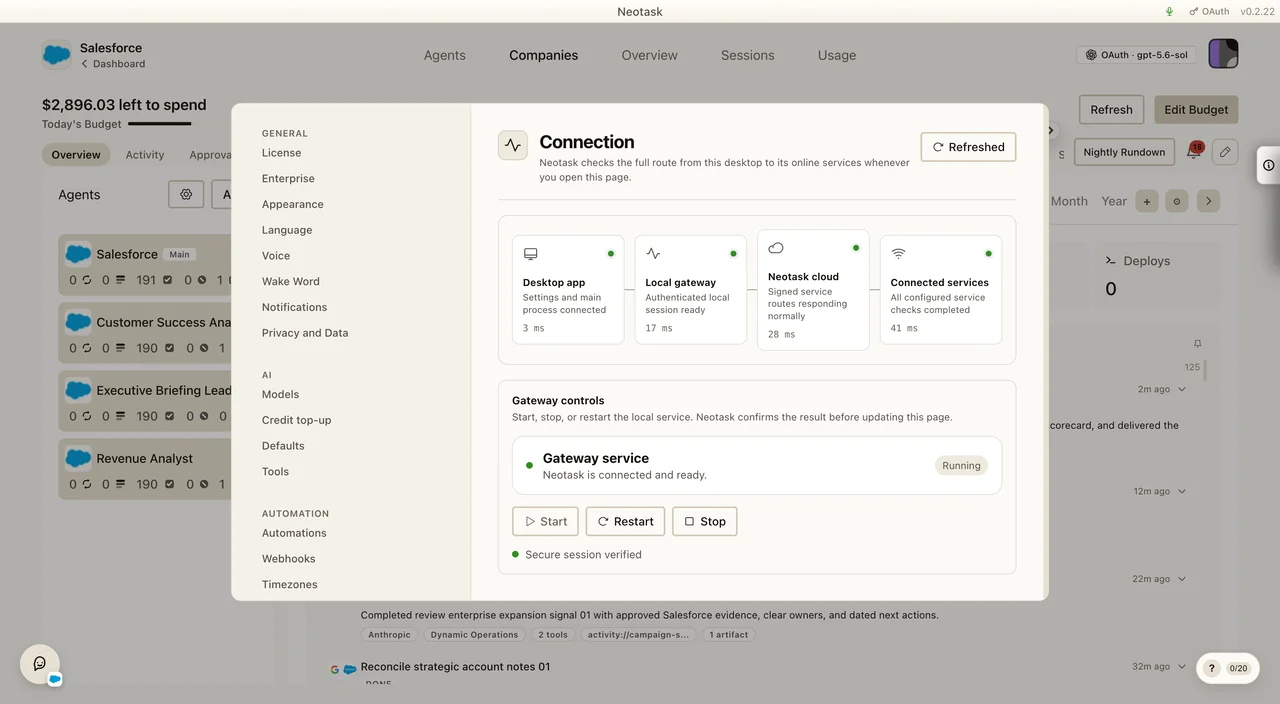
Use this runbook when an app looks connected in Neotask, but the caller is still failing in the wrong place, wrong workspace, or wrong automation lane.
The Three MCP Scopes
Neotask can save MCP connections in three different scopes.
Tenant
Use tenant scope for the caller's normal workspace, app setup, and personal day-to-day usage.
Typical examples:
- The caller opens the Apps tab in their normal workspace.
- The caller runs tools from their main workspace chat.
- The caller uses a non-company workflow tied to their own workspace.
Company
Use company scope for company automations, company tasks, company channels, and autonomous company operations.
Typical examples:
- A company task says an app is missing even though the user connected it elsewhere.
- A company workflow or employee route cannot see a provider that works in the personal workspace.
- An autonomous company run reports auth trouble while the user-facing workspace looks healthy.
For company-specific Google Workspace connections, the support click path should normally be:
- Auto
- open the company
- Integrations
Do not default to a generic agent-page Apps tab when the failure is clearly company-specific.
Main Agent
Use main-agent scope for global agent-page teams, agent-level routing, and agent-specific app access that is not tied to a single company or workspace task lane.
Typical examples:
- An app is connected from the agent page, but not visible in a normal tenant workflow.
- A team orchestration lane can see an app that the workspace lane cannot, or vice versa.
The Most Common Scope Mistake
The same provider can be healthy in one scope and missing in another.
That means all of these can be true at the same time:
- The app says
connectedin one surface. - A company task still says auth is missing.
- Reconnecting in the wrong surface does not fix the real failure.
Support should not assume a provider is globally connected just because the caller saw one green status somewhere.
Scope Placement Runbook
When a caller says, "It is connected, but the task still fails," use this exact sequence:
- Identify the failing surface. Is it the normal workspace, a company workflow, a company task, an agent team, or a global agent flow?
- Identify where the caller originally connected the app. Ask whether they connected it in the workspace Apps tab, a company app modal, or the agent page.
- Match the connection scope to the failing surface. If the failure is in a company lane, the company scope is the one that matters.
- Reconnect only in the failing scope. Do not disconnect a healthy scope until you know the failing scope.
- Re-run the exact failing action. A green status in the correct scope is only useful if the actual task or tool call now succeeds.
Signs The Wrong Scope Is The Real Problem
Suspect a scope mismatch when any of these are true:
- The caller says the app is connected, but only company tasks fail.
- The provider works in one chat surface and fails in another.
- The company modal and the normal Apps tab show different states.
- A reconnect fixed nothing because it happened in the wrong surface.
Runtime And Readiness Runbook
- Open Settings → Infrastructure → Connection and confirm the desktop, Gateway, cloud, and connected-service path.
- Open Settings → Infrastructure → Health and run the responsiveness, workload, channel, and stability checks.
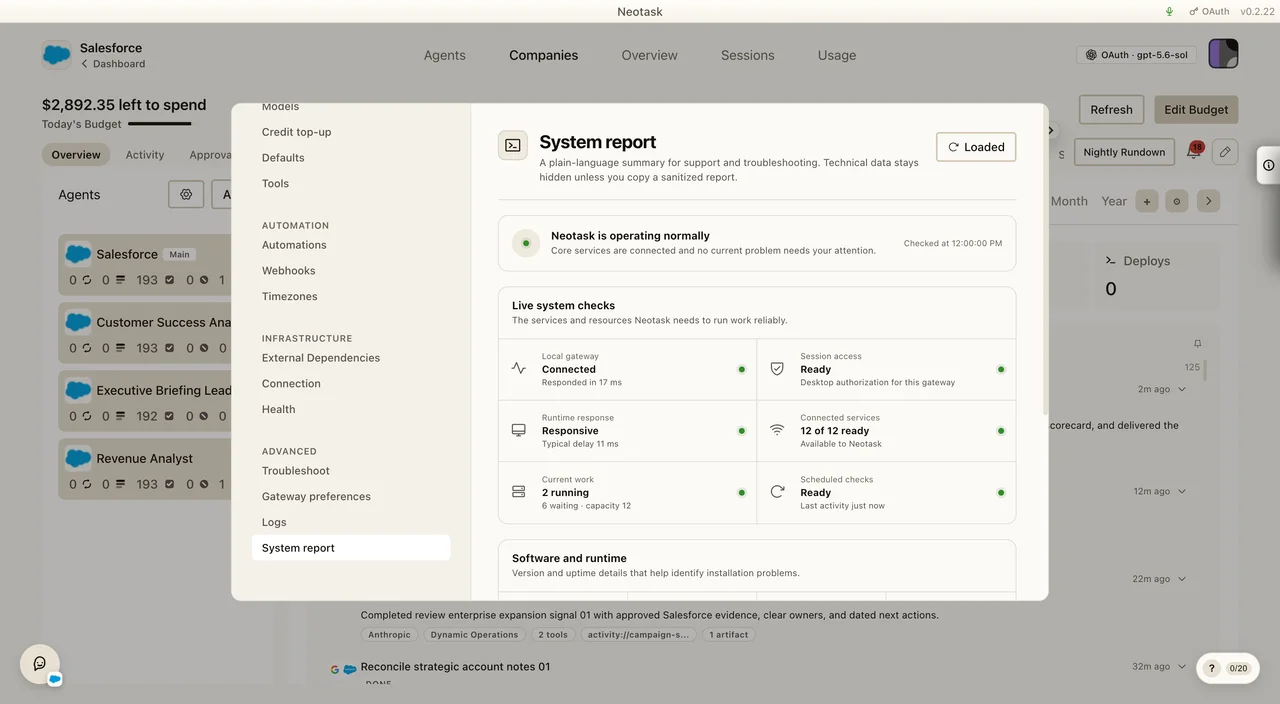
- Open Settings → Advanced → System report to review the combined live system checks.
- Open Settings → Advanced → Troubleshoot and run Check system before changing an app connection when the failure is local.
- Use Show technical output for the detailed Doctor result and Apply repairs only after the check offers it.
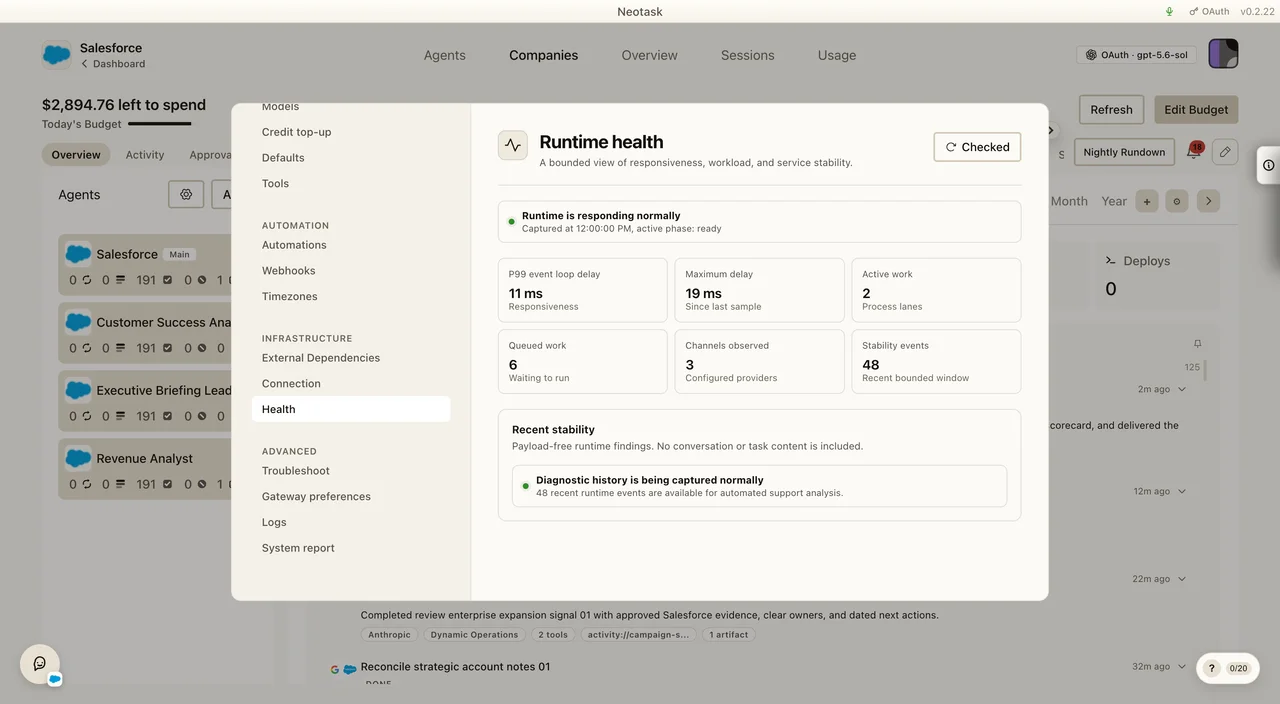
The System report combines the Gateway, session, runtime, service, work, and scheduled-check results.
Use the Doctor after the live checks show that a repair is needed.
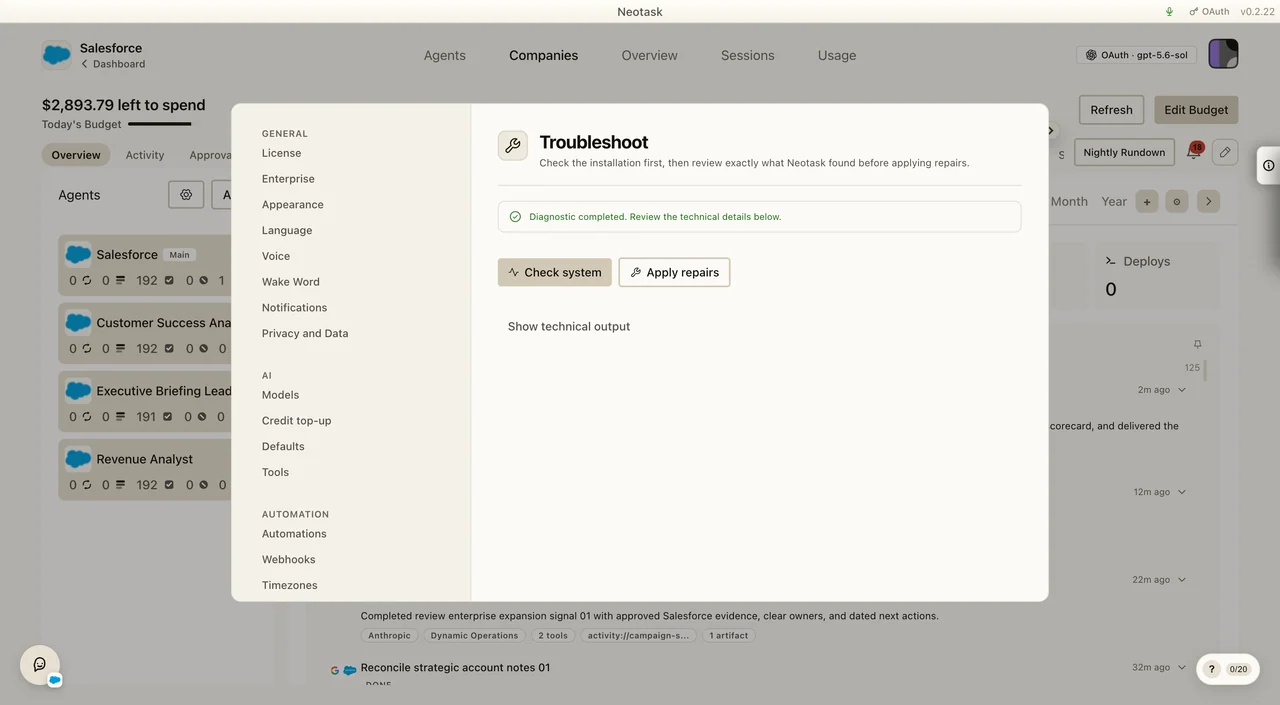
Even the correct scope can still fail if runtime readiness is wrong.
Check these next:
- Wrong account or workspace was authorized. The provider is connected, but the user approved the wrong Slack workspace, Microsoft tenant, or provider account.
- Missing scopes. The provider connected, but the approved scopes do not match the tools the caller expects to use.
- Wrong custom URL or instance URL.
The auth may be valid, but the saved
baseUrl,instanceUrl, or tenant URL points at the wrong environment. - Local-runtime or plugin dependency. Some providers are not truly cloud-hosted and only work when a local IDE or companion plugin is active.
- Auth-state versus readiness mismatch. The saved auth row may look healthy, while the actual runtime still cannot use it.
Custom URL And Instance URL Cases
Support should pause before reconnecting if the provider uses a tenant-specific or account-specific URL.
High-value examples:
- Benchling The tenant URL must point at the correct Benchling environment before the API key can work.
- Visier The caller must use the correct Visier vanity or tenant URL.
- NetSuite The account-specific host and token-based credential set matter more than a generic reconnect.
- Providers with
baseUrlorinstanceUrlfields If the saved URL is wrong, auth can look fine while every tool call fails.
Local Runtime Cases
Some providers do not behave like standard hosted OAuth apps.
JetBrains
JetBrains is a local IDE and plugin path. If the supported IDE is not open, or the plugin/runtime is not active, tools can appear missing even though support is looking in the right product area.
No-Auth Or Local-Only Providers
If a provider is classified as no_auth, do not force the caller into OAuth troubleshooting. Verify runtime prerequisites first.
What Support Should Collect Before Escalating
If the issue still fails after reconnecting the correct scope, collect:
- Provider name.
- Failing surface.
- Scope where the app was connected.
- Current auth state shown in Neotask.
- Whether the provider uses OAuth, API key, manual credentials, or no auth.
- Whether a custom URL, base URL, or instance URL is involved.
- Whether the failure is company-only, tenant-only, or agent-only.