MCP Auth & OAuth Setup
Start From The App Detail
- Open Apps and select the service.
- Read the authentication choices shown for that provider.
- Use OAuth when it is offered.
- Add a key or manual credential only when the provider requires it.
- Return to the app detail and confirm the connected state.
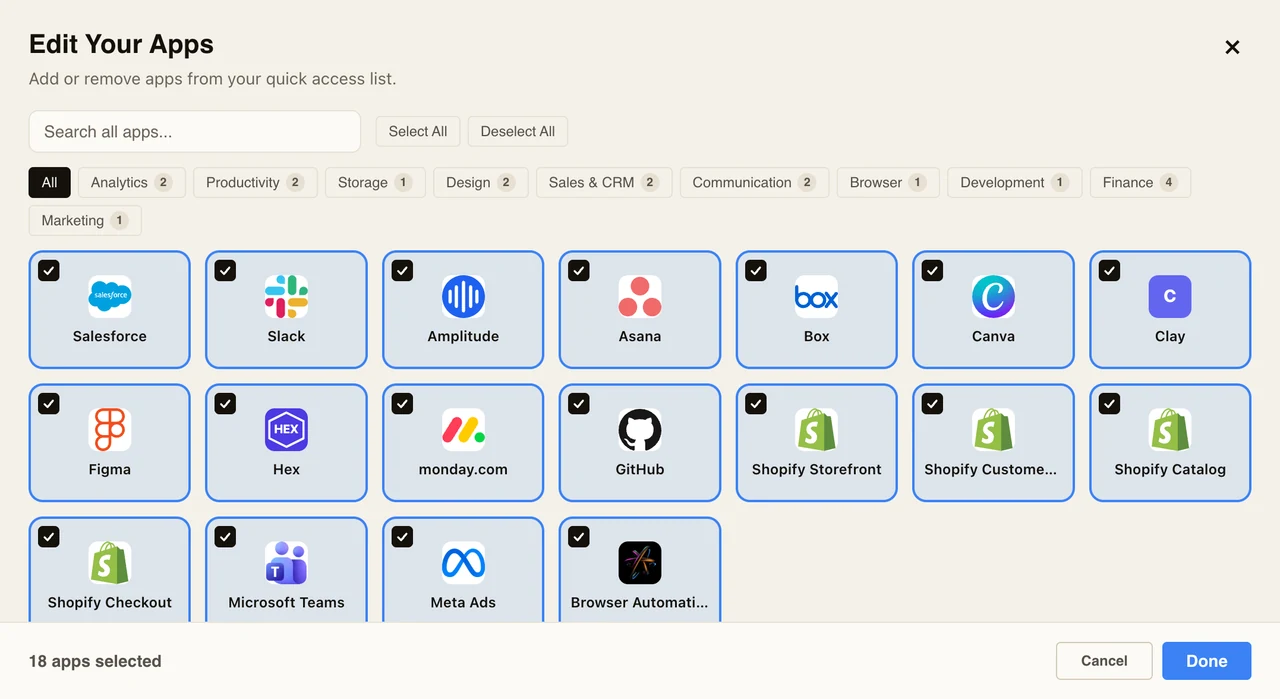
This guide explains how app connections work in Neotask, which setup path applies to each provider, and how to complete high-friction OAuth and credential flows step by step.
Start With The Setup Mode
Every app in Neotask falls into one of these setup modes:
- Managed OAuth
- Manual OAuth
- API key
- Manual credentials
- Custom URL first
- No auth or local runtime
Do not start with generic reconnect advice until you know which mode the provider actually uses.
Managed OAuth
Use this when the provider supports a direct Neotask-led OAuth flow.
Step-by-Step
- Open the provider in the Apps tab.
- Click Connect.
- Complete the browser-based consent flow.
- Return to Neotask.
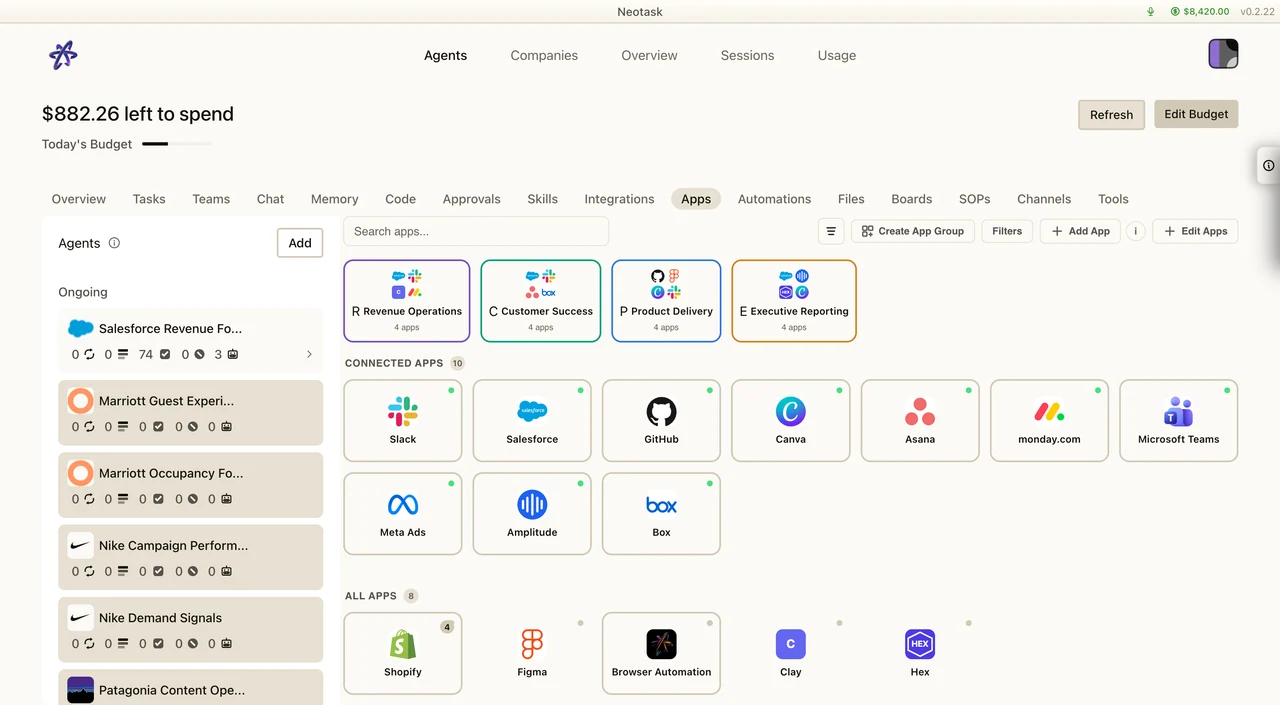
- Confirm the provider moves to
connected.
Return to Apps and verify that the provider appears in the connected group before testing an agent request.
If the flow fails repeatedly and the provider is known to be managed_dcr_broken, stop retrying the same path and move to the documented fallback.
Important Surface Rule
For MCP providers, the auth flow lives in Apps, not the Google Workspace Integrations surface.
Examples that belong in Apps even when they use OAuth:
- Stripe
- Slack
- Salesforce
- HubSpot
- Airtable
Manual OAuth
Use this when the provider needs an app registration or pre-registered OAuth app first.
Step-by-Step
- Open the provider card in Neotask.
- Copy the exact callback URL shown there.
- Open the provider developer portal.
- Create or open the OAuth app.
- Add the callback URL exactly.
- Add the required scopes exactly.
- Copy the
clientId. - Copy the
clientSecretif the provider uses one. - Paste the values into Neotask.
- Start the connection flow and approve access.
Important Callback Rule
The callback host often points at the Neotask MCP auth service. That is expected. Use the exact callback URL from Neotask rather than inventing your own redirect URL.
API Key
Use this when the provider only needs an API key or token.
Step-by-Step
- Create or copy the API key from the provider.
- Open the provider card in Neotask.
- Paste the key into the required field.
- Save the connection.
- Re-test the provider.
Manual Credentials
Use this when the provider needs structured credentials such as baseUrl, instanceUrl, account IDs, token IDs, or tenant-specific hosts.
Step-by-Step
- Gather every required field before saving.
- Confirm the correct instance or tenant URL.
- Paste each value exactly.
- Save the connection.
- Re-test the provider.
If a provider needs manual credentials, do not switch the caller into OAuth unless the provider card explicitly says to do so.
Custom URL First
Some providers cannot be validated until the caller saves the correct instance URL first.
Support Rule
If the provider asks for baseUrl, instanceUrl, workspaceUrl, organizationUrl, or another tenant-specific URL, confirm that value before discussing OAuth.
High-Value Examples
- Benchling Use the correct tenant-specific Benchling URL before saving the API key.
- Visier Use the correct vanity or tenant URL before saving credentials.
- NetSuite Use the correct account-specific host and account ID.
No Auth Or Local Runtime
Some providers do not behave like cloud-hosted OAuth services.
JetBrains
JetBrains depends on a local IDE and plugin path. If the supported IDE is not open, or the plugin/runtime is not active, tools can be unavailable even though the product surface looks fine.
Support Rule
Do not force no-auth or local-runtime providers into OAuth troubleshooting.
Provider Playbooks
These are the highest-friction OAuth flows that support should know cold.
Slack
- Create a Slack app from scratch in the Slack developer portal.
- Add the exact Neotask callback URL to Slack.
- Add the required user scopes shown by Neotask.
- Copy the Client ID and Client Secret.
- Paste them into Neotask and reconnect.
Figma
- Create the Figma app in the Figma developer portal.
- Add the exact Neotask callback URL.
- Request the
mcp:connectscope. - Copy the Client ID and Client Secret.
- Paste them into Neotask and reconnect.
Figma is sensitive to the exact app type and the restricted MCP scope.
Airtable
- Register the Airtable OAuth integration.
- Add the exact Neotask callback URL.
- Add the required Airtable data, schema, webhook, and user-email scopes shown by Neotask.
- Copy the Client ID and Client Secret.
- Paste them into Neotask and reconnect.
Box
- Create a custom Box app with OAuth 2.0 user authentication.
- Add the exact Neotask callback URL.
- Enable the required Box application scopes.
- Copy the Client ID and Client Secret.
- Paste them into Neotask and reconnect.
Canva
- Create the Canva integration.
- Add the exact Neotask callback URL.
- Copy the Client ID and Client Secret.
- Paste them into Neotask and reconnect.
monday.com
- Create the monday.com app.
- Add the exact Neotask callback URL.
- Copy the Client ID and Client Secret.
- Paste them into Neotask and reconnect.
Asana
- Create the Asana app in the developer console.
- Add the exact Neotask callback URL.
- Copy the Client ID and Client Secret.
- Paste them into Neotask and reconnect.
Do not improvise extra scopes for Asana if the product truth says the provider does not use them.
Salesforce
- Open Salesforce App Manager and create or edit the Connected App.
- Enable OAuth settings.
- Paste the exact Neotask callback URL.
- Add the required API and refresh scopes.
- Copy the Consumer Key and Consumer Secret.
- Paste them into Neotask and reconnect.
Microsoft Family
Use this pattern for Microsoft Teams, Microsoft 365, Azure, Azure DevOps, and PowerBI:
- Open Microsoft Entra.
- Create or open the app registration.
- Add the exact Neotask callback URL as a Web redirect URI.
- Copy the Application (client) ID.
- Create or copy the client secret if required.
- Paste those values into Neotask.
- Re-run consent in the correct Microsoft tenant.
Connected But Tools Still Fail
If auth looks healthy but tools still fail, check this order:
- Wrong scope.
- Wrong workspace or provider account.
- Missing scopes.
- Wrong custom URL or instance URL.
- Local runtime or plugin not active.
- Company flow using a tenant connection, or tenant flow using a company connection.
For a dedicated runbook, use Support MCP Scope And Runtime.
When To Stop And Ask Support
Escalate when:
- The callback URL in Neotask matches the provider portal, but the provider still rejects it.
- The provider is marked
managed_dcr_brokenorunreachable. - The provider is connected in one scope and still fails in another.
- The flow requires company-specific or admin-specific guidance that is not on the provider card.