App Setup Troubleshooting
Use this guide when Neotask is installed but setup is blocked by the app, gateway, voice, channels, automations, or app connections.
First Triage
Before diving into a specific app or workflow, identify which layer is failing:
- desktop app install or first launch
- gateway or local runtime
- app connection or auth
- channels and message delivery
- automation and scheduled tasks
- voice and microphone setup
Desktop App Setup
The app will not launch
Check:
- The installer finished successfully.
- You are opening the installed app, not the disk image.
- Your operating system did not block the app after download.
If the app opens and then immediately fails, move to the gateway section below.
The app opens, but onboarding is blocked
Common causes:
- license or sign-in issue
- no active internet connection
- a required browser auth step was never completed
- the gateway did not finish starting
Start with:
- confirm your workspace access
- confirm your license or plan state
- confirm the gateway is healthy
Gateway and Local Runtime
The gateway failed to start
This usually means the local runtime did not initialize correctly.
- Fully quit and reopen Neotask once.
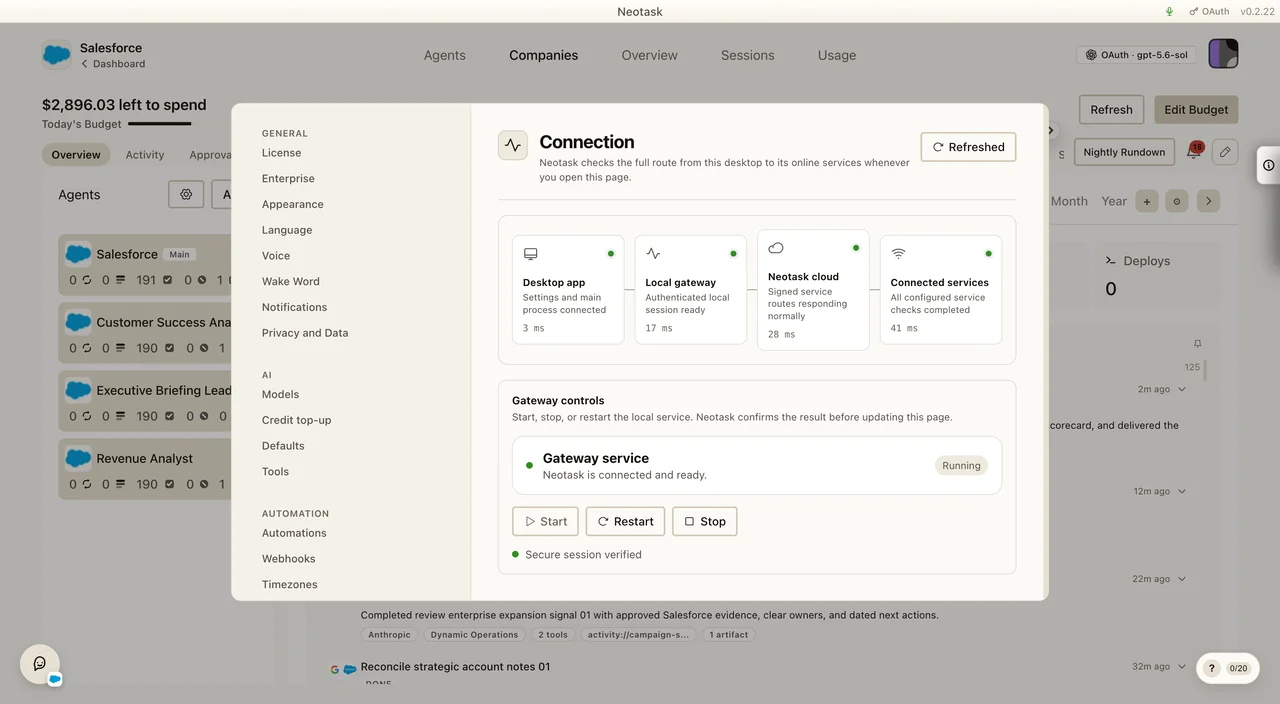
- Open Settings → Infrastructure → Connection.
- Check the Local gateway stage and use Start or Restart under Gateway controls.
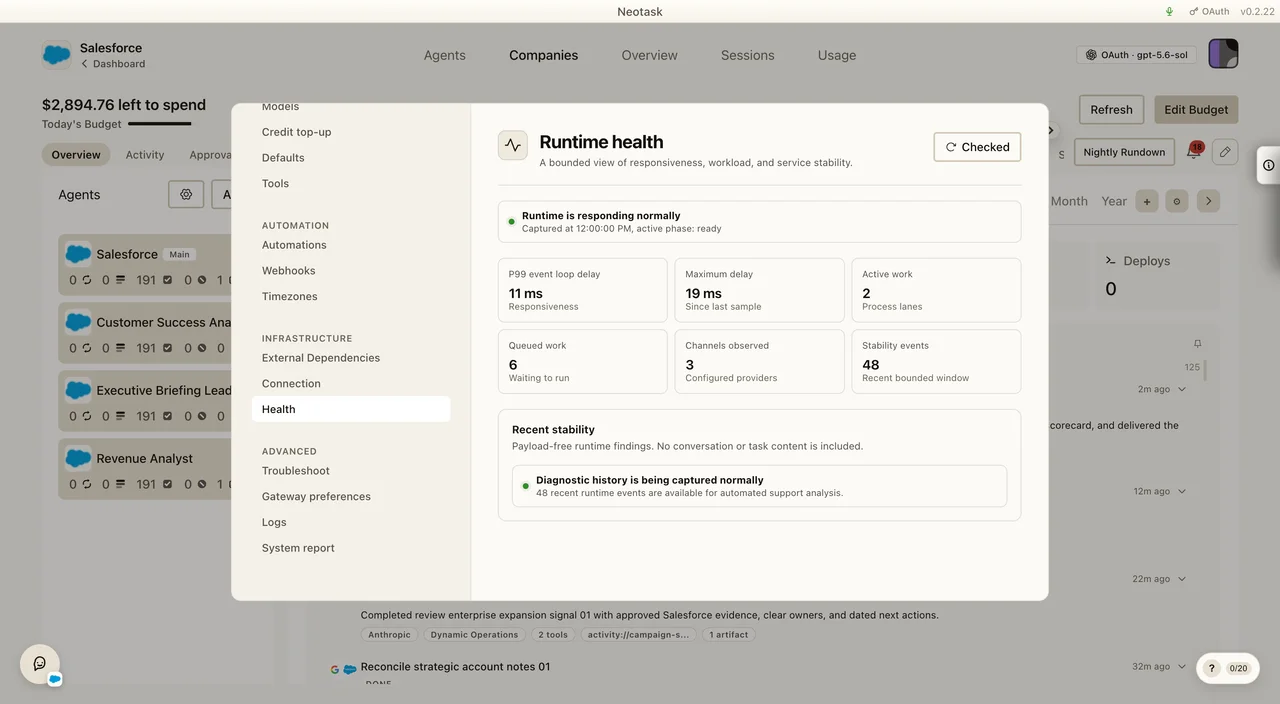
- Open Settings → Infrastructure → Health and click Run check.
- Review Settings → Advanced → System report for the first live system check that needs attention.
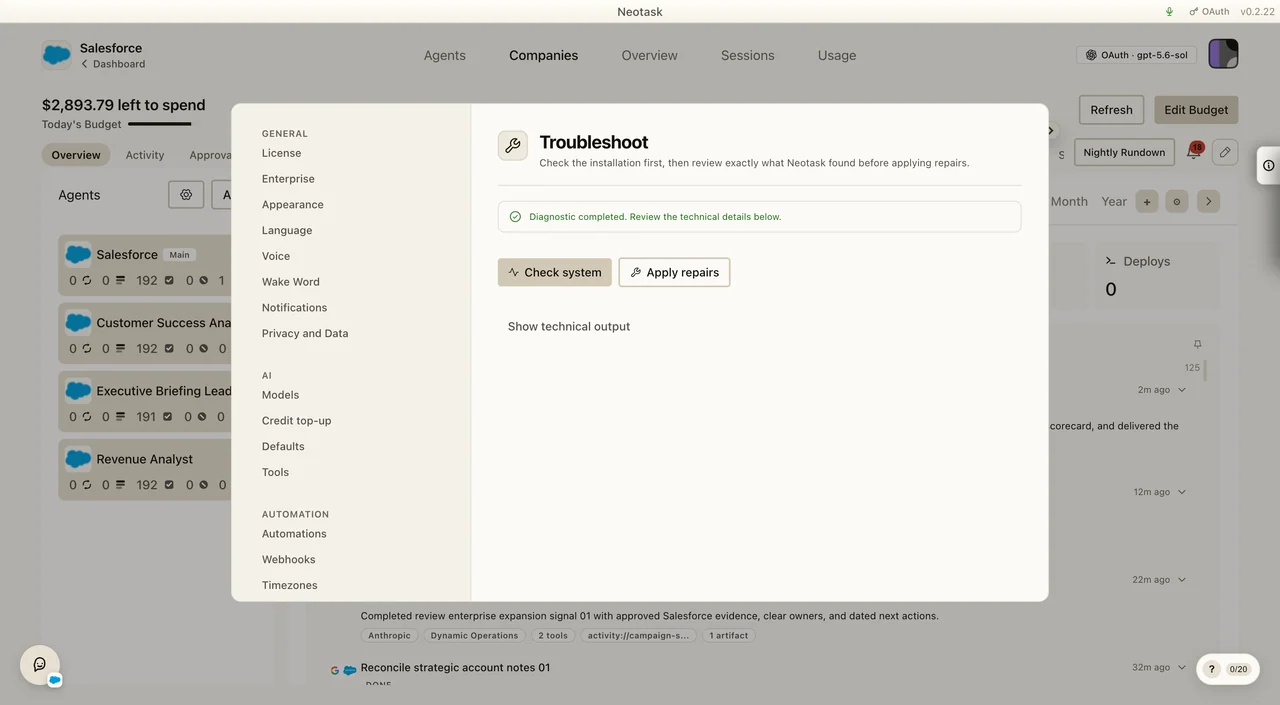
- Open Settings → Advanced → Troubleshoot and click Check system if the issue remains.
- Read the result or open Show technical output.
- Click Apply repairs when it becomes available.
- Wait for the follow-up check before retrying setup.
The Health screen checks runtime responsiveness, workload, connected channels, and recent stability.
When Connection and Health identify an installation problem, continue to the Doctor for the repair step.
The gateway disconnects after startup
Possible causes:
- a local runtime crash
- a conflicting local service
- security or permission issues on the device
- stale local state after an update
If tasks, voice, or app tools all stop at once, gateway health is the first thing to verify.
- Refresh Settings → Infrastructure → Connection.
- Run Settings → Infrastructure → Health.
- Review Settings → Advanced → System report.
- Use Settings → Advanced → Troubleshoot when a repair is needed.
App Connection Problems
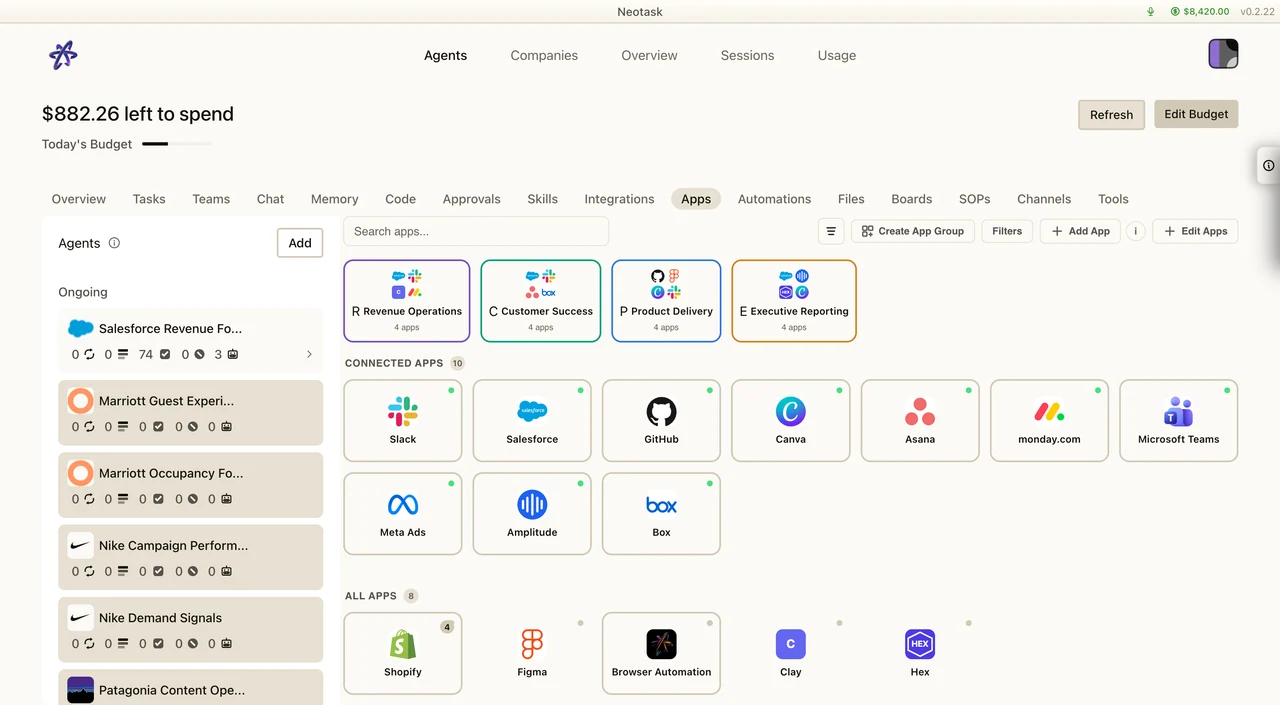
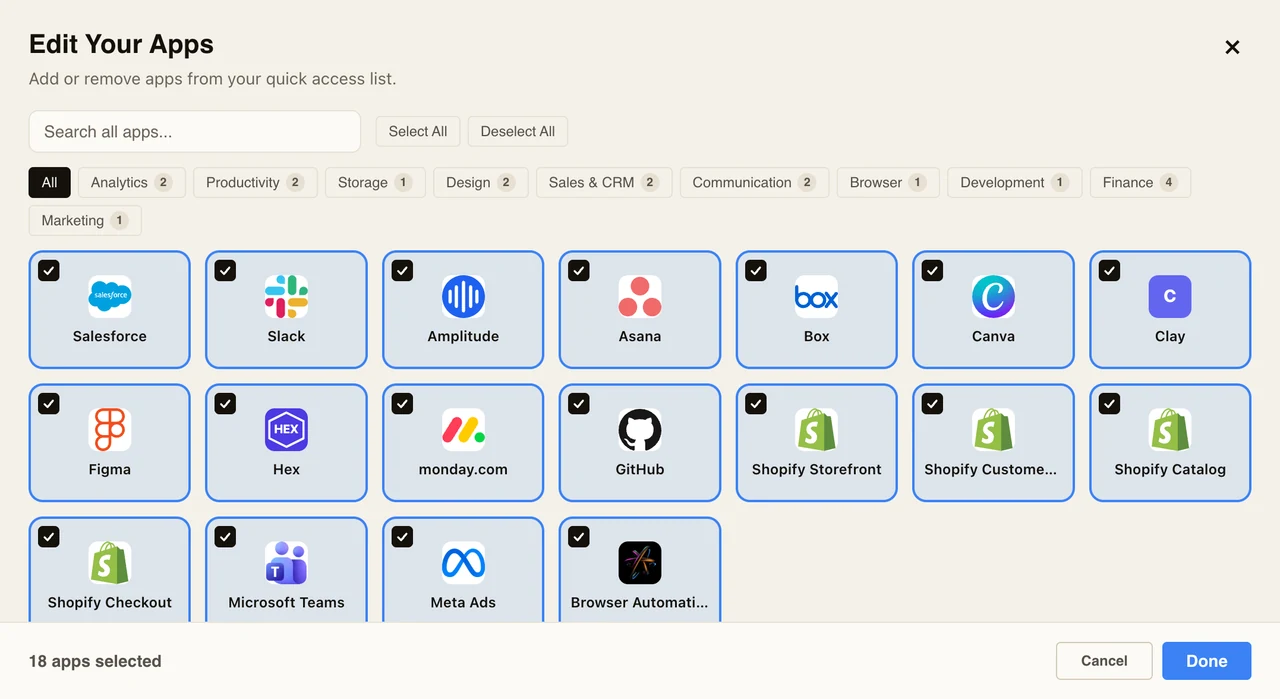
Open Apps from the agent workspace and find the affected service. The catalog shows which apps are connected and which ones are still available to add.
The app stays on Pending
Possible causes:
- the browser OAuth flow never finished
- the provider callback never returned cleanly
- the app is waiting on credentials or validation
Fixes:
- re-open the provider and finish setup again
- verify the callback URL and scopes
- confirm the app does not also require a custom instance URL
Use the searchable picker only when the service has not been added yet.
The app shows Error
This usually means:
- bad credentials
- wrong provider app configuration
- wrong instance URL
- token refresh failure
Go to MCP Auth & OAuth Setup and re-run the setup path for that provider.
The app looks connected, but tasks still fail
This often means the saved auth state and the runtime state disagree.
Capture:
- the provider name
- whether the app says connected, expired, or error
- whether the failure happens in the main agent, a tenant, or a company workflow
- the exact task error
Channels and Delivery
A channel is linked, but messages do not arrive
Check:
- the channel account is still connected
- the target account, room, or thread is correct
- permissions or scopes were not removed
- the channel is enabled for the right workspace or company flow
Voice or phone delivery is not reaching the right place
Check:
- the saved phone number is correct
- the route is tied to the right tenant or company
- the caller is using the same recognized number expected by the workspace
If member-only routing fails because the number is not recognized, support should fall back to guest support or manual verification rather than guessing.
Automation and Scheduled Tasks
A scheduled task did not run
Check:
- the schedule is still enabled
- the task has the required apps connected
- the task is not blocked on auth or approval
- the delivery route still exists
A task ran, but nothing was delivered
Possible causes:
- the task succeeded internally but had no valid delivery target
- the target channel or route was disconnected
- the task was blocked by a missing app auth state
Voice and Microphone
The microphone is not detected
Check:
- operating-system microphone permissions
- the selected input device
- whether another app is holding the microphone
Voice activation does not trigger
Check:
- wake mode configuration
- the selected shortcut or wake phrase
- whether microphone permissions were granted
When Support Should Escalate
Escalate instead of repeating generic troubleshooting when:
- the same provider fails after a correct reconnect
- billing is active but account access is still broken
- a task appears ready but company execution still reports missing auth
- member caller recognition is clearly wrong for a saved employee or member route
- the app state and the runtime state contradict each other
Related guides: