Neotask Company Approval Settings
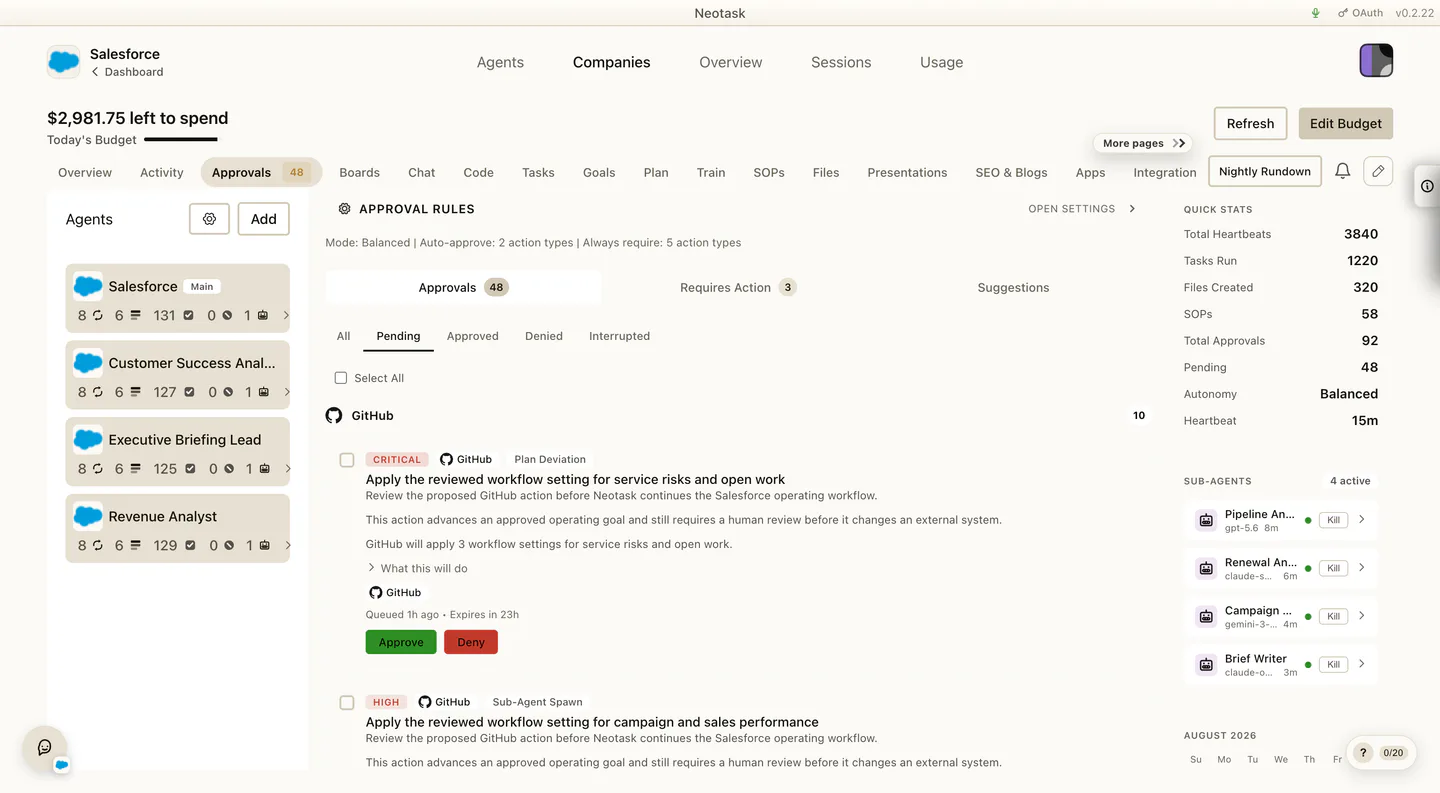
Show The Queue And The Requested Action
Open Approvals for the queue. Select a request to see its app, scope, owner, risk, and review controls.
Use this page when someone says:
- “How do I change approval settings for this company?”
- “How do I make one app stricter?”
- “How do I make one app more automatic?”
- “How do I change this company from supervised to autonomous?”
Main Path
- Click Auto
- open the company
- click Approvals
- scroll to Approval Settings
If the caller is talking about items waiting right now, start in the approval queue first.
If the caller is talking about future behavior, use Approval Settings.
Current Approval Modes
The current mode cards are:
- Fully Supervised
- Semi-Supervised
- Fully Autonomous
Support should explain them like this:
- Fully Supervised Use this when the caller wants the most review and the least automatic movement.
- Semi-Supervised Use this when the caller wants a balance between automation and oversight.
- Fully Autonomous Use this when the caller wants the least approval friction and is comfortable with more independent execution.
If the caller is unsure, recommend Semi-Supervised first.
How To Change The Whole Company
- Open Approvals
- find Approval Settings
- choose the target mode card
- save the settings
Use this when the caller wants to change overall company behavior, not just one app.
How To Change One App
- Open Approvals
- go to Approval Settings
- use Per-App Rules
- search for the app
- expand the app row
- choose one of these modes:
- Default
- Auto-approve all
- Require all
- Custom rules
- save the settings
Use this when the caller says:
- “Leave the company mostly the same, but change this one app”
- “Make Slack stricter”
- “Let this one app run more freely”
How To Change One Action Inside One App
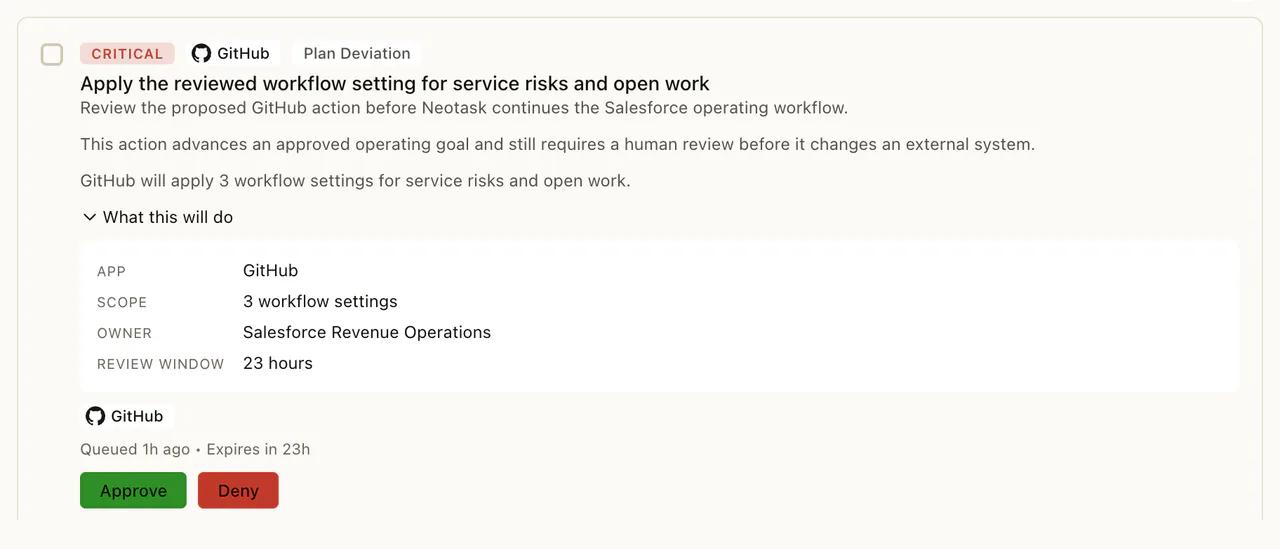
Open the waiting approval before advising a change. The detail screen identifies the app, scope, owner, and requested action that the rule will affect.
- Open Approvals
- go to Approval Settings
- search for the app
- expand the app row
- stay in the detailed action area
- change the specific action rule
- save the settings
Use this when the caller wants a narrower change than the whole app.
When Support Should Route Somewhere Else
Do not keep the caller in approval settings if the real issue is:
- waiting items that simply need review now
- stay in the approval queue
- task-level configuration
- use Tasks or Plan, then open Edit Task
- company app connection problems
- use Apps
- Google Workspace connection problems
- use Integrations
- channel or employee escalation routing
- use Channels or Employees
Good Support Guidance
- Use the mode cards for company-wide behavior.
- Use Per-App Rules for one app.
- Use the expanded app row for one action inside that app.
- If the caller is nervous, move them toward Fully Supervised or Semi-Supervised, not the loosest mode first.