App Groups
Create An App Group
- Open Apps.
- Select New group.
- Add the connected services the agent should use together.
- Review authentication for each service before saving.
What Are App Groups?
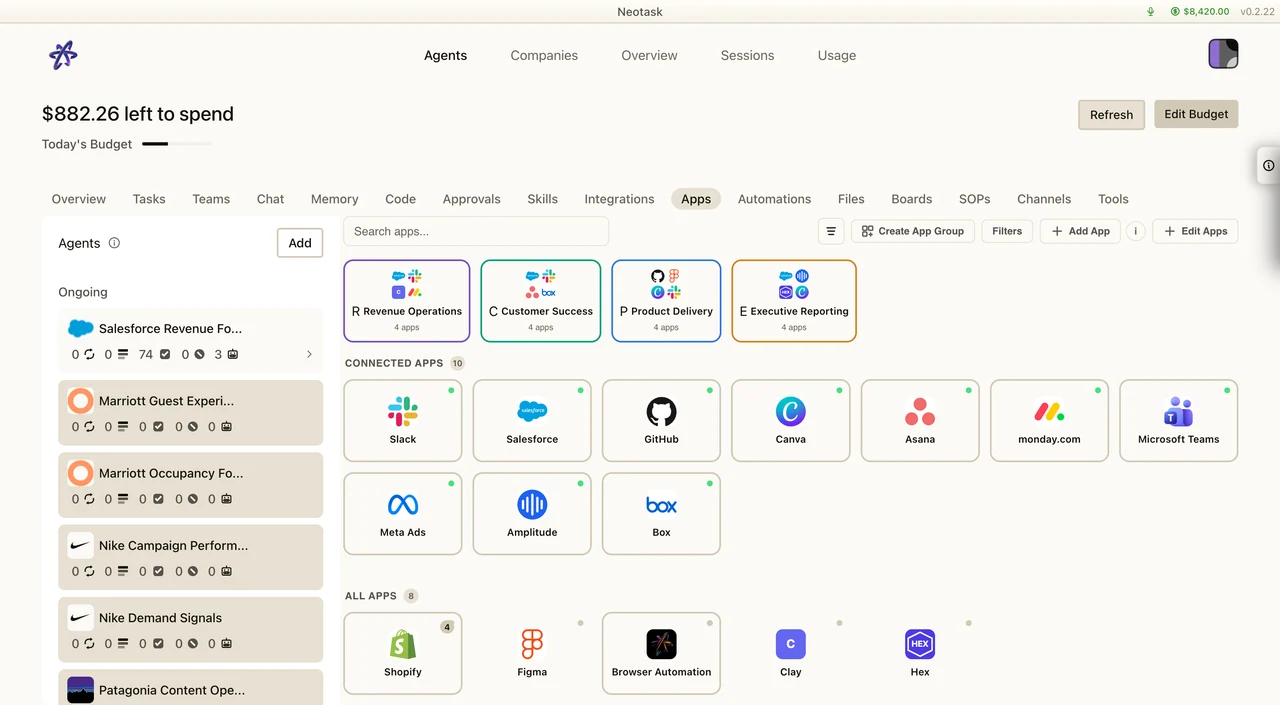
App Groups are workflow bundles that organize your MCP app integrations into themed collections. Think of them like folders on your phone, you group related apps together and your agent uses them as a coordinated toolkit.
For example, you might create a "Sales" group with Salesforce, HubSpot, Gmail, and Google Calendar, or a "DevOps" group with GitHub, Jira, Docker Hub, and Slack.
Free users can connect apps and use them inside allowed chat, boards, and coding workflows. Creating automations from app groups, scheduling app-group work, or running company tasks from app groups requires a paid plan.
Creating an App Group
Step 1: Group Setup
Give your group a name, pick a color (8 preset options), and choose an emoji icon. Optionally enable Workflow Memory to let the group maintain shared context across all its apps.
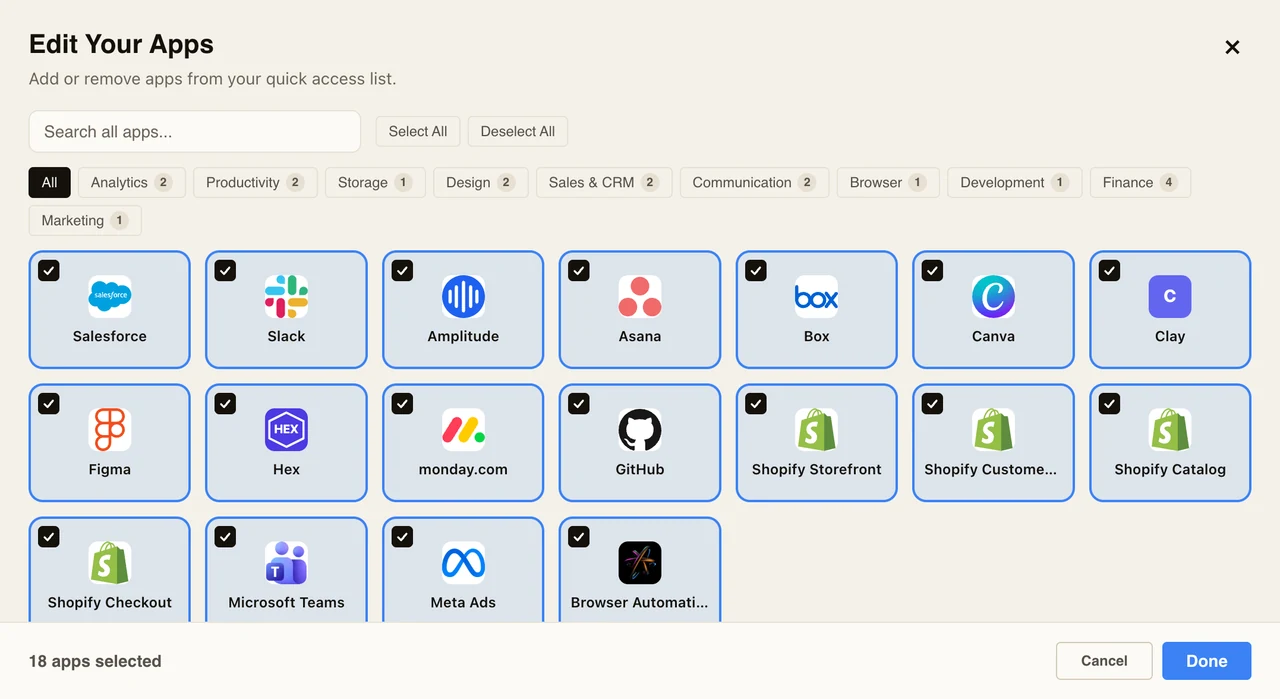
Step 2: Select Apps
Choose from 1200+ available MCP apps. Each app shows whether it needs credentials and what auth type it uses.
Step 3: Configure Credentials
For each app that requires authentication, you can:
- Use existing credentials, If you've already saved credentials for this app globally, the group can reuse them.
- Enter new credentials, Provide credentials specific to this group (e.g., a different Salesforce account for sales vs support).
The group creation modal shows the credential status for each app:
- ✓ Saved, Credentials already configured
- ✓ Using preset, Using existing global credentials
- ⚠ Missing, Credentials needed before the group can work
Step 4: Per-App Configuration
For each app in the group, you can add a description explaining how the agent should use it in this workflow context (e.g., "Use Salesforce to look up customer accounts and update deal stages").
Group Features
Workflow Memory
When enabled, workflow memory lets all apps in the group share context. If your agent looks up a customer in Salesforce, that information is available when it drafts an email in Gmail, without you needing to repeat yourself.
Color & Icon Coding
Groups display as color-coded cards with emoji icons for quick visual identification. Available colors include blue, red, green, orange, purple, pink, cyan, and amber.
Group-Specific Credentials
Each group can have its own set of credentials, independent of global credentials. This means:
- Different Google accounts for personal vs work groups
- Separate API keys for dev vs production environments
- Isolated OAuth tokens per workflow
Credential lookup follows a chain: group-specific credentials first, then fallback to global credentials.
Credential Management
Supported Auth Types
| Type | Description |
|---|---|
| API Key | Single key field (e.g., OpenAI API key) |
| OAuth | Client ID + Client Secret pair |
| Credentials | Multi-field form (e.g., username + password + domain) |
| None | No authentication needed |
Credential Storage
All credentials are encrypted with AES-256-GCM using a machine-derived key. They're stored locally at ~/.neotask/mcp-credentials.enc.
Credential Masking
When viewing saved credentials, sensitive values are masked:
- Short values: first 3 chars +
...+ last 2 chars - Long values: first 6 chars +
...+ last 4 chars
Legacy Migration
If you previously saved credentials using older formats (separate API key, OAuth, or custom URL stores), they're automatically migrated to the unified encrypted store.
Use Cases
| Group | Apps | Purpose |
|---|---|---|
| Sales | Salesforce, HubSpot, Gmail, Calendar | CRM workflow |
| DevOps | GitHub, Jira, Docker Hub, Slack | Development pipeline |
| Content | WordPress, Canva, Google Docs, Buffer | Content creation |
| Support | Zendesk, Intercom, Notion, Slack | Customer service |
| Finance | QuickBooks, Stripe, Google Sheets | Financial tracking |
| Marketing | Mailchimp, Google Analytics, Facebook Ads | Campaign management |