Voice Control
Start Voice Control
- Open Settings → Voice.
- Choose the input device and confirm microphone access.
- Start voice mode from the agent chat.
- Review any action that pauses for approval.
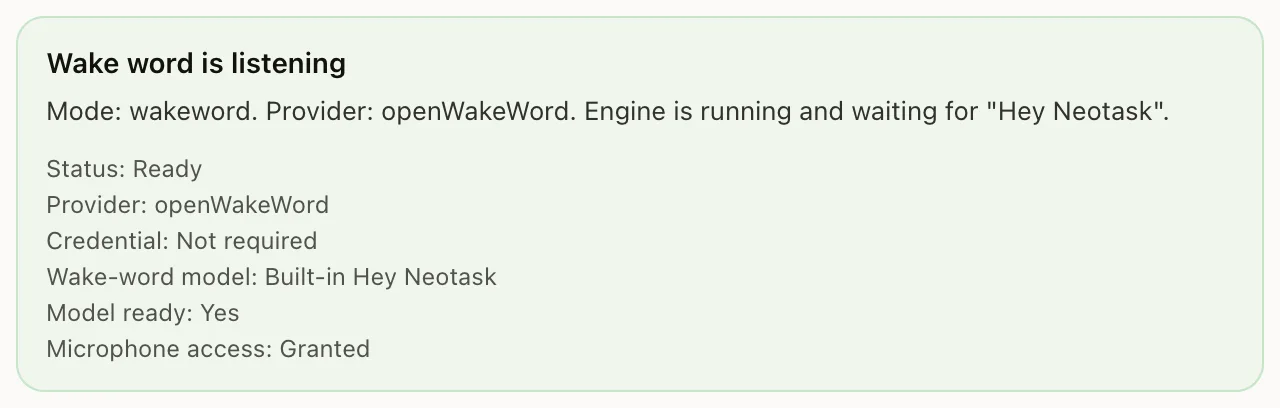
Neotask includes a full-featured voice control system that lets you interact with your AI agents entirely through speech. You can activate agents, issue commands, navigate the interface, and receive spoken responses, all hands-free.
Overview
Activation Methods
There are two ways to activate voice input:
- Always-listening wake word, Speak a trigger phrase (e.g., "Hey Neotask") and the application begins listening. No keys to press.
- Keyboard shortcut, Press a key combination to start voice input on demand.
You can choose your preferred method in Settings > Wake Mode.
Voice Interaction Flow
Every voice interaction follows this cycle:
- Wake, Activation via wake word or keyboard shortcut.
- Listen, Neotask listens to your spoken input.
- Transcribe, Speech is converted to text in real time.
- Think, The AI processes your request and determines the appropriate actions.
- Speak, The response is spoken back to you using natural text-to-speech.
- Listen, The system returns to listening for your next command, keeping the conversation flowing.
Wake Word Activation
Default Wake Word
The default wake word is:
"Hey Neotask"
Simply say this phrase, and Neotask will begin listening for your command.
Custom Wake Words
You can set a custom wake word in Settings > Wake Word. Choose any short, distinct phrase that is easy for you to say and unlikely to occur in normal conversation.
Performance
Wake word detection runs entirely on your local machine, no audio is sent to the cloud for wake word processing. The detection engine is optimized for ultra-low CPU usage, so it can remain active in the background without impacting system performance.
Sensitivity
Wake word sensitivity is configurable. If you find the wake word triggers too easily (false positives) or not often enough (missed activations), adjust the sensitivity slider in Settings > Wake Word > Sensitivity.
Keyboard Shortcut Activation
Default Shortcuts
| Platform | Shortcut |
|---|---|
| macOS | Cmd + Shift + Space |
| Windows / Linux | Ctrl + Shift + Space |
Customization
The keyboard shortcut is fully customizable. Go to Settings > Wake Mode > Keyboard Shortcut to set your preferred key combination.
Voice Features
Speech-to-Text
Neotask uses Deepgram for real-time speech-to-text transcription. Your spoken words appear as text in the conversation as you speak, with minimal latency.
Text-to-Speech
Responses are spoken aloud using ElevenLabs natural text-to-speech technology. The voice library includes 100+ voices spanning a wide range of styles.
Voice Selection
Choose your preferred voice in Settings > Voice. You can filter voices by:
- Gender, Male, female, or neutral.
- Accent, American, British, Australian, and many more.
- Age, Young, middle-aged, or mature.
A voice preview button is available next to each voice so you can hear a sample before selecting it.
Conversation Controls
- Pause, Pause the voice conversation at any time. The AI will stop listening and speaking until you resume.
- Resume, Continue the conversation from where you left off.
File Attachments
You can attach files during a voice session. For example, say "I want to share a file" and use the attachment dialog, or drag and drop a file into the conversation window while voice mode is active. The AI can then reference and work with the attached file.
Voice Commands
Neotask understands a wide range of natural language commands. Below are common categories with examples.
Open Websites
| Example Command |
|---|
| "Open YouTube" |
| "Go to github.com" |
| "Open the Neotask documentation" |
Search the Web
| Example Command |
|---|
| "Search for Python tutorials on Google" |
| "Look up the weather in San Francisco" |
| "Search Stack Overflow for React hooks" |
Launch Applications
| Example Command |
|---|
| "Open Safari" |
| "Launch Finder" |
| "Open Visual Studio Code" |
| "Start Terminal" |
Browser Control
| Example Command |
|---|
| "Scroll down" |
| "Go back" |
| "Refresh the page" |
| "Scroll to the top" |
Agent Operations
| Example Command |
|---|
| "Create an agent called Research Assistant" |
| "Start the agent" |
| "Stop the agent" |
| "Show me agent status" |
Multi-Command Chains
You can combine multiple instructions in a single spoken command:
| Example Command |
|---|
| "Create an agent called Data Analyzer, enable voice, and start it" |
| "Open YouTube and search for machine learning tutorials" |
| "Stop the agent and show me the session log" |
Tool Execution During Voice
When your voice command triggers a tool or action, Neotask provides real-time spoken feedback so you know what is happening:
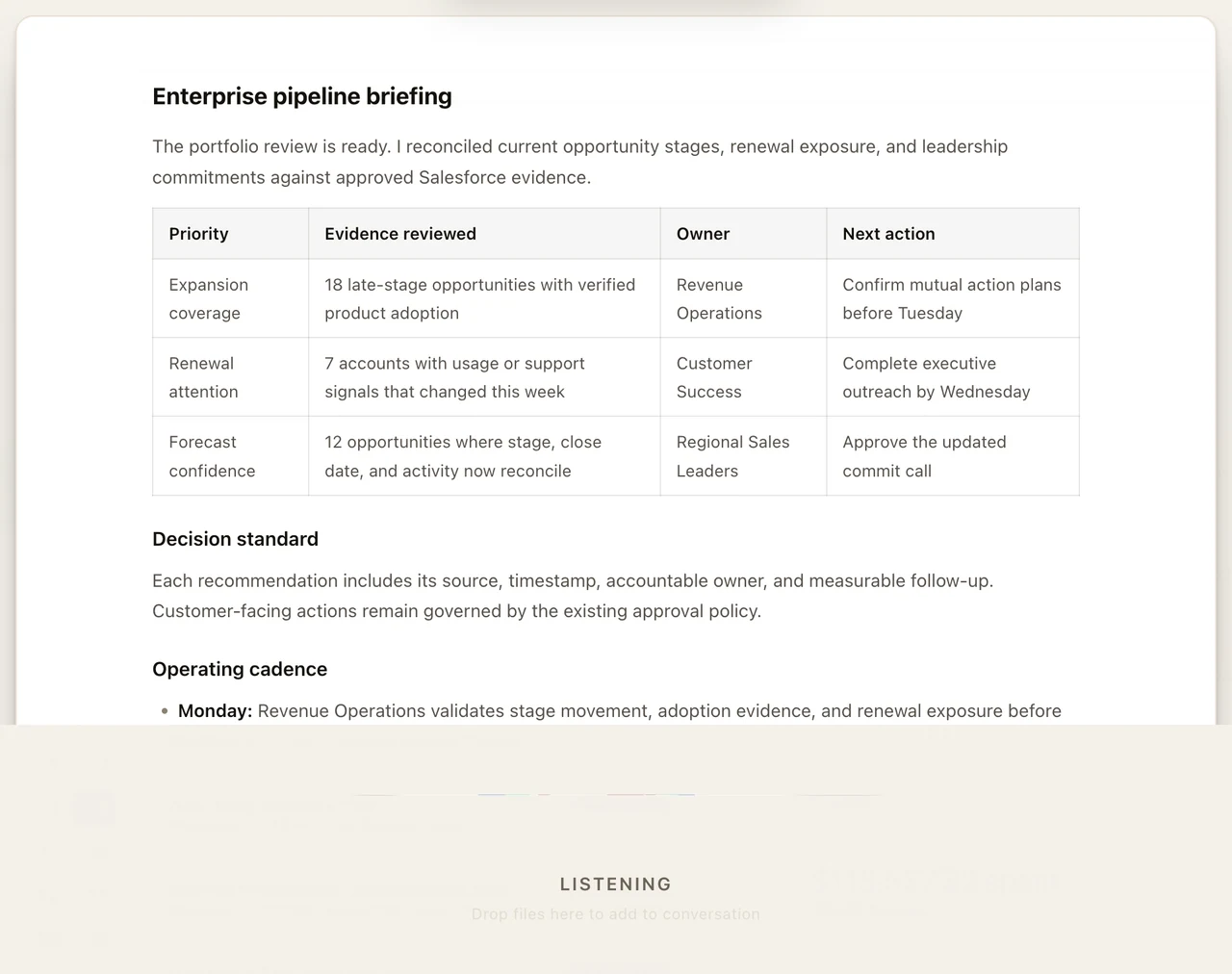
The briefing screen keeps the current action, supporting context, and next steps visible during the voice session.
- "I'm opening the file editor..."
- "Running the shell command now..."
- "Fetching the web page..."
Supported Tool Actions
Tools that can be triggered by voice include:
- Shell commands, Execute terminal commands on your machine.
- File operations, Create, read, edit, and organize files.
- Web requests, Fetch data from URLs and APIs.
Approval Workflow
When Safe Mode is enabled (on by default), sensitive actions require your explicit spoken or clicked approval before execution. Sensitive actions include:
- Deleting files or directories
- Deploying code or services
- Sending messages or emails on your behalf
The AI will describe the action and ask for confirmation before proceeding.
Math Tutoring Mode
Neotask includes a specialized math tutoring mode that combines voice instruction with animated visualizations.
How It Works
- Ask for a math topic, for example, "Teach me about the unit circle."
- The AI generates a lesson plan tailored to the topic.
- Animated visualizations are rendered using Manim (the mathematical animation engine).
- The lesson is delivered section by section, with spoken explanations synchronized to the visuals.
Visualization Templates
The following built-in templates are available for instant animated lessons:
| Template | Description |
|---|---|
| Unit Circle | Visual walkthrough of the unit circle with angle and coordinate labels. |
| Pythagorean Theorem | Geometric proof animation with labeled squares on triangle sides. |
| Taylor Series | Step-by-step expansion showing polynomial approximation convergence. |
| Quadratic Formula | Derivation and graphical interpretation of roots. |
| Sine / Cosine Waves | Animated wave plots with amplitude, period, and phase annotations. |
| Derivatives | Tangent line animation illustrating instantaneous rate of change. |
| Integrals | Area-under-the-curve animation with Riemann sum progression. |
| Graph Functions | Plot any function with labeled axes, intercepts, and key features. |
Progressive Teaching
Lessons are broken into sections. After each section, the AI pauses and asks if you are ready to continue, want to review, or have questions. This ensures you learn at your own pace.
Supported Languages
Neotask supports voice interaction in 21 languages:
| Language | Code |
|---|---|
| English | en |
| Spanish | es |
| French | fr |
| German | de |
| Italian | it |
| Portuguese | pt |
| Dutch | nl |
| Russian | ru |
| Chinese (Mandarin) | zh |
| Japanese | ja |
| Korean | ko |
| Arabic | ar |
| Hindi | hi |
| Turkish | tr |
| Polish | pl |
| Swedish | sv |
| Danish | da |
| Norwegian | no |
| Finnish | fi |
| Czech | cs |
| Romanian | ro |
You can change the voice language at any time in Settings > Language. Both speech recognition and text-to-speech will switch to the selected language.
Voice Prompts
Voice prompts control how the AI assistant behaves and responds during voice conversations. Both are editable in Settings > Voice Prompts.
System Prompt
The system prompt defines the overall personality and behavior of the voice assistant. It sets the tone, expertise level, and interaction style. For example, you can instruct the assistant to be concise and technical, or friendly and conversational.
Response Prompt
The response prompt customizes how the assistant formats and delivers its spoken responses. Use this to control response length, level of detail, whether the assistant uses analogies, and other stylistic preferences.
Both prompts accept free-form text and take effect immediately for all subsequent voice interactions.