Channels
What Are Channels?
Channels are the communication platforms your Neotask agents use to send and receive messages. By connecting a channel, you give an agent the ability to listen for incoming messages on that platform and respond in real time.
Key concepts:
- Per-agent configuration -- Each channel connection is configured at the agent level. One agent can be connected to Slack while another handles Discord, or a single agent can be connected to multiple channels simultaneously.
- Bidirectional -- Channels support both sending and receiving messages. Agents can respond to incoming messages, initiate outbound messages, or both.
- Multi-account -- You can connect multiple accounts for the same channel type (e.g., two different Slack workspaces or several email addresses).
Supported Channels
| Channel | Auth Method | Features |
|---|---|---|
| Slack | OAuth | Full messaging, channels, threads, reactions, file uploads |
| Discord | Bot token | Server messaging, channels, DMs, embeds, reactions |
| QR code | Text messages, media messages, group chats | |
| Telegram | Bot token | Text messages, groups, channels, inline keyboards, file sharing |
| Signal | Local app | End-to-end encrypted messaging, group chats |
| Microsoft Teams | OAuth | Teams, channels, chats, adaptive cards, file sharing |
| Google Chat | OAuth | Spaces, direct messages, cards, threaded conversations |
| SMS | API key | Outbound and inbound text messaging via supported providers |
| Email / Gmail | OAuth | Send, receive, draft, reply, attachments, label management |
| Matrix | Token | Federated messaging, rooms, end-to-end encryption |
| Line | Token | Text messages, stickers, group chats, rich menus |
| Zalo | Token | Text messages, media sharing |
| IRC | Config | Server connections, channels, private messages |
| iMessage | Local | macOS-native messaging (requires macOS host) |
Connecting a Channel
The connection process varies depending on the channel's authentication method.
- Open Agents and select the agent that will use the channel.
- Open its Channels tab.
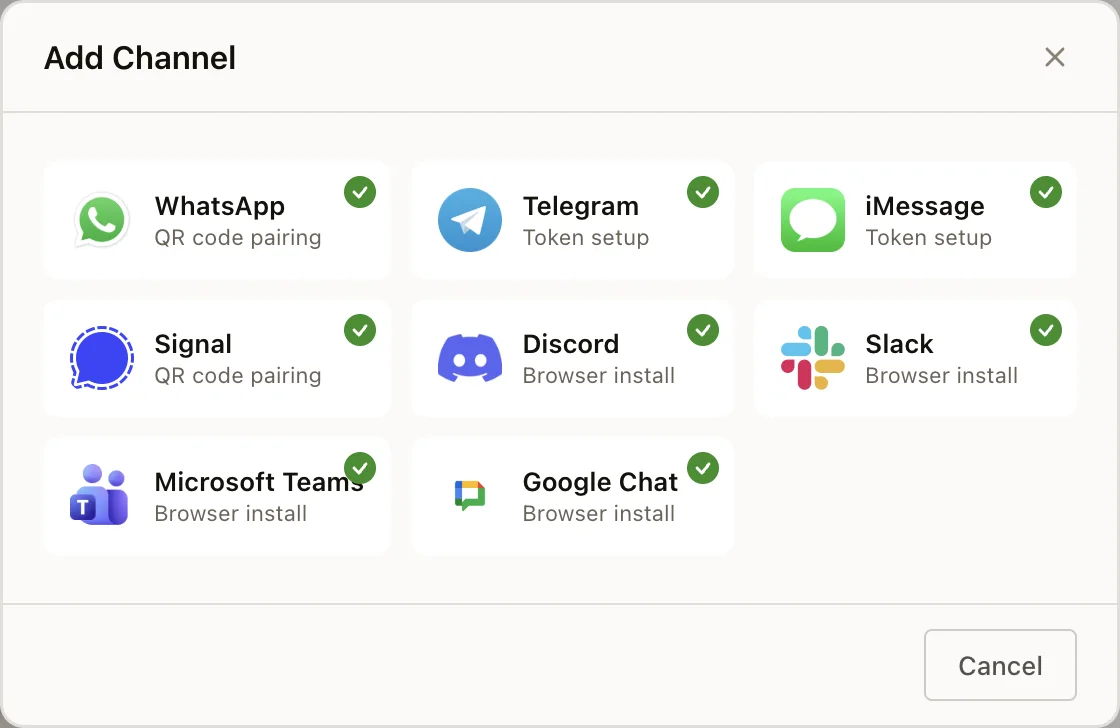
- Select Add Channel.
- Choose the channel from the connection picker.
OAuth Flow
Used by: Slack, Microsoft Teams, Google Chat, Email / Gmail
- Open the agent's Channels tab.
- Click Connect next to the channel you want to add.
- You will be redirected to the service's authorization page.
- Sign in with your account and grant Neotask the requested permissions.
- After authorization, you are redirected back to the dashboard and the channel appears as connected.
For mobile platforms, a QR code option is available. Scan the QR code from your phone to complete the authorization without needing to sign in on your desktop browser.
Bot Token
Used by: Discord, Telegram
- Create a bot on the respective platform:
- Discord -- Create an application at the Discord Developer Portal and generate a bot token.
- Telegram -- Message @BotFather on Telegram to create a bot and receive a token.
- Open the agent's Channels tab and click Connect next to the channel.
- Paste the bot token into the token field.
- Click Save to establish the connection.
QR Code
Used by: WhatsApp
- Open the agent's Channels tab and click Connect next to WhatsApp.
- A QR code will appear on screen.
- Open WhatsApp on your phone, go to Linked Devices, and scan the QR code.
- The connection is established once your phone confirms the link.
API Key
Used by: SMS
- Obtain an API key from your SMS provider (e.g., Twilio, Vonage).
- Open the agent's Channels tab and click Connect next to SMS.
- Enter your API key and any additional required fields (e.g., phone number, account SID).
- Click Save to activate the channel.
Token
Used by: Matrix, Line, Zalo
- Generate an access token from the respective platform's developer settings or admin panel.
- Open the agent's Channels tab and click Connect next to the channel.
- Paste the token into the token field.
- Click Save to establish the connection.
Server Configuration
Used by: IRC
- Open the agent's Channels tab and click Connect next to IRC.
- Enter the server address, port, nickname, and (optionally) a password.
- Specify the channels to join on connect.
- Click Save to connect.
Local Application
Used by: Signal, iMessage
- Ensure the required application is installed and running on the host machine:
- Signal -- Signal Desktop must be installed and linked to your Signal account.
- iMessage -- Requires a macOS host with Messages.app configured.
- Open the agent's Channels tab and click Connect next to the channel.
- Neotask will detect the local application and establish a connection.
- If the application is not detected, you will be prompted to install or configure it.
Connection Testing
After connecting any channel, Neotask automatically runs a latency probe to verify the connection:
- A test message is sent and received through the channel's API.
- Round-trip latency is measured and displayed.
- If the test fails, an error message describes the issue (e.g., invalid token, expired OAuth grant, unreachable server).
You can re-run the connection test at any time from the channel's settings.
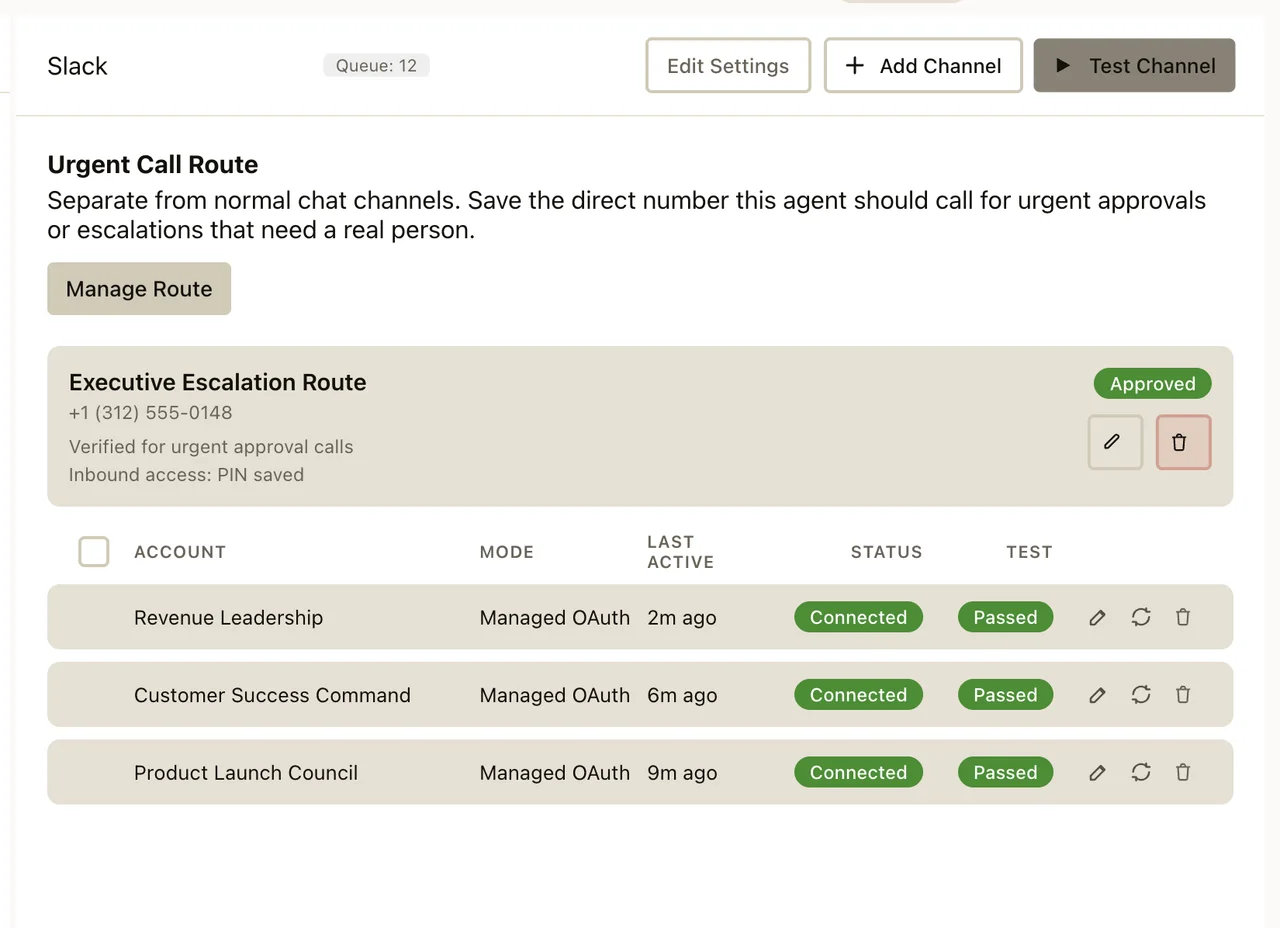
After the account is connected, select Test Channel. A working account shows Connected and Passed in its row.
Channel Operations
Once a channel is connected, you can manage it from the agent's Channels tab.
Enable / Disable
Toggle a channel on or off without disconnecting it. When disabled:
- The agent stops listening for messages on that channel.
- No outbound messages are sent through it.
- The connection credentials are preserved so you can re-enable at any time without reconfiguring.
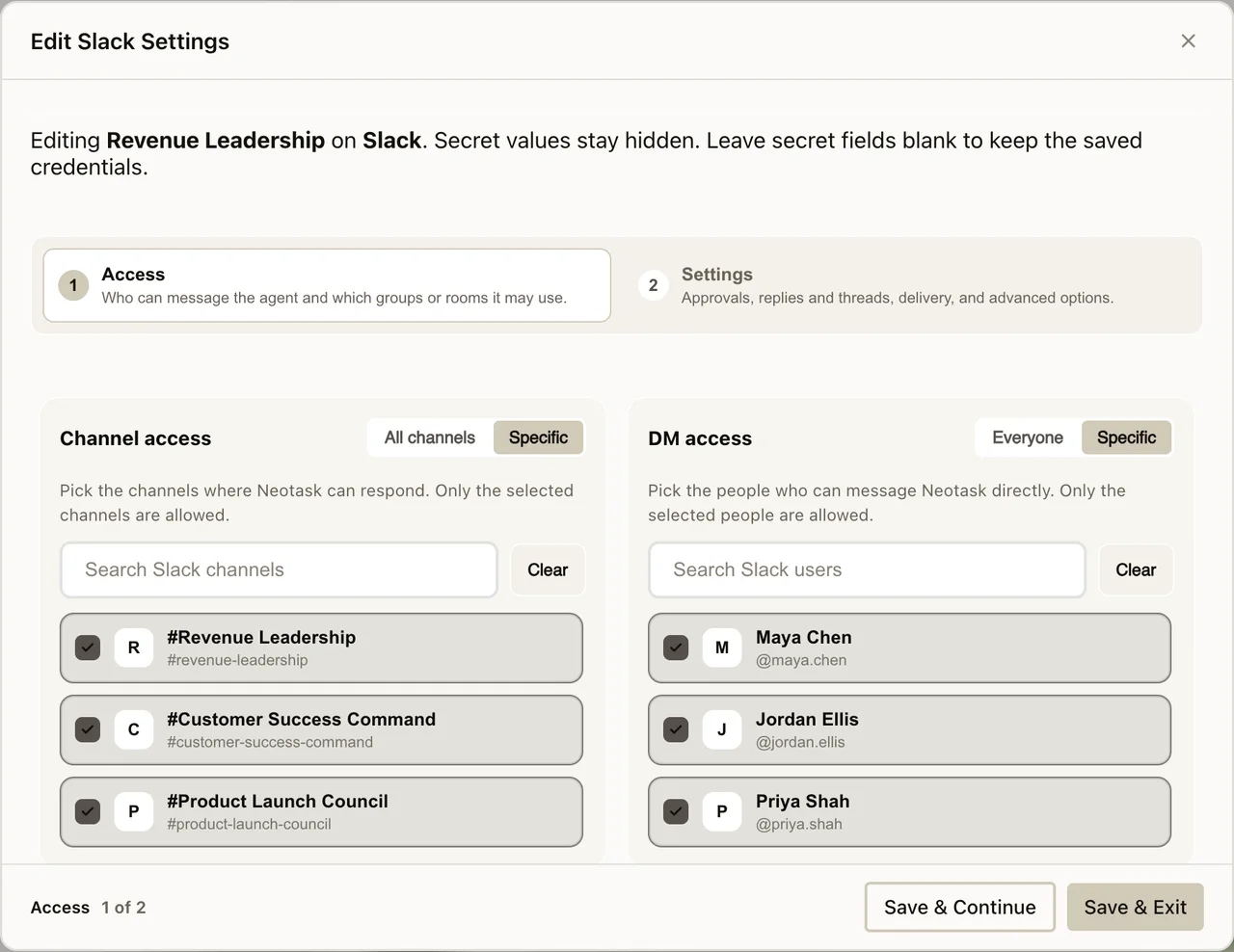
Limit Slack access
- Select Edit Settings for the Slack connection.
- Under Channel access, choose All channels or Specific.
- Under DM access, choose Everyone or Specific.
- Select the approved channels and people.
- Select Save & Exit, or use Save & Continue to review the remaining Slack settings.
Test Connectivity
Run an on-demand connectivity test to verify the channel is reachable and responsive. The test:
- Sends a lightweight API request to the channel's service.
- Measures round-trip latency in milliseconds.
- Reports the result as Connected (with latency) or Failed (with error details).
View Latency
Each connected channel displays its most recent latency reading on the Channels tab. This helps you identify slow or degraded connections at a glance. Latency is updated:
- Automatically after each connection test.
- Periodically in the background while the channel is active.
Disconnect / Logout
To fully remove a channel connection:
- Click Disconnect next to the channel.
- Confirm the action in the dialog.
- Neotask revokes or discards the stored credentials (OAuth tokens are revoked on the provider side where supported).
- The channel is removed from the agent's active channels list.
To reconnect after disconnecting, follow the original connection steps again.