Neotask Code: Git and GitHub
Review Before Commit Or Pull Request
- Open the coding project.
- Select Changed files.
- Review the source diff and verification results.
- Confirm the branch and repository.
- Commit, push, or open the pull request after the review is complete.
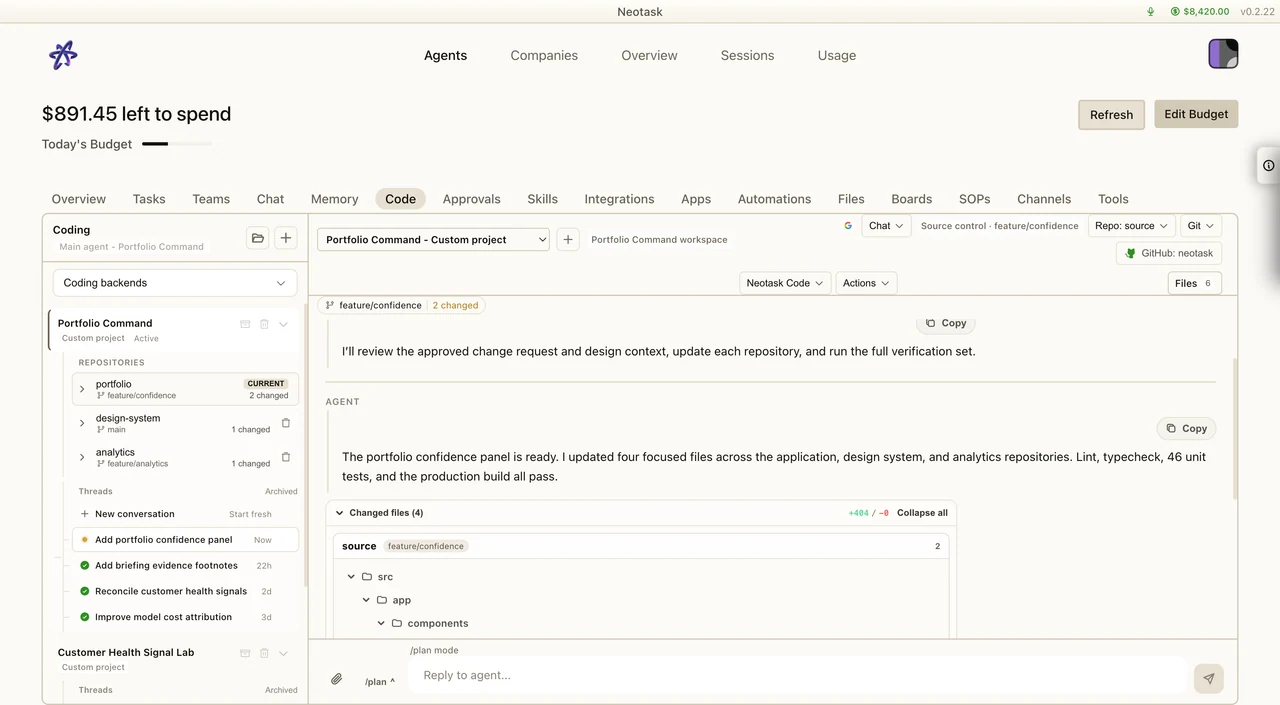
Neotask Code does real version control. It works with git the way a developer would: it can connect to a GitHub repository, create branches, commit and push your work, and open pull requests, all from inside the coding conversation. This page covers how to connect an account, how each repository option works, and what the agent can do with git once you are connected.
For the wider picture, see Neotask Code. For how git actions are gated and kept safe, see Neotask Code: Safety and Approvals.
Connecting a GitHub Account
Neotask Code needs a GitHub account before it can clone private repositories, push, or open pull requests. There are two ways to connect one.
- Sign in through Neotask. Use the guided GitHub sign-in in the coding area. This opens GitHub in your browser, you approve access, and Neotask stores the connection securely. This is the simplest path if you do not already use the GitHub command line.
- Use a GitHub account already on your computer. If you have signed into GitHub with the GitHub CLI on your machine, Neotask can detect those accounts and use one of them. When more than one account is available, you choose which one to use, and Neotask tells you why an account can or cannot be used.
You can connect an account at two levels:
- For your main agent or workspace, so it is available across your coding projects.
- Per project, so a specific project pushes as a specific account. This is useful when different projects belong to different GitHub identities.
Your GitHub credentials are stored encrypted, and each project uses only the account you connected for it. Neotask never switches your machine's default GitHub account behind your back; it uses the specific account you chose for each action.
Starting a Project From a Repository
When you create a coding project, you have three repository options:
| Option | What happens |
|---|---|
| Connect an existing repository | Neotask clones a GitHub repository you already have into a new managed project workspace, so the agent can work on it. |
| Publish a new repository | Start from an empty or local project, then create a brand-new GitHub repository from it and push the first commit. |
| Work locally with no repository | Start from a local folder with no GitHub connection. You can connect or publish a repository later. |
When you connect an existing repository, Neotask can look it up by choosing from your account's repositories or by pasting its URL, and it reads the available branches so you can pick which one to start on.
Branches and Working Copies
- Branches. The agent can create a new branch and switch the working copy to a different branch. Where you choose a branch, Neotask shows the branches that already exist rather than asking you to type a name, so you do not push to the wrong place by accident.
- Working copies (worktrees). Within a project you can create additional working copies, each checked out to its own branch, so you can keep more than one line of work going at the same time without disturbing your main copy. Working copies can be created and removed as needed.
After A Restart
Each coding session stays bound to its own repository, branch, and working copy, so an app update, an operating-system restart, a crash, or a power loss cannot move your work to the wrong branch.
- Every turn runs inside that session's working copy.
- If the working copy folder is missing, Neotask repairs it before running. If it cannot repair it, it stops with a clear message instead of running somewhere else.
- Working copy registrations that no longer point at a real folder are listed for you instead of hidden.
- Cleanup never deletes uncommitted work.
- A development server from a previous run is stopped or adopted safely. It is never left holding the port.
Whether the session reopens on its own is controlled by Continue work after restarts in Settings -> Automations, which is on by default. See Continue Work After Restarts.
Committing, Pushing, and Pull Requests
Review the verified source changes in the activity feed before creating the commit or pull request.
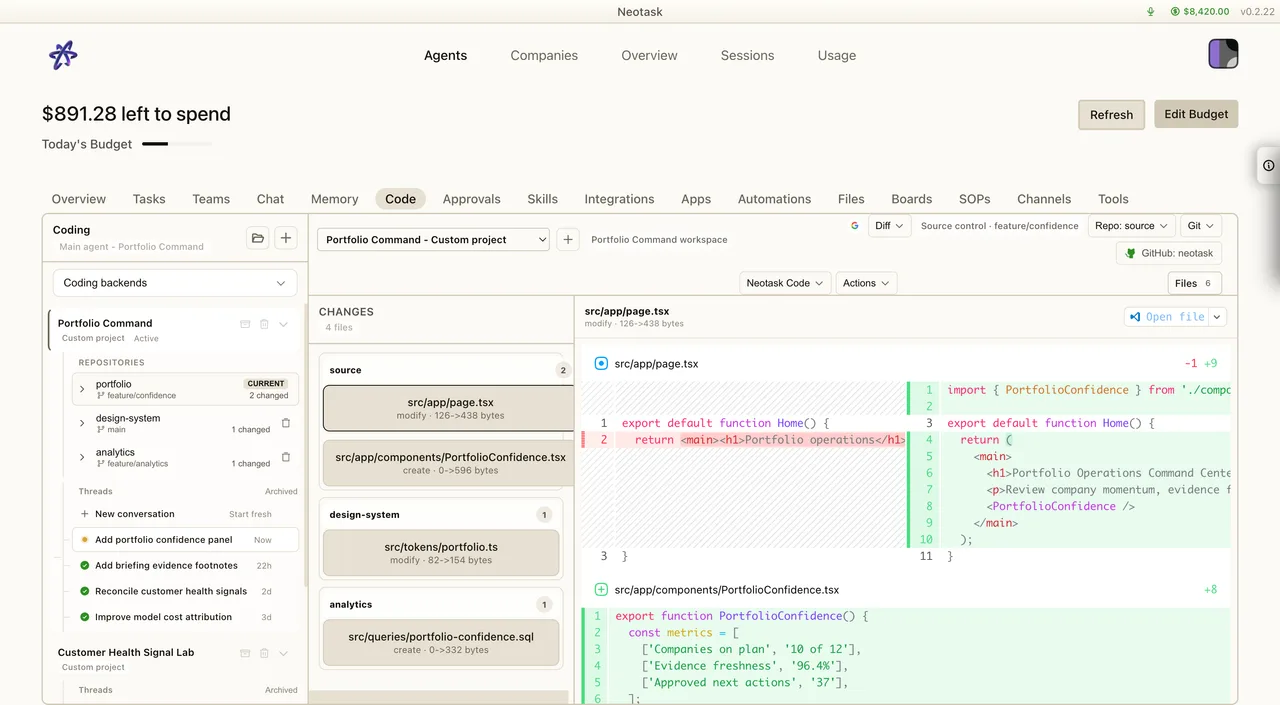
Once a repository is connected, you can ask the agent to handle version control as part of the conversation. Supported actions include:
- Commit the current changes with a message.
- Push commits to the connected repository.
- Commit and push in one step.
- Open a pull request, including commit, push, and pull request together in one step.
- Pull the latest changes from the repository.
- Publish a new repository from a local project.
You do not have to leave Neotask to run these; you ask for them in plain language and review what the agent proposes. Reading history and status is immediate, while actions that change your repository or push to GitHub ask for your approval first. See Neotask Code: Safety and Approvals for exactly which git actions run freely and which ask.
Commit identity
Commits the agent makes on your behalf are attributed clearly so your history stays honest. Commits you write yourself are left untouched, and every push uses the specific GitHub account you connected for that project, so your work is pushed under the identity you expect.
Multi-Repository Projects (Shipping Soon)
Today a project connects to one repository. Support for a single project that holds several connected repositories at once, so one coding conversation can work across, for example, a backend and a frontend together while keeping each repository's branches, accounts, and history separate, is shipping soon. Until then, use a separate project per repository.