Neotask Web Dashboard
Find Work Across The Dashboard
- Open Agents for personal and team agent work.
- Open Companies for company plans, activity, and approvals.
- Open Sessions for conversation and tool history.
- Open Usage for cost and model activity.
Overview
Neotask Web Dashboard is a browser-based control center for managing your agents, monitoring sessions, tracking usage, and configuring your workspace. Access the dashboard at your assigned dashboard URL after authenticating with your license key.
The dashboard provides a centralized interface for every aspect of your Neotask deployment, including agent configuration, session monitoring, team orchestration, usage analytics, and account settings.
Authentication
License Key Login
To access the dashboard, enter your license key on the login screen. License keys follow this format:
NT-XXXXXXXX-XXXXXXXX-XXXXXXXX-XXXXXXXXAfter successful authentication, you receive a session token that grants access to the dashboard for the duration of your session.
Two-Factor Authentication (TOTP)
Two-factor authentication is optional but strongly recommended for all accounts.
Setting up two-factor authentication:
- Navigate to Settings > Security.
- Select Enable Two-Factor Authentication.
- Scan the displayed QR code with an authenticator app such as Google Authenticator, Authy, or any TOTP-compatible application.
- Enter the 6-digit verification code from your authenticator app to confirm setup.
- Download and securely store the backup codes provided. These codes allow you to regain access if you lose your authenticator device.
Once enabled, a 6-digit code from your authenticator app is required on every subsequent login.
To disable two-factor authentication, go to Settings > Security and select the option to disable it.
Home Page
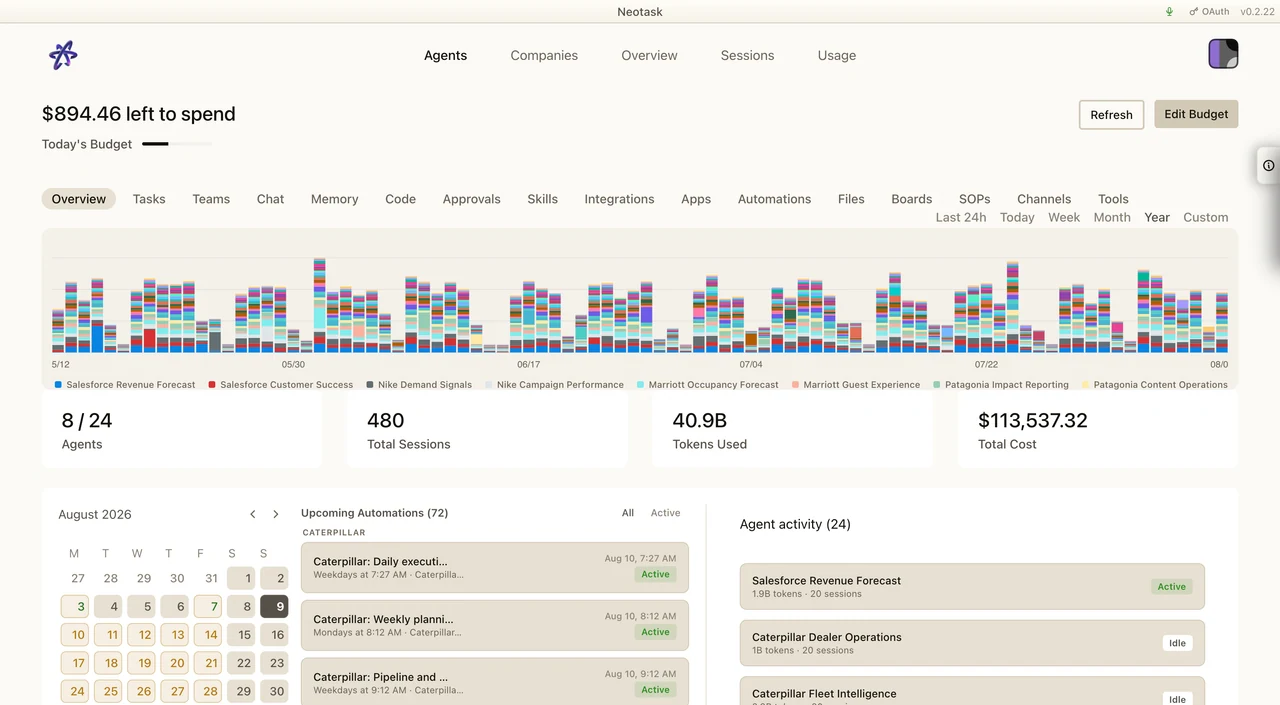
The Home page serves as your dashboard overview, presenting a high-level summary of your workspace activity at a glance.
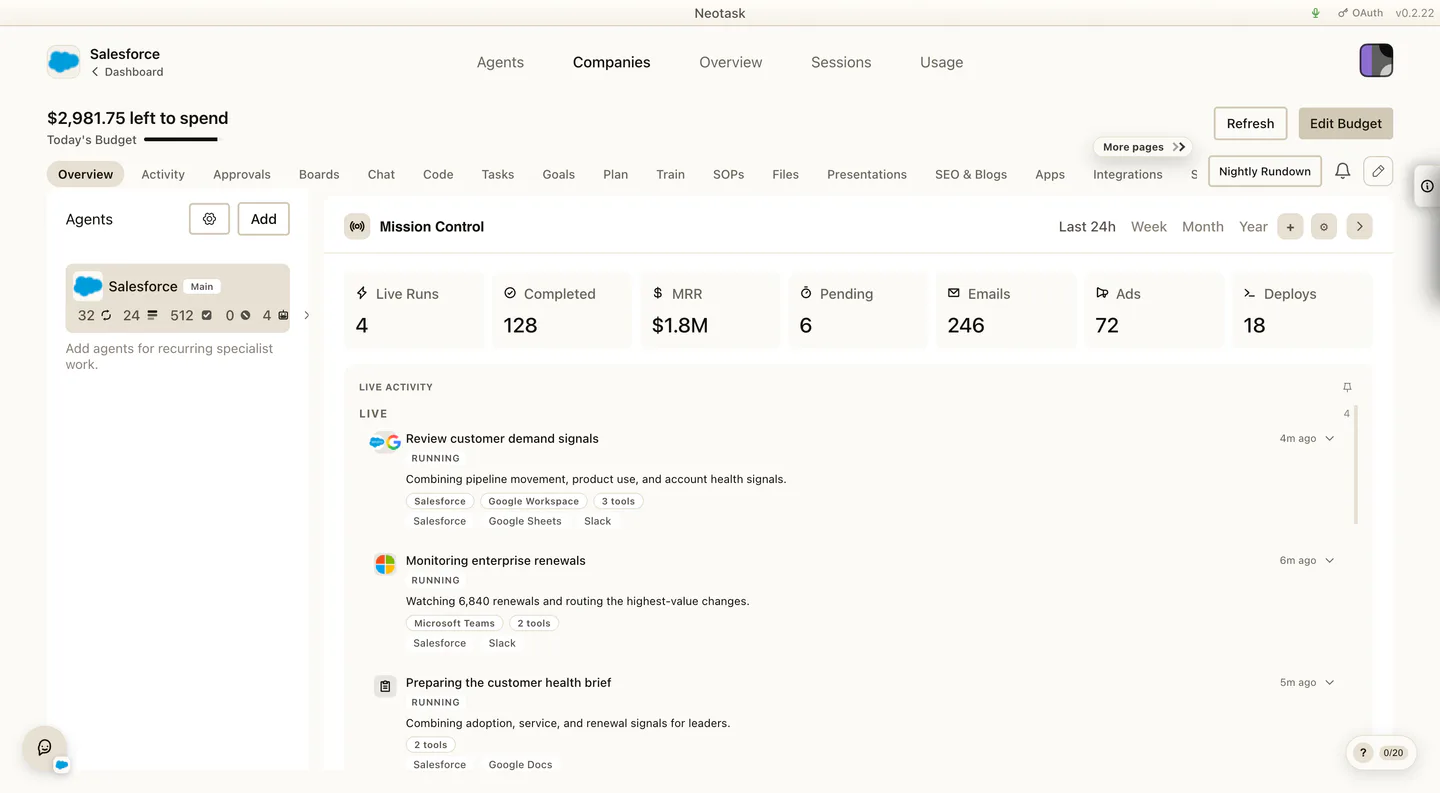
Open a company to reach Mission Control, where live work and company metrics share one operating view.
Agent Spending Graph
A bar chart displaying costs broken down by agent. Use this to identify which agents are consuming the most resources.
Session Summary
Displays counts of your sessions organized by status:
- Active -- Sessions currently in progress.
- Failed -- Sessions that encountered errors.
- Completed -- Sessions that finished successfully.
Latest Sessions
A list of the 5 most recent sessions, including token usage for each. Select any session to view its full details.
Model Usage Breakdown
Shows which AI models are being used across your agents, helping you understand model distribution and cost implications.
Upcoming Tasks
A calendar view of your scheduled automations, giving you visibility into what jobs are coming up next.
Quick Widgets
Compact widgets providing fast access to key functions:
- Agents -- Displays agent count with an auto-deploy toggle for enabling or disabling automatic agent deployment.
- Usage -- Displays usage summary with an auto-track toggle for enabling or disabling automatic usage tracking.
- Sessions -- Displays current session activity.
Agents Page
The Agents page is where you manage all of your AI agents. It is organized into tabbed sub-pages, each focused on a different aspect of agent management.
Overview Tab
The Overview tab presents a comprehensive look at your agents and their activity.
- Agent Statistics -- View each agent's name, assigned model, session count, total tokens consumed, and current status.
- Spending Chart -- Select an agent to see a detailed spending chart for that agent.
- Session Breakdown -- A breakdown of session activity for the selected agent.
- Upcoming Jobs -- A list of scheduled jobs associated with the selected agent.
- Mini Calendar -- A compact calendar highlighting dates with scheduled events.
Chat Tab
The Chat tab provides a read-only view of agent conversations.
- Session Sidebar -- Browse a list of sessions in the sidebar and select one to view.
- Message Bubbles -- Conversation messages are displayed as chat bubbles with role indicators:
- User -- Messages sent by the user.
- Assistant -- Responses from the AI agent.
- System -- System-level messages and instructions.
- Tool -- Messages generated by tool calls.
- Timestamps -- Each message displays a relative timestamp (for example, "2 minutes ago").
Skills Tab
The Skills tab allows you to browse, install, and manage agent skills.
- Catalog -- Browse all available skills. Each skill listing includes the version number, a description, and a link to its homepage.
- My Skills -- View your installed skills and use the toggle to enable or disable each one.
- Category Organization -- Skills are organized by category for easy browsing.
- Search Filtering -- Use the search bar to filter skills by name or keyword.
Channels Tab
The Channels tab displays all connected communication channels.
- Status Badges -- Each channel displays a status badge indicating its current state: Connected, Error, Pending, or Disconnected.
- Add New Channels -- Use the add channel option to connect a new communication platform.
- Filter by Type -- Filter the channel list by channel type to find specific connections.
Integrations Tab
The Integrations tab manages external service connections and API configurations.
Filtering options:
- All
- OAuth
- API Key
Google Workspace services:
The following Google Workspace services can be connected and managed:
- Gmail
- Google Calendar
- Google Drive
- Google Sheets
- Google Docs
- Google Meet
Each Google service can be toggled on or off individually.
API configuration:
- Configure API keys for third-party services.
- Set environment variables required by integrations.
Automations Tab
The Automations tab provides tools for scheduling and managing automated jobs.
- Calendar View -- A calendar displaying all scheduled automation jobs.
- Job List -- A list view showing each job's name, schedule, current status, and next run time.
- Run History -- View the execution history of each automation with status indicators showing success or failure.
- Create and Edit -- Use the modal dialogs to create new automations or edit existing ones.
Tools Tab
The Tools tab displays all available tools organized by category. Each tool can be individually toggled on or off.
File System tools:
- Read files
- Write files
- Edit files
Execution tools:
- Shell commands
- Process management
- Subprocess agents
Web tools:
- Browser
- HTTP requests
Scheduling tools:
- Cron jobs
- Webhooks
Sessions Page
The Sessions page provides detailed monitoring of all agent sessions across your workspace.
KPI Boxes
At the top of the page, key performance indicator boxes display:
- Total Sessions -- The total number of sessions.
- Active -- Sessions currently running.
- Tool Calls -- The total number of tool calls made across sessions.
- Average Duration -- The average length of a session.
- Failed -- The number of sessions that ended in failure.
Token Usage Chart
A multi-line graph showing token usage over time, with a separate line for each agent. Use this to identify trends and spikes in token consumption.
Breakdowns
- Token Usage by Agent -- A breakdown showing how tokens are distributed across your agents.
- Tool Calls by Agent -- A breakdown showing tool call volume per agent.
Searchable Session Table
A table listing all sessions with the following columns:
| Column | Description |
|---|---|
| Agent | The agent that ran the session |
| Session Key | The unique session identifier |
| Tokens (Input) | Number of input tokens consumed |
| Tokens (Output) | Number of output tokens generated |
| Tokens (Total) | Combined input and output tokens |
| Cost | The monetary cost of the session |
| Started | When the session began |
| Status | Current session status |
Session Detail Panel
Select any session from the table to open the detail panel, which displays:
- Full session metadata (agent, model, timestamps, token counts, cost).
- Complete session entries with role indicators for each message.
Filters
Narrow down the session list using:
- Status Filter -- All, Active, Completed, or Failed.
- Search -- Search by agent name or session key.
- Date Range -- Predefined ranges including Today, Week, and Month.
Teams Page
The Teams page enables multi-agent orchestration, allowing you to group agents into teams and run coordinated tasks.
Layout
The Teams page uses a three-column layout:
- Agents List -- All available agents that can be assigned to teams.
- Teams List -- Your created teams with their configurations.
- Task Runs -- History and status of task executions.
Creating a Team
To create a new team:
- Select Create Team.
- Enter a name and description for the team.
- Select the agents to include in the team.
- Choose an orchestration mode:
- Parallel -- All agents execute simultaneously.
- Sequential -- Agents execute one after another in order.
- Hybrid -- A combination of parallel and sequential execution.
Task Runs
- Execute prompts against a team to start a task run.
- View the run history with status updates for each execution.
Controls
- Start/Stop Runs -- Begin or halt task executions.
- Delete Teams -- Remove teams that are no longer needed.
Usage Page
The Usage page provides comprehensive cost and token tracking across your entire workspace.
KPI Boxes
Summary metrics displayed at the top of the page:
- Total Tokens and Cost -- Combined token count and total monetary cost.
- Input Breakdown -- Total input tokens and their associated cost.
- Output Breakdown -- Total output tokens and their associated cost.
- Days Tracked -- The number of days included in the tracking period.
Cost Chart
A detailed cost breakdown over time. Use the range selector to adjust the view:
- Today
- Day
- Week
- Month
- Year
- Custom date range
Model Breakdown
Displays the top 8 models ranked by cost, showing how spending is distributed across different AI models.
Token Distribution
A percentage breakdown of input tokens versus output tokens, giving you insight into the balance of your token consumption.
Agent Breakdown
Displays the top 8 agents ranked by token usage, with corresponding cost figures for each agent.
Daily Table
A tabular view of usage data over the last 30 days with the following columns:
- Date
- Tokens
- Input tokens
- Output tokens
- Cost
Export
Select Export to download your usage data as a CSV file for external analysis or record-keeping.
Downloads Page
The Downloads page provides access to the Neotask desktop application.
Available Downloads
- macOS -- Desktop app download available now.
- Windows -- Coming soon.
Quick Start Installation Guide
- Download the desktop app for your platform.
- Install the application on your machine.
- Log in with your license key to get started.
Settings
Access Settings from the avatar dropdown menu in the navigation bar.
Account
View your account details:
- Tenant ID -- Your unique workspace identifier.
- License Status -- Whether your license is active.
- Plan -- Your current subscription plan.
- Expiry Date -- When your license expires.
- Agent Capacity: Agent count is not capped on any plan; this reflects your current plan's capabilities.
Security
Manage authentication and security settings:
- Enable or disable TOTP two-factor authentication.
- View and regenerate backup codes.
About
View version information for the Neotask dashboard and related components.
Language
Select your preferred display language. The dashboard supports 20 languages.
Onboarding Wizard
New users are guided through an 11-step onboarding wizard to set up their workspace.
Step 1: Select Agent Template
Choose from 9 available agent templates to get started with a preconfigured agent setup.
Step 2: Configure Agent
Set your agent's name and select the AI model it will use.
Step 3: Set Daily Budget
Define a daily spending limit to control costs for your agent.
Step 4: Connect Channels
Connect your agent to communication platforms. 10 platforms are available for integration.
Step 5: Connect Google Workspace
Link up to 12 Google Workspace services, including Gmail, Calendar, Drive, Sheets, Docs, and Meet.
Step 6: Developer and Code Features
Configure developer-oriented features and code execution capabilities for your agent.
Step 7: Built-in Skills Overview
Review the 55+ built-in skills available for your agent and select which ones to enable.
Step 8: Automations Setup
Set up scheduled automations and recurring jobs for your agent.
Step 9: Voice Control Configuration
Configure voice control settings to interact with your agent using voice commands.
Step 10: Notifications
Set up notification delivery through Discord webhooks to stay informed about agent activity.
Step 11: Download Desktop App
Download and install the Neotask desktop application for direct access from your computer.