Agents
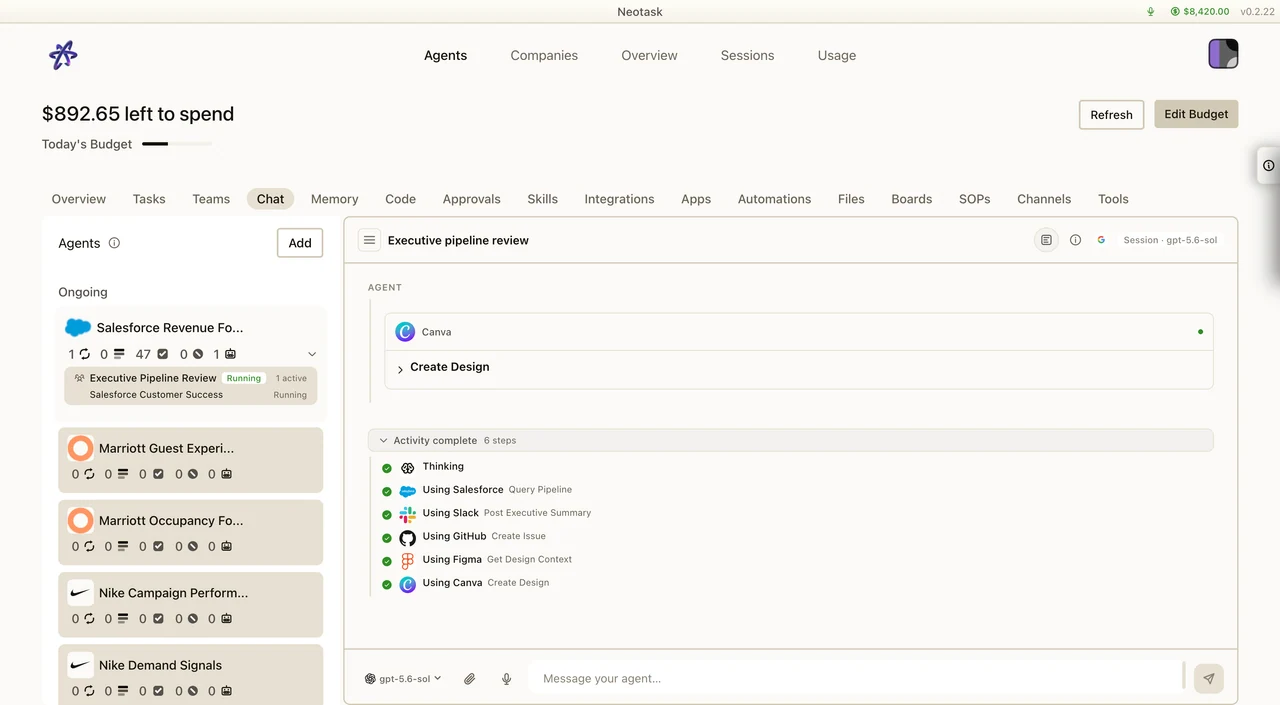
Start And Inspect Agent Work
- Open Agents.
- Select the agent you want to use.
- Open Chat and describe the result you need.
- Expand activity to see which apps and tools the agent used.
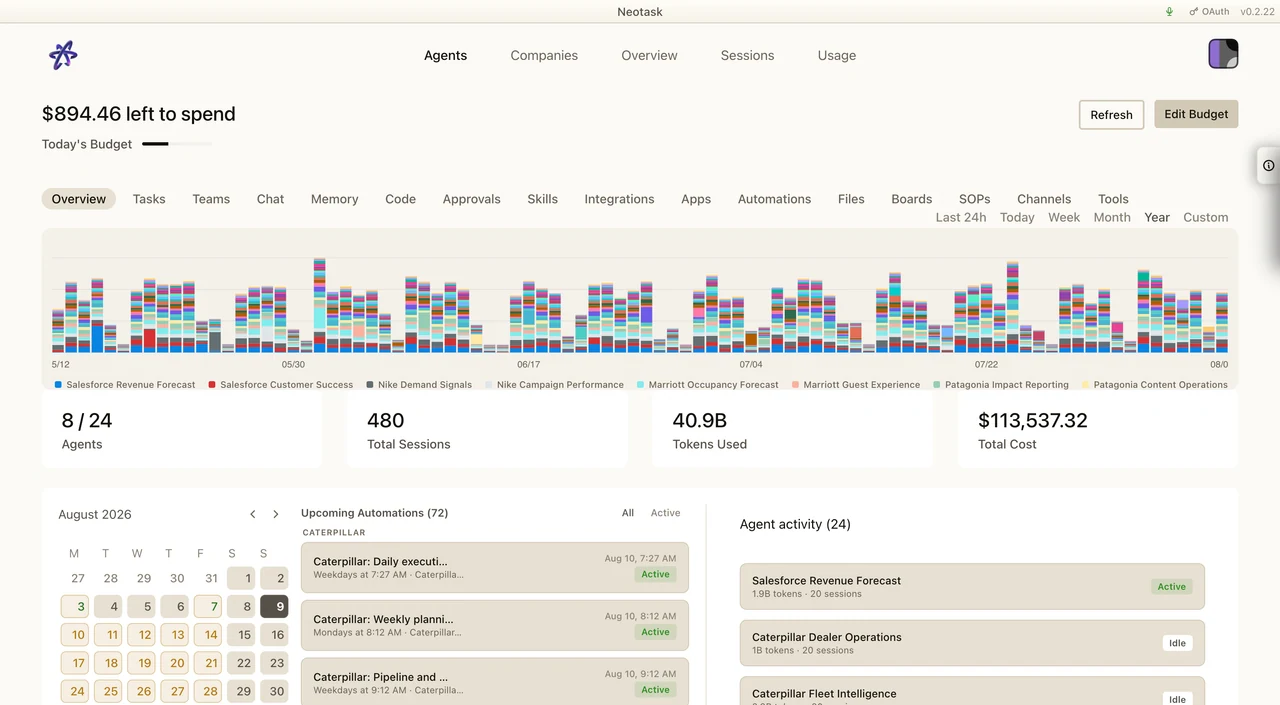
- Open Overview for scheduled work, session totals, and recent activity.
What Are Agents?
Agents are AI-powered assistants that can think, act, and communicate on your behalf. Unlike simple chatbots, Neotask agents are autonomous entities that reason through problems, execute tasks, and interact across multiple platforms.
Open Overview when you need scheduled work, session totals, and recent activity in one place.
Key characteristics of agents:
- Identity -- Each agent has a unique name, emoji, and personality that distinguishes it from others.
- Workspace -- Every agent operates within its own workspace, keeping files, sessions, and context separate.
- Skills -- Agents can be equipped with modular skills that extend their capabilities (see Skills).
- Channels -- Agents connect to communication platforms like Slack, Discord, and email to send and receive messages (see Channels).
- Independence -- Multiple agents can work independently on different tasks, or collaborate as a team to tackle complex workflows.
Agent Capacity by Plan
| Plan | Concurrent Agents |
|---|---|
| Free | Main chat agent only; custom agent creation is locked |
| Individual | Unlimited agents with full platform access |
| Business | Unlimited agents, plus company operations and employee seats |
| Enterprise | Unlimited agents with multi-company orchestration at scale |
On the Free plan, the main supported agent surface is interactive chat, boards, and coding workflows within the Free quota: first 10 messages/events, then 5 messages/events per user-local calendar day. Free users can connect apps and provider keys, but they cannot add custom agents or run autonomous company agents. On every paid plan, agent count is not capped: Individual gives one person the full platform, while Business and Enterprise add company operations and large-scale parallel orchestration, all coordinated through the platform's team orchestration engine. See Billing & Plans and Free Plan for details on how usage works.
Creating an Agent
Creating additional custom agents requires a paid plan. Free users can use the main chat agent, boards, and coding subpage, but the Create Agent flow is locked behind upgrade.
To create a new agent:
- Navigate to Agents in the dashboard.
- Click Create Agent.
- Provide the following:
- Name -- A descriptive name for the agent (e.g., "Support Bot", "DevOps Runner").
- Workspace -- Select an existing workspace or create a new one. The workspace determines where the agent stores files and maintains state.
- Emoji -- Choose an emoji to visually identify the agent across the dashboard.
Agent Templates
Neotask provides pre-configured templates to get you started quickly. Each template comes with recommended skills, model settings, and system prompts tailored to a specific use case:
| Template | Description |
|---|---|
| Assistant | General-purpose helper for everyday tasks, Q&A, and productivity |
| Developer | Code generation, debugging, repository management, and CI/CD workflows |
| Researcher | Deep research, summarization, and information gathering across the web |
| Social Media | Content creation, scheduling, and engagement across social platforms |
| Data Analyst | Data processing, visualization, and reporting |
| Home Automation | Smart home device control, routines, and monitoring |
| Voice Assistant | Speech-to-text and text-to-speech conversational workflows |
| Tutor | Educational content delivery, quizzes, and adaptive learning |
| Campaign Manager | Marketing campaign planning, execution, and analytics |
You can always customize a template after creation or start from scratch with a blank agent.
Agent Configuration
Model Override
By default, agents use the system-wide model configured in your Neotask settings. You can override this on a per-agent basis to assign a specific AI model.
- Open the agent's Settings tab.
- Under Model, select a provider and model from the dropdown.
- If set to System Default, the agent will follow whatever model is configured globally.
This is useful when certain agents need the highest reasoning tier (e.g., Claude Opus 4.7 or GPT-5.5 Pro for architecture tasks) while others can use a lower-cost frontier model such as Claude Sonnet 4.6 or GPT-5.4 for routine formatting and drafting.
Spend Limits
Control costs by setting a daily spending cap per agent.
- Navigate to the agent's Settings tab.
- Under Spend Limit, enter a maximum daily cost in USD.
- When the agent reaches its limit, it will stop making API calls for the remainder of the day.
- Spend limits reset at midnight UTC.
Auto-enforcement ensures that no single agent can run up unexpected costs, which is especially important when running hundreds of agents on Enterprise or when agents run autonomously on schedules.
Safe Mode
Safe mode runs the agent inside an isolated execution sandbox. When enabled:
- File system access is restricted to the agent's workspace directory.
- Network requests are limited to explicitly allowed domains.
- Shell commands execute in a contained environment.
- The agent cannot affect other agents or system-level resources.
Safe mode is recommended for agents that run untrusted code, interact with external APIs, or operate with minimal supervision.
Agent Sessions
Each agent maintains conversation sessions that track the full interaction history.
Session Types
| Type | Behavior |
|---|---|
| Main | A persistent session that carries forward across interactions. The agent remembers prior context and can reference earlier messages. |
| Isolated | A fresh session created each time. No prior context is retained. Useful for stateless tasks or when you want the agent to start clean. |
Chat History
Every session records a complete chat history with clearly labeled message roles:
- User -- Messages sent by you or received from a connected channel.
- Assistant -- Responses generated by the agent.
- System -- System-level instructions, prompts, or configuration messages.
- Tool -- Results returned from skill and tool executions.
Thinking Mode
Enable thinking mode to see the AI's internal reasoning process before it produces a response. This is helpful for:
- Debugging unexpected agent behavior.
- Understanding how the agent arrives at a decision.
- Auditing complex multi-step reasoning chains.
When thinking mode is active, the agent's reasoning steps appear in a collapsible section above each response.
Attachments
Agents can process attachments within a session:
- Images -- Screenshots, photos, diagrams. The agent can analyze and describe visual content.
- Files -- Documents, spreadsheets, PDFs. The agent can read, summarize, and extract data.
- Code -- Source files and snippets. The agent can review, edit, and execute code.
Boards & Live Artifacts
Agents also support Boards, which are live artifact pages built through chat and then saved as reusable dashboards.
Use an agent board when you want a custom operating surface tied to one agent’s own:
- workspace files
- memory
- MCP tools
- attached integrations
Boards are different from normal chat because the goal is not just to get one answer. The goal is to create a durable live page that you can reopen, refresh, publish, and activate live.
See Boards & Live Artifacts for the full guide.
Agent Tools
Agents come equipped with a set of built-in tools organized by category. These tools are always available and do not require installation.
File System
| Tool | Description |
|---|---|
| Read | Read the contents of a file from the agent's workspace |
| Write | Create or overwrite a file in the agent's workspace |
| Edit | Make targeted edits to an existing file using find-and-replace |
Execution
| Tool | Description |
|---|---|
| Shell Commands | Execute shell commands (bash, zsh, etc.) within the agent's environment |
| Process Management | Start, stop, and monitor running processes |
| Subprocess Agents | Spawn child agents to handle subtasks, enabling parallel and delegated workflows |
Web
| Tool | Description |
|---|---|
| Browser Automation | Control a headless browser to navigate pages, fill forms, click elements, and capture screenshots |
| HTTP Requests | Make HTTP/HTTPS requests to APIs and web services with full control over method, headers, and body |
Scheduling
| Tool | Description |
|---|---|
| Cron Jobs | Schedule recurring tasks using cron expressions (e.g., run a report every Monday at 9 AM) |
| Webhooks | Register webhook endpoints that trigger agent actions when called by external services |
Agent Models
Neotask supports multiple AI providers and models. You can assign any supported model to any agent.
Supported Providers and Models
Anthropic
| Model | Best For |
|---|---|
| Claude Opus 4.7 | Maximum reasoning depth for architecture, planning, and critical decisions |
| Claude Sonnet 4.6 | Frontier coding, analysis, documentation, and day-to-day agent work |
OpenAI
| Model | Best For |
|---|---|
| GPT-5.5 / GPT-5.5 Pro | Frontier reasoning, complex planning, and high-accuracy generation |
| GPT-5.4 | General frontier work across coding, analysis, and drafting |
| GPT-5.3 Codex | Coding-focused implementation and multi-file changes |
| Model | Best For |
|---|---|
| Gemini 3 Pro | Frontier long-context analysis when enabled for the workspace |
OpenRouter
| Model | Best For |
|---|---|
| Frontier model access | Workspace-approved frontier models routed through OpenRouter when configured |
Smart Task Routing
When an agent is configured to use smart routing, Neotask automatically selects the best frontier model for each task based on complexity and type. Routing no longer uses legacy light/medium models such as Claude Haiku, DeepSeek, GPT-4.1 Nano, or Gemini Flash Lite. The routing table below shows the current frontier-only assignments:
| Task Type | Model | Tier |
|---|---|---|
| Architecture and critical decisions | Claude Opus 4.7 or GPT-5.5 Pro | Frontier |
| Complex Coding | GPT-5.5, GPT-5.4, or GPT-5.3 Codex | Frontier |
| Complex Analysis | Claude Opus 4.7, Claude Sonnet 4.6, or GPT-5.5 | Frontier |
| Standard Coding | Claude Sonnet 4.6 or GPT-5.4 | Frontier |
| Code Review | Claude Sonnet 4.6, GPT-5.4, or GPT-5.3 Codex | Frontier |
| Testing | GPT-5.4 or Claude Sonnet 4.6 | Frontier |
| Research | Claude Opus 4.7, Claude Sonnet 4.6, or GPT-5.5 | Frontier |
| Documentation | Claude Sonnet 4.6 or GPT-5.4 | Frontier |
| Data Extraction | GPT-5.4 or Claude Sonnet 4.6 | Frontier |
| Formatting | GPT-5+ or Claude Sonnet 4.6, using the lightest approved frontier path | Frontier |
| Summarization | GPT-5+ or Claude Sonnet 4.6, using the lightest approved frontier path | Frontier |
| Simple Tasks | GPT-5+ or Claude Sonnet 4.6, using the lightest approved frontier path | Frontier |
| Boilerplate | GPT-5.3 Codex, GPT-5.4, or Claude Sonnet 4.6 | Frontier |
Tier definitions:
- Frontier -- Tasks run on the approved frontier pool only: Claude Sonnet 4.6 level and up, Claude Opus 4.7, GPT-5 level and up, and approved Codex GPT-5 variants.
- Cost control -- For simpler work, Neotask chooses the least expensive approved frontier route rather than falling back to non-frontier models.
Smart routing helps optimize your usage costs by matching the right frontier model to the right task automatically. This is especially valuable on Enterprise plans where hundreds of agents may be running concurrently.