Auto, Approvals & Safety
Approvals are the control layer that keeps a company useful without forcing every action to run unattended.
This guide explains the current approval experience from a user point of view.
What The Approvals Surface Does
The Approvals tab serves two jobs:
- it shows the items currently waiting on you
- it lets you decide how much future work should run automatically
That means the tab is both:
- an approval inbox
- a policy control surface
The Three Main Approval Modes
The company approval settings currently use three mode cards:
Fully Supervised
Use this when you want the most control.
This mode is best when:
- the company is new
- the plan is still changing often
- your team wants to review everything closely
Semi-Supervised
Use this when you want a mix of automation and manual review.
This mode is best when:
- the company is active but still needs oversight
- you want routine work to move faster
- you still want stricter control over more sensitive actions
Fully Autonomous
Use this when you want the least approval friction.
This mode is best when:
- the company is stable
- the plan is well-shaped
- the connected tools and routing are already trustworthy
- you are comfortable tightening or loosening specific app rules afterward
If you are unsure, start with Semi-Supervised and tighten from there.
What You Can Review In The Queue
The queue is where you review pending items that need an answer before the company can continue.
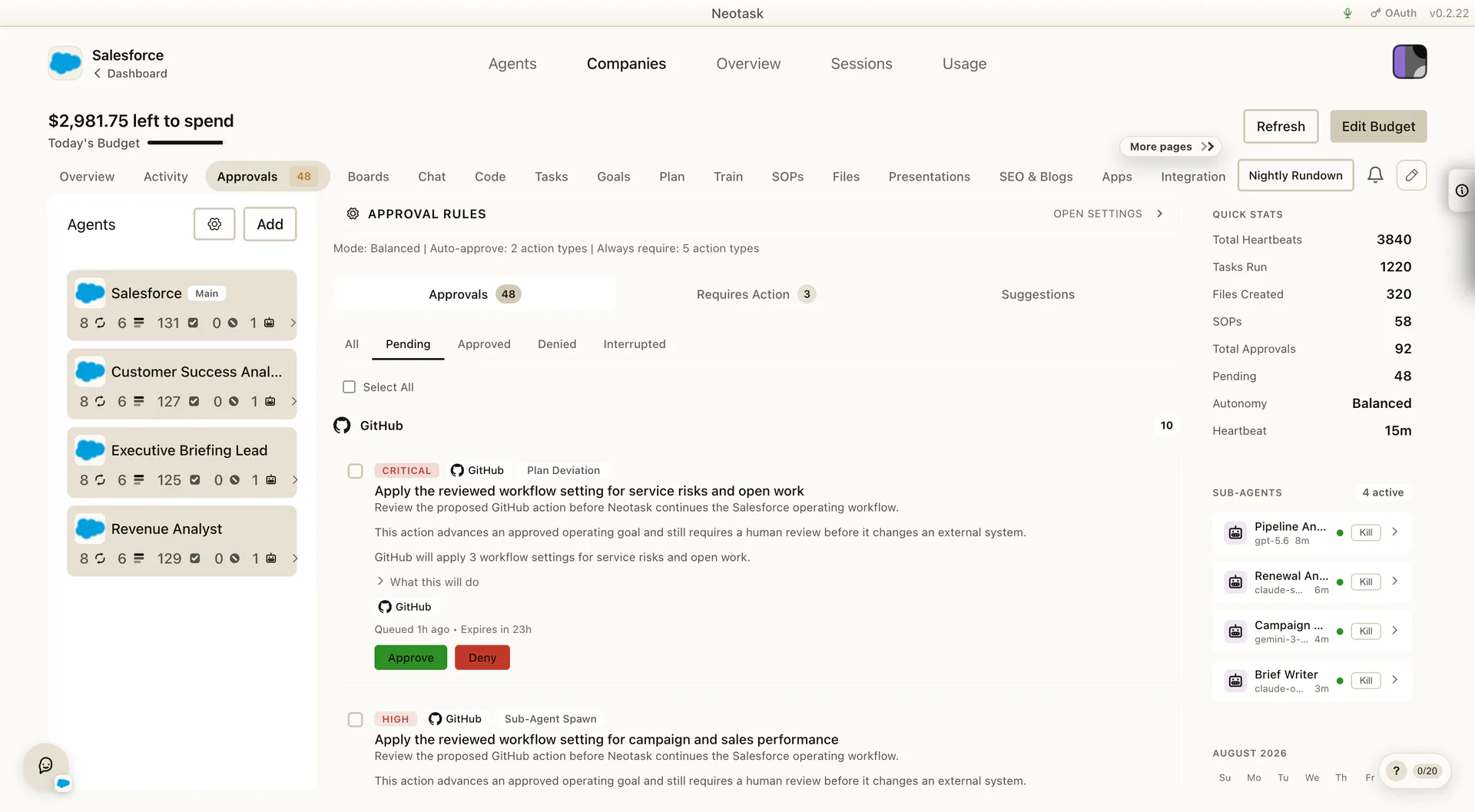
That normally includes:
- approval cards waiting for approve or deny
- higher-friction situations that need a more explicit response
- items tied to one company, not your whole workspace
If a company seems stuck, the Approvals tab is one of the first places to check.
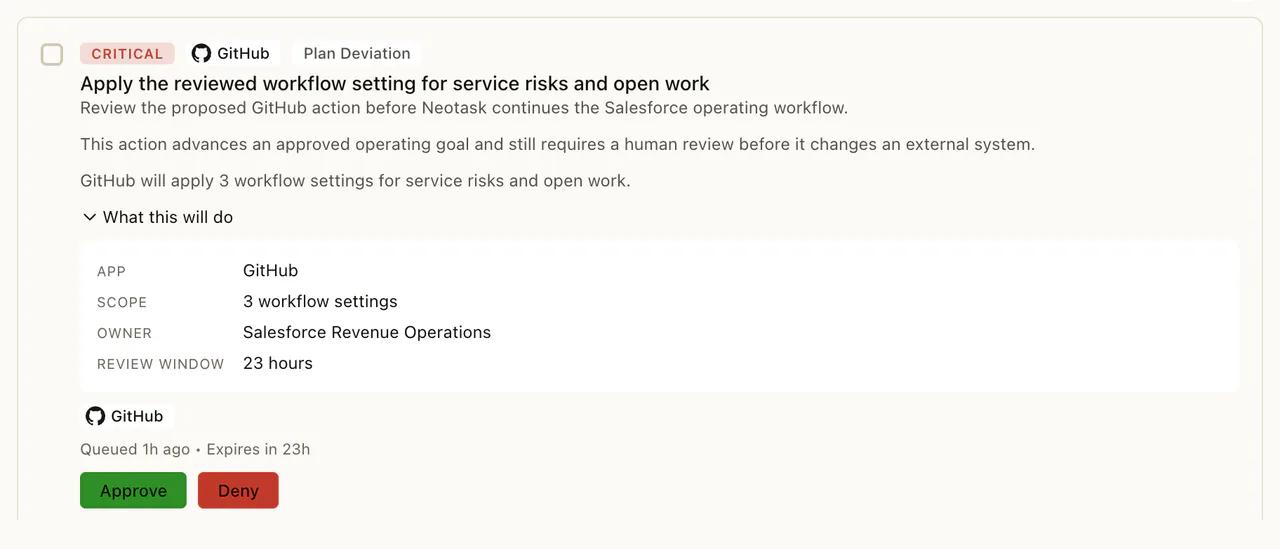
Open an item to read the requested action, the app it will use, the owner, and the review window before choosing Approve or Deny.
Per-App Rules
The current approval surface also supports per-app behavior, not just one company-wide mode.
That means you can keep the company in one overall mode, then make a specific app:
- follow the default
- auto-approve all
- require all
- use custom rules
This is useful when one company depends on a tool you trust for routine work, but you still want stricter handling everywhere else.
Action-Level Overrides
Inside expanded app rows, the current approval UI can go narrower than the whole app.
That lets you keep:
- one app mostly automatic
- but one action inside that app more strict
or the reverse:
- one app mostly strict
- but a few repetitive actions more automatic
If a company feels over-blocked or under-protected, this is usually where to refine it.
Where Approval Behavior Also Shows Up Elsewhere
Approval behavior is not limited to one tab.
You will also feel it in:
- the company controls rail, through the company autonomy mode
- task editing, where one task can carry stricter expectations than another
- training, where meaningful rehearsal checkpoints and preview approvals can still ask for guidance before a live task is trusted
- channel and employee routing, when the company needs a real person involved
- nightly review and follow-up flows, where unresolved items surface again
So the clean operating pattern is:
- use the controls rail to set the broad level
- use Approvals to tune the real rule behavior
When To Tighten The Company
Move toward Fully Supervised or stricter per-app rules when:
- the company is new
- sensitive actions are being prepared
- your routes or channels are not fully ready
- you are still validating the quality of the plan
When To Loosen The Company
Move toward Semi-Supervised or Fully Autonomous when:
- routine tasks are stable
- connected apps are correct
- employees and channels are set up
- the company is producing the outcomes you expect without frequent corrections
Best Practices
- Start new companies more conservatively than mature ones.
- Use per-app rules before flipping the whole company into the loosest mode.
- Re-check approvals after major plan edits, new channels, or new app connections.
- Treat Approvals, Tasks, Channels, and Employees as one operating system, not four unrelated tabs.
Training Preview Approvals
Training mode can still surface approval-style moments so you can verify how a task would behave before you trust it live.
That is useful when you want to rehearse:
- outbound outreach
- browser-based submission flows
- CRM updates
- channel delivery steps
- other sensitive actions that still need human judgment
The important difference is that training is for rehearsal and guidance. Use it to shape the task’s behavior before loosening live approval rules.